In this article, you learn how to integrate Simployer One with Microsoft Entra ID. With this integration, you can:
- Control in Microsoft Entra ID who has access to Simployer One.
- Enable your users to be automatically signed-in to Simployer One with their Microsoft Entra accounts.
- Manage your accounts in one central location.
The setup is fully self-served - you don't need to contact the support team.
Prerequisites
The scenario outlined in this article assumes that you already have the following prerequisites:
- A Microsoft Entra ID tenant with an active subscription
- An Entra ID user account with one of these roles: Global Administrator, Cloud Application Administrator, Application Administrator
- Simployer One single sign-on (SSO) enabled subscription
- An Simployer One account with Owner permission set
Scenario description
In this article, you configure and test Microsoft Entra SSO in a test environment.
- Simployer One supports IDP initiated SSO.
Add AlexisHR from the gallery
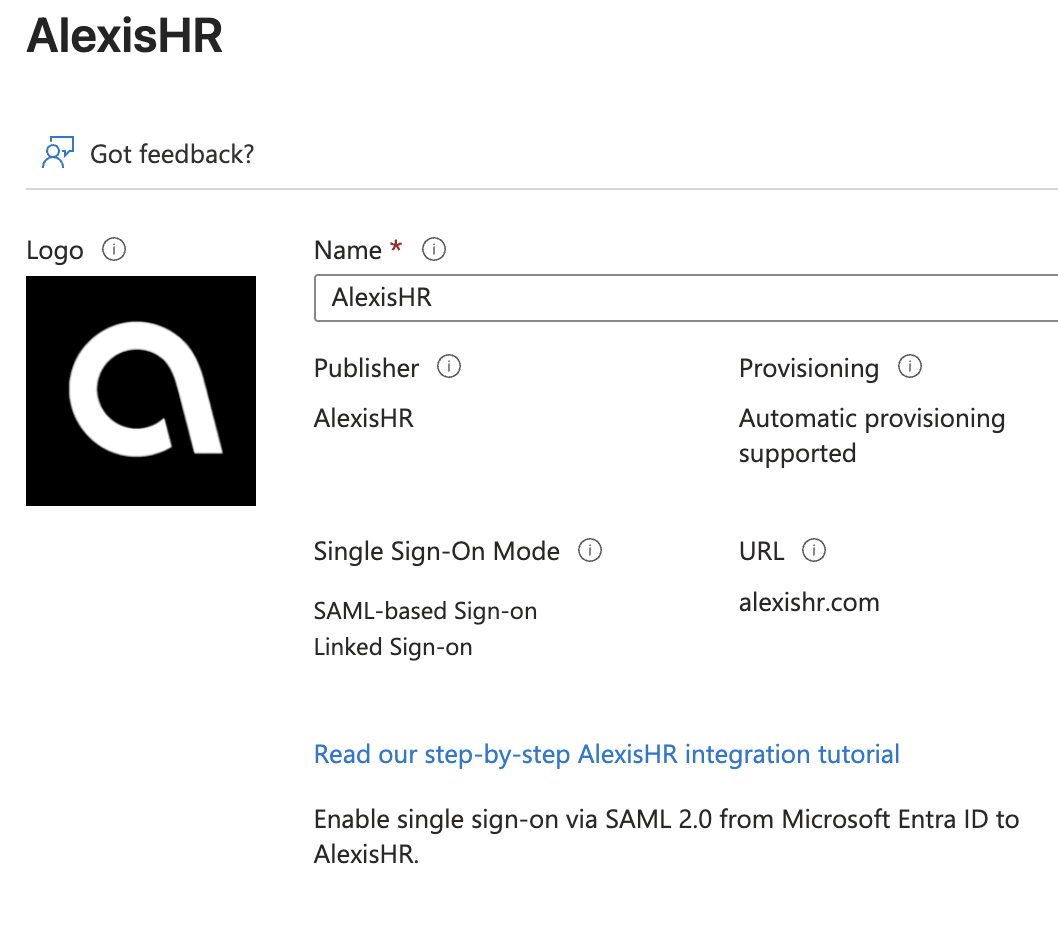
To configure the integration of Simployer One into Microsoft Entra ID, you need to add AlexisHR (by Simployer) app from the gallery to your list of managed SaaS apps.
- Sign in to the Microsoft Entra admin center as at least a Cloud Application Administrator.
- Browse to Entra ID > Enterprise apps > New application.
- In the Add from the gallery section, type AlexisHR in the search box.
- Select AlexisHR(by Simployer) from the results panel and then add the app. Wait a few seconds while the app is added to your tenant.
Alternatively, you can also use the Enterprise App Configuration Wizard. In this wizard, you can add an application to your tenant, add users/groups to the app, assign roles, and walk through the SSO configuration as well. Learn more about Microsoft 365 wizards.
Configure and test Microsoft Entra SSO for Simployer One
Configure and test Microsoft Entra SSO with Simployer One using a test user called B.Simon. For SSO to work, you need to establish a link relationship between a Microsoft Entra user and the related user in Simployer One.
To configure and test Microsoft Entra SSO with Simployer One, perform the following steps:
- Configure Microsoft Entra SSO - to enable your users to use this feature.
- Create a Microsoft Entra test user - to test Microsoft Entra single sign-on with B.Simon.
- Assign the Microsoft Entra test user - to enable B.Simon to use Microsoft Entra single sign-on.
- Configure Simployer SSO - to configure the single sign-on settings on the application side.
- Prepare a test user in Simployer One - to identify an existing Simployer One user for testing single sign-on.
- Test SSO - to verify whether the configuration works.
Configure Microsoft Entra SSO
Follow these steps to enable Microsoft Entra SSO.
- Sign in to the Microsoft Entra admin center as at least a Cloud Application Administrator.
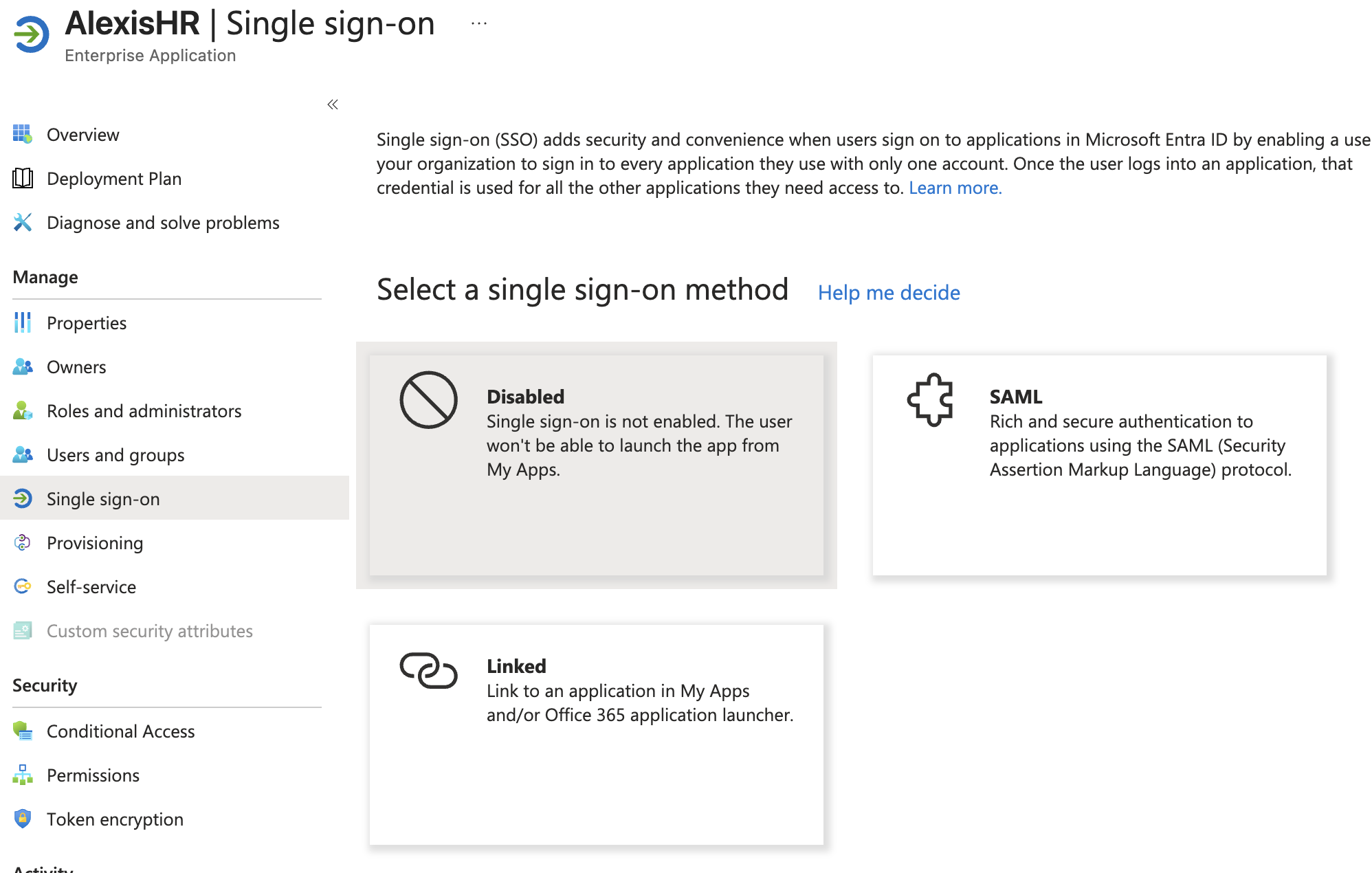
- Browse to Entra ID > Enterprise apps > AlexisHR > Single sign-on.
- On the Select a single sign-on method page, select SAML.
- On the Set up single sign-on with SAML page, select the pencil icon for Basic SAML Configurationto edit the settings.
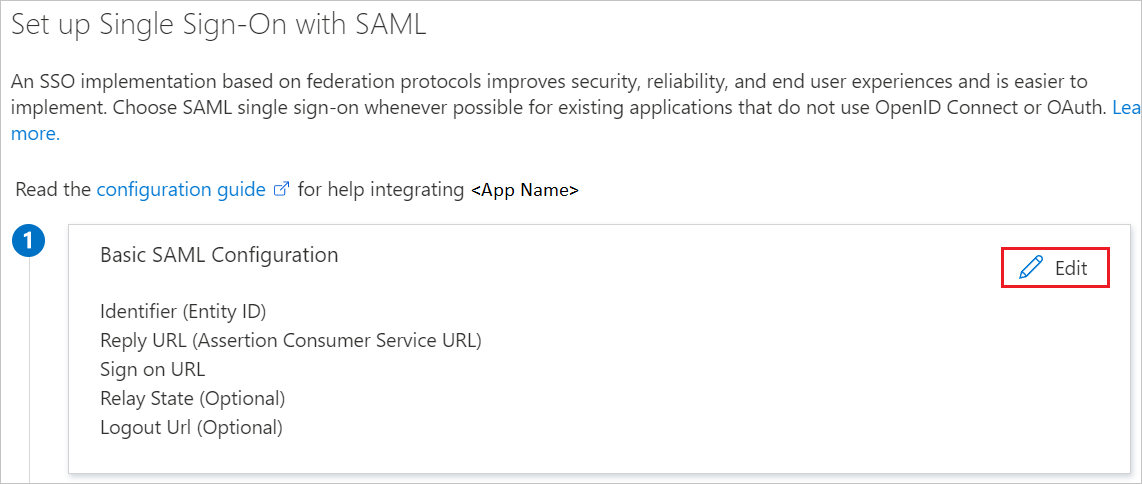
- On the Basic SAML Configuration section, perform the following steps:
- In the Identifier text box, type a value using the following pattern:
urn:auth0:alexishr:<YOUR_CONNECTION_NAME> - In the Reply URL text box, type a URL using the following pattern:
https://auth.alexishr.com/login/callback?connection=<YOUR_CONNECTION_NAME>Note: These aren't the final values. Enter them first using the patterns above, replacing <YOUR_CONNECTION_NAME> with a temprary value (for example, your company name), and save — Entra ID requires these values before enabling the Certificate (Base64) download. The actual values are generated in later steps, when you create the identity provider in Simployer One.
- In the Identifier text box, type a value using the following pattern:
- AlexisHR (by Simployer) application expects the SAML assertions in a specific format, which requires you to add custom attribute mappings to your SAML token attributes configuration. The following screenshot shows the list of default attributes.
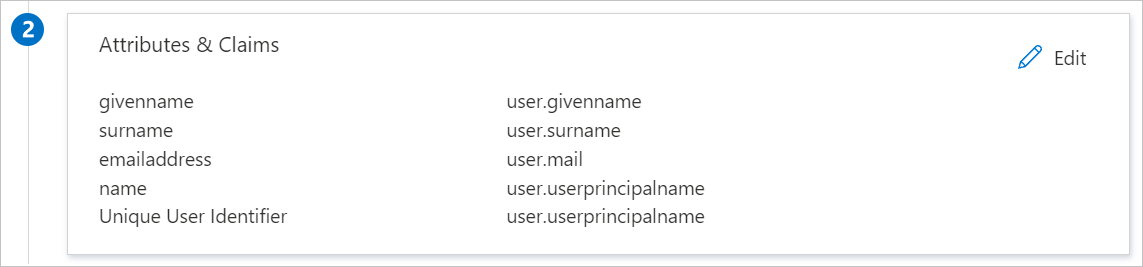
- In addition to above, AlexisHR (by Simployer) application expects few more attributes to be passed back in SAML response, which are shown below. These attributes are also pre-populated, but you can review them as per your requirements.
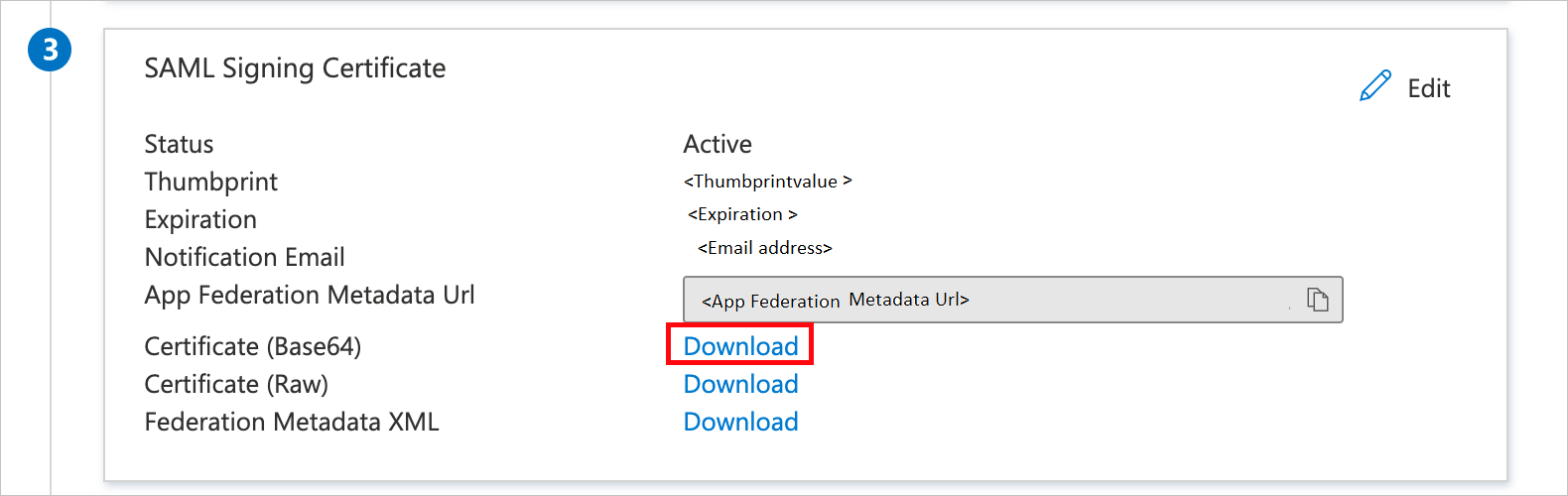
Name Source Attribute email user.mail - On the Set up single sign-on with SAML page, in the SAML Signing Certificate section, find Certificate (Base64) and select Download to download the certificate and save it on your computer.
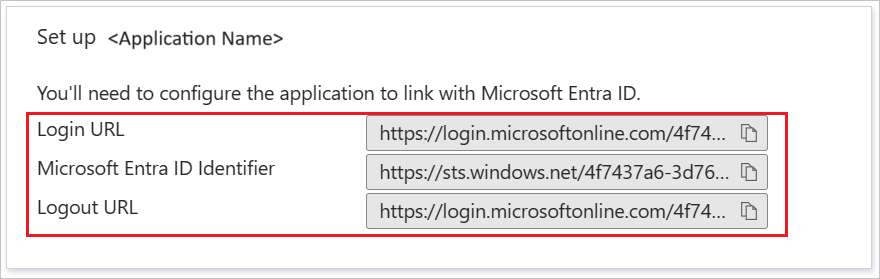
- On the Set up Simployer One section, copy the appropriate URL(s) based on your requirement.
Create and assign a Microsoft Entra test user
Follow the guidelines in the create and assign a user account quickstart to create a test user account called B.Simon.
Configure Simployer One SSO
- Log in to your Simployer One company site as an administrator.
- Go to Settings > SAML Single sign-on and select New identity provider.
- In the New identity provider section, perform the following steps:
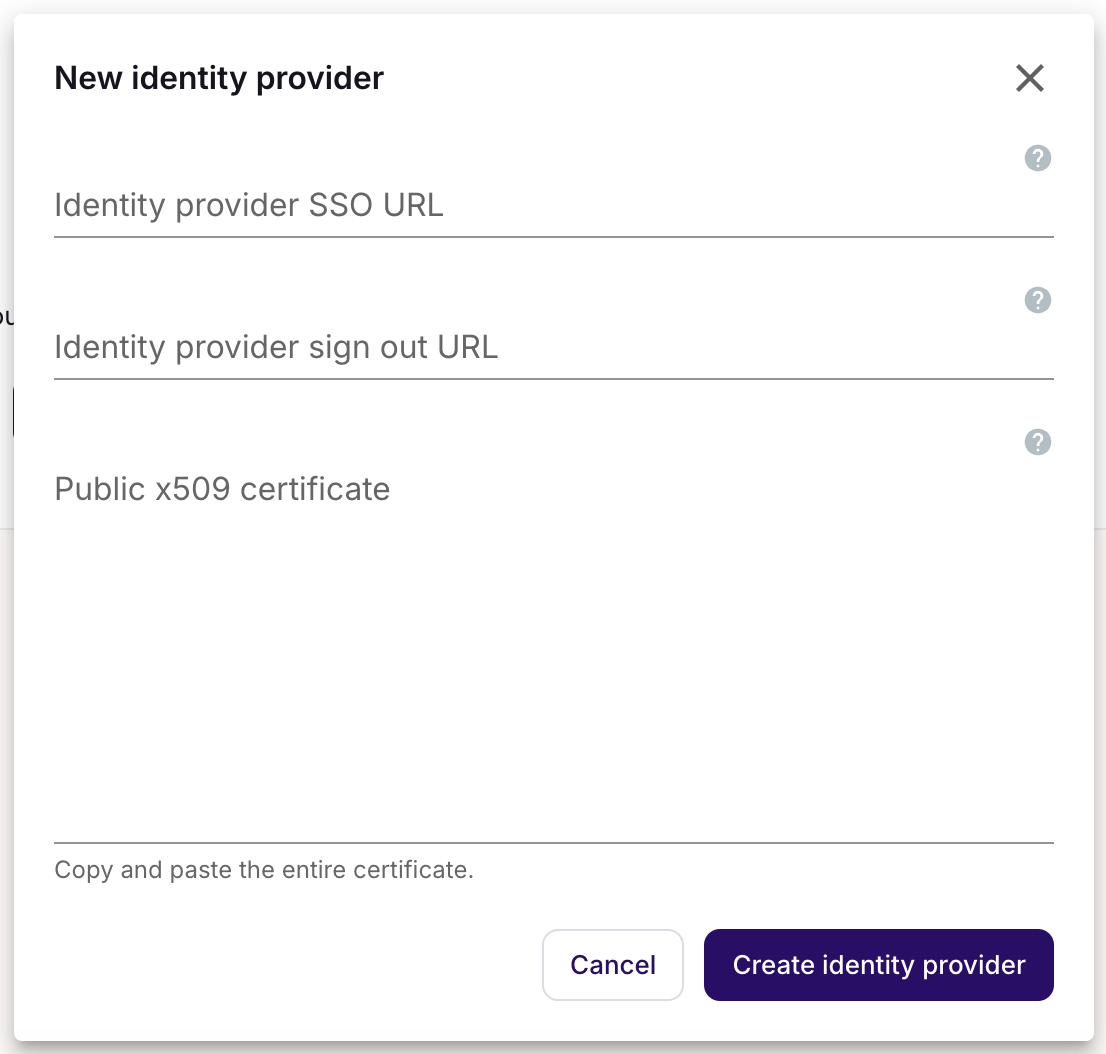
- In the Identity provider SSO URL textbox, paste the Login URL value which you copied previously.
- In the Identity provider sign out URL textbox, paste the Logout URL value which you copied previously.
- Open the downloaded Certificate (Base64) into Notepad and paste the content into the Public x509 certificate textbox.
- After creating identity provider, you receive the following information:
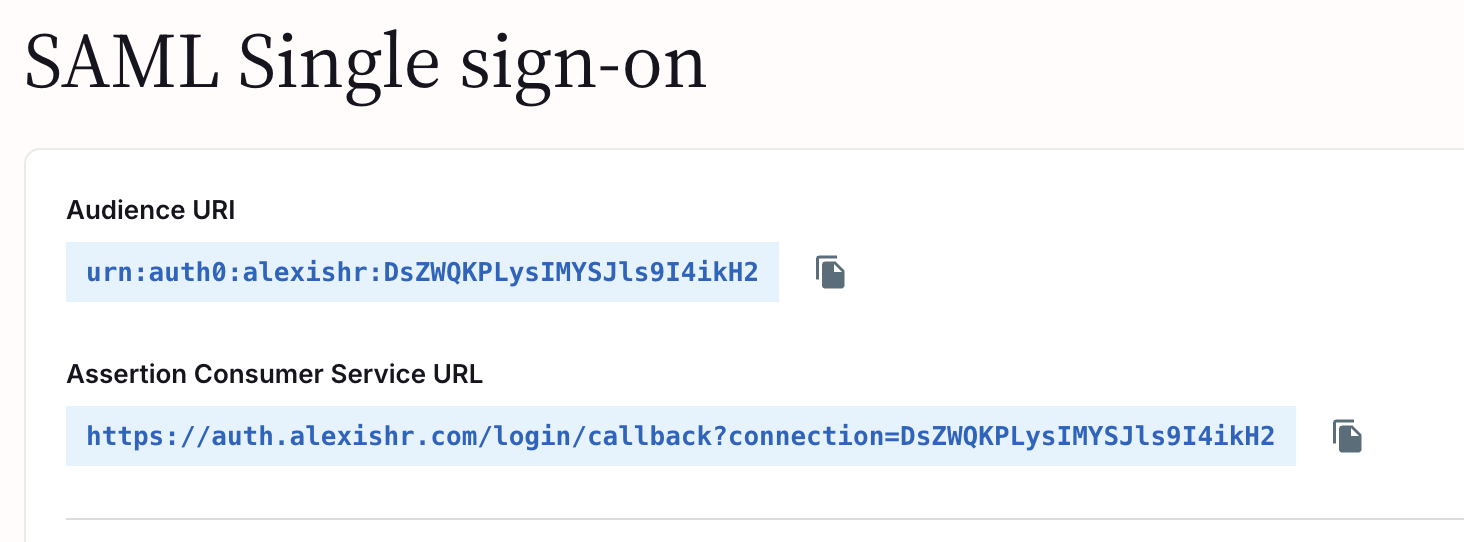
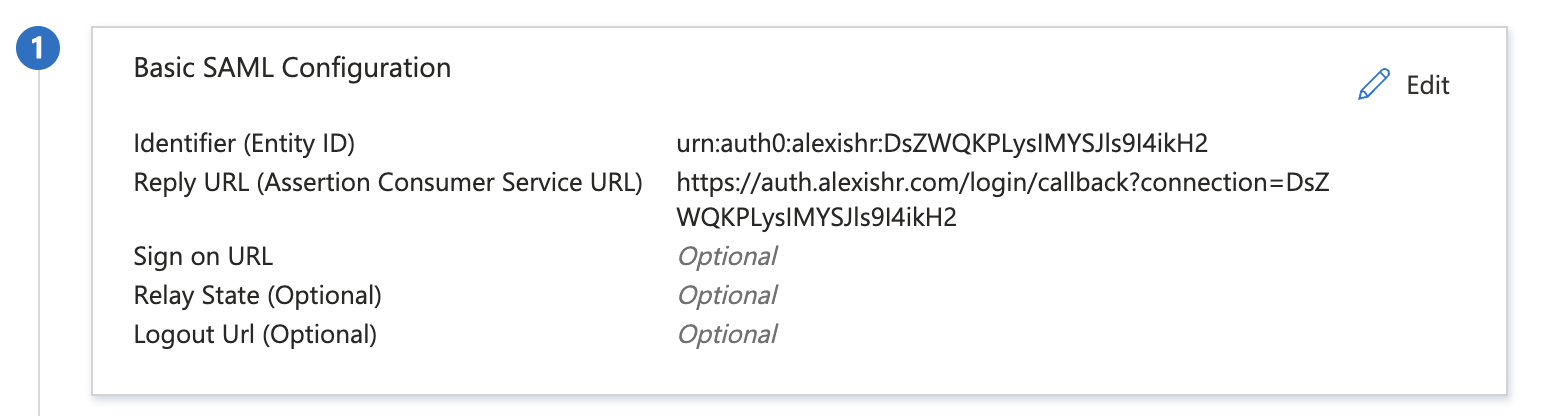
- Copy the Audience URI value and paste it into the Identifier text box in the Basic SAML Configuration section.
- Copy the Assertion Consumer Service URL value and paste it into the Reply URL text box in the Basic SAML Configuration section.
- Then, Save the Basic SAML Configurationchanges in Entra ID.
Prepare a test user in Simployer One
To test single sign-on, use an existing Simployer One account that is already active and has an email address matching a user in your Microsoft Entra ID tenant. You do not need to create a new user — any active Simployer One account is sufficient.
Note
If you are setting up this integration as an external IT administrator and do not have an Simployer One account with the correct domain, ask the Simployer One account owner to perform the SSO test on your behalf.
Test SSO
In this section, you test your Microsoft Entra single sign-on configuration with the following options.
- Select Test this application, and you should be automatically signed in to the Simployer One for which you set up the SSO.
- You can use Microsoft My Apps. When you select the AlexisHR (by Simployer) tile in the My Apps, you should be automatically signed in to the Simployer One for which you set up the SSO. For more information, see Microsoft Entra My Apps.
Related content
Once you configure Simployer One you can enforce session control, which protects exfiltration and infiltration of your organization’s sensitive data in real time. Session control extends from Conditional Access. Learn how to enforce session control with Microsoft Defender for Cloud Apps.
Var denne artikkelen nyttig?
Så bra!
Takk for din tilbakemelding
Beklager at vi ikke kunne være mer til hjelp
Takk for din tilbakemelding
Tilbakemeldingen er sendt inn
Vi setter pris på tilbakemeldingen din og vil prøve å rette på artikkelen