Domänverifiering för Single Sign-On (SSO)
Den här guiden beskriver hur du verifierar företagets domän för SAML Single Sign-On (SSO). Domänverifiering säkerställer att endast användare från den verifierade domänen kan logga in och ger en säker samt varumärkesanpassad autentiseringsupplevelse.
Innan du börjar
Säkerställ att följande krav är uppfyllda innan du startar verifieringen:
✅ Domänägarskap – Du måste äga eller administrera den domän som ska verifieras.
✅ DNS-åtkomst – Du behöver administratörsbehörighet till domänens DNS-inställningar för att lägga till verifieringsposten.
Bra att veta
Det räcker inte att bara lägga till en domän – domänen måste verifieras för att aktiveras och kopplas korrekt till SSO.
Verifieringskoder är konfidentiella och ska aldrig delas offentligt eller med obehöriga.
En domän kan endast verifieras för en organisation, vilket säkerställer tydligt ägarskap. En organisation kan dock lägga till flera domäner.
Steg för att verifiera din domän
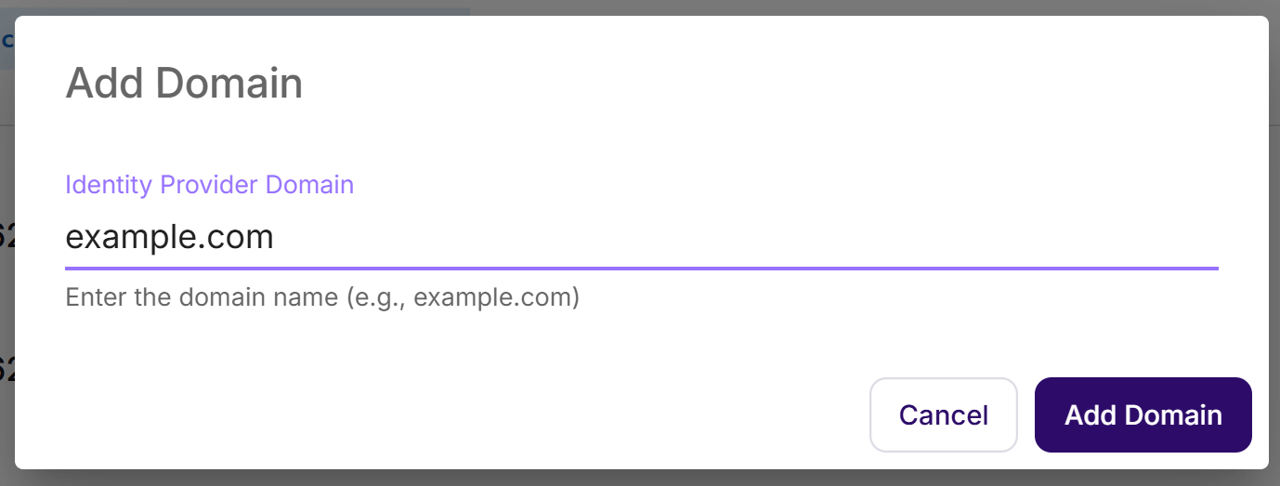
Steg 1: Lägg till din domän
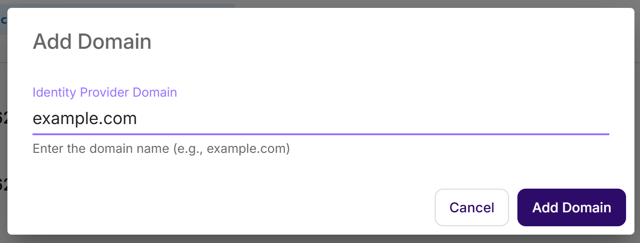
Klicka på Lägg till domän.
Ange domännamnet (t.ex. example.com).
Klicka på Lägg till domän för att bekräfta.


Steg 2: Hämta din verifieringskod
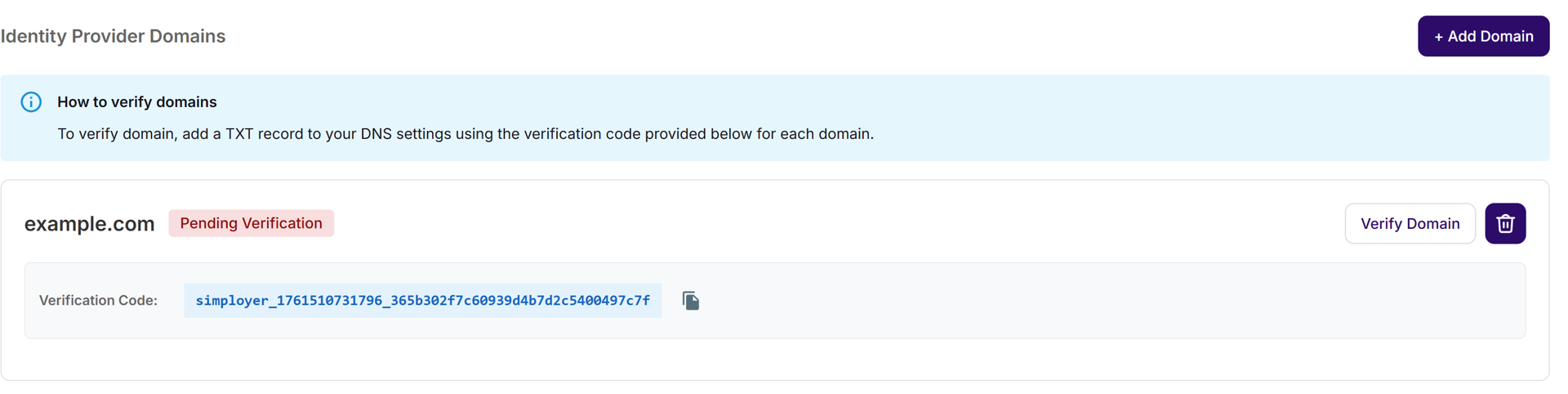
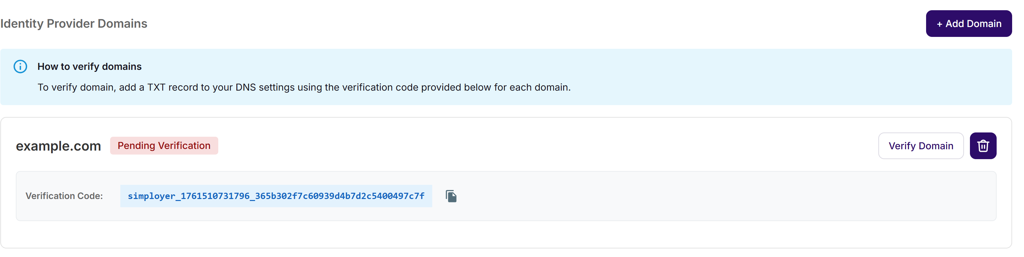
En unik verifieringskod visas under ditt domännamn.
Exempel:simployer_1761508175766_228b37a2f19320e9583fd44a917d24c4
Koden används för att verifiera ägarskapet av domänen via en DNS TXT-post.
Steg 3: Lägg till TXT-post i DNS
Kopiera verifieringskoden.
Logga in hos din domänregistrator (t.ex. GoDaddy, Cloudflare eller Google Domains).
Gå till DNS-hantering och lägg till en TXT-post med följande inställningar:
Typ: TXT
Namn/Värd: @ eller lämna fältet tomt
Värde: Klistra in verifieringskoden
TTL: Standard (t.ex. 3600 sekunder)
Spara posten.
⏳ Obs:
DNS-ändringar kan ta upp till 24 timmar att spridas globalt.
Vanligtvis slutförs verifieringen inom 1–4 timmar. Om status fortfarande är väntande, vänta några timmar och försök igen.
Steg 4: Verifiera din domän
Gå tillbaka till avsnittet Identity Provider Domains.
Klicka på Verifiera domän bredvid den domän du har lagt till.
Systemet kontrollerar automatiskt DNS-posten.


Status | Meaning |
|---|---|
✅ Verified | Domain successfully verified and ready for SSO |
⏳ Pending Verification | DNS changes still propagating |
Felsökning
Om domänverifieringen misslyckas eller förblir i status ”Väntande”, kontrollera följande:
1. Kontrollera TXT-posten
Säkerställ att posttypen är TXT, inte CNAME eller annan typ.
Bekräfta att värdet exakt matchar verifieringskoden – inga extra mellanslag eller tecken.
Fältet Namn/Värd ska vara @ eller lämnas tomt (beroende på DNS-leverantör).
2. Verifiera DNS-propagation
DNS-ändringar kan ta upp till 24 timmar att spridas globalt.
Kontrollera posten med verktyg som DNS Checker eller via dig/nslookup.
Exempel:
nslookup -type=TXT example.comOm TXT-posten ännu inte syns, vänta några timmar och försök igen.
3. Försök verifiera igen
När TXT-posten finns och är korrekt, gå tillbaka till sidan Identity Provider Domains och klicka på Verifiera domän igen.
Det är säkert att försöka flera gånger – inga dubbletter skapas.
4. Fungerar det fortfarande inte?
Om verifieringen fortsätter att misslyckas:
Ta bort domänen och lägg till den igen för att generera en ny verifieringskod.
Kontakta IT- eller DNS-ansvarig för att säkerställa att posten är korrekt publicerad.
Om problemet kvarstår, kontakta support och inkludera verifieringskoden samt DNS-detaljer.
Var artikeln till hjälp?
Toppen!
Tack för din feedback
Vi beklagar att det inte var till hjälp
Tack för din feedback
Feddback skickat
Vi uppskattar din feedback och uppdaterar artikeln vid behov