Domain Verification for Single Sign-On (SSO)
This guide walks you through verifying your company’s domain for SAML Single Sign-On (SSO). Domain verification ensures that only users from your verified domain can log in, providing a secure and branded authentication experience.
Before You Begin
Before starting the domain verification process, ensure you have the following prerequisites:
- ✅ Domain Ownership – You must own or manage the domain you intend to verify.
- ✅ DNS Access – You need administrative access to your domain’s DNS settings to add the verification record.
Good to know
- Adding a domain alone is not sufficient — the domain must be verified to enable and associate it properly for SSO.
- Verification codes are confidential and should never be shared publicly or with untrusted parties.
- A domain can only be verified for one organization, ensuring that ownership is clearly associated with a single organization. But for an organization multiple domains can be added.
Steps to verify your domain:
Step 1: Add Your Domain
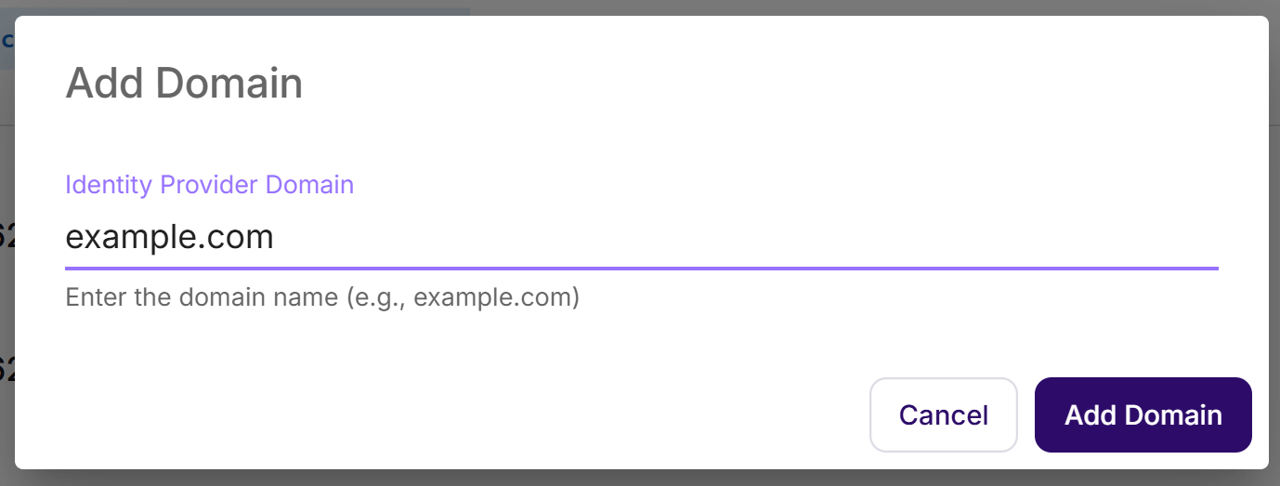
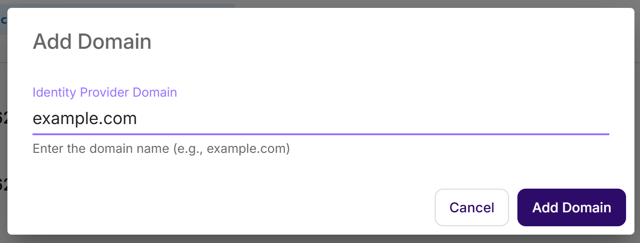
- Click Add Domain.
- Enter your domain name (e.g.: example.com).
- Click Add Domain to confirm.


Step 2: Get Your Verification Code
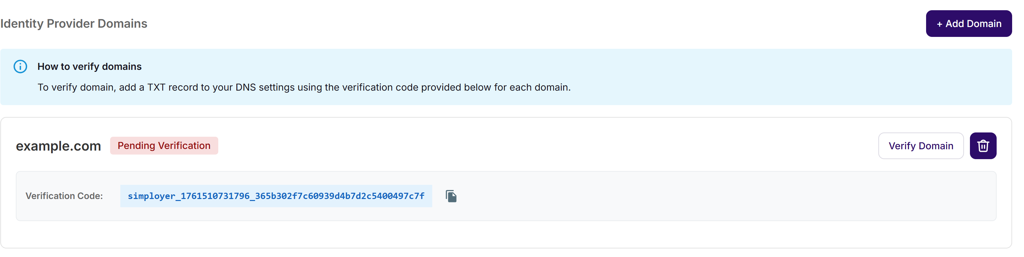
- A unique verification code will appear below your domain name.
- Example: simployer_1761508175766_228b37a2f19320e9583fd44a917d24c4
This code will be used to verify domain ownership via a DNS TXT record.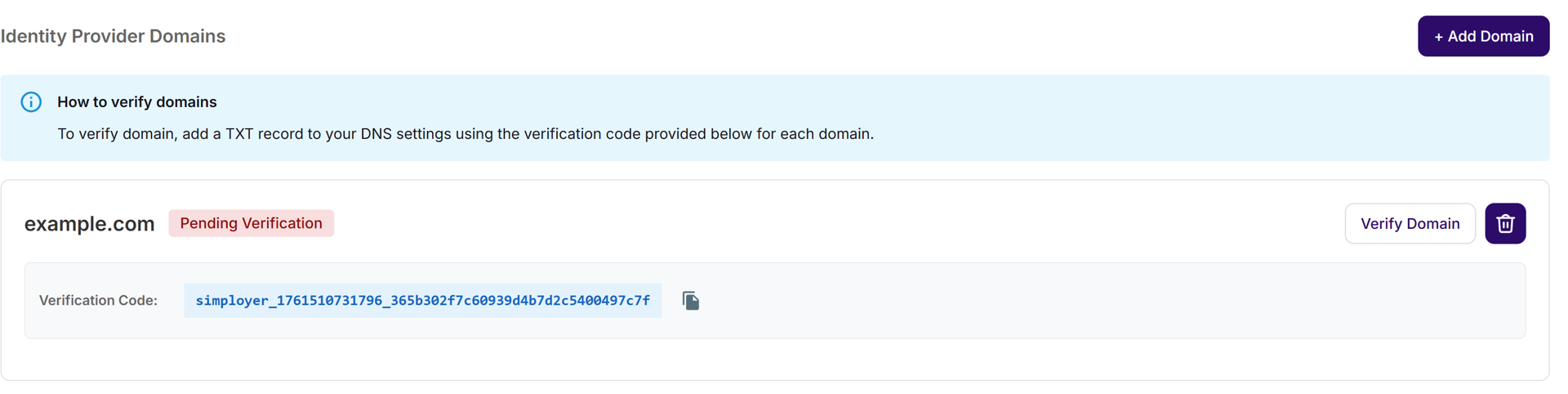
Step 3: Add the TXT Record to Your DNS
- Copy the verification code.
- Log in to your domain registrar (e.g., GoDaddy, Cloudflare, Google Domains).
- Go to DNS Management and add a TXT record:
- Type: TXT
- Name/Host: @ or leave empty
- Value: Paste your verification code
- TTL: Default (e.g., 3600 seconds)
- Save the record.
⏳ Note: DNS changes can take up to 24 hours to propagate globally.
Usually, verification is complete within 1–4 hours, but if it’s still pending, wait a few hours and try again.
Step 4: Verify Your Domain
- Go back to the Identity Provider Domains section.
- Click Verify Domain next to your added domain.
- The system will automatically check your DNS record.


Status | Meaning |
|---|---|
✅ Verified | Domain successfully verified and ready for SSO |
⏳ Pending Verification | DNS changes still propagating |
Troubleshooting
If your domain verification fails or remains in “Pending” status, try the following checks:
1. Check Your TXT Record
- Ensure the record type is TXT, not CNAME or another type.
- Confirm the value exactly matches your verification code — no extra spaces or characters.
- The Host/Name field should be @ or blank (depending on your DNS provider).
2. Verify DNS Propagation
- DNS changes can take up to 24 hours to propagate globally.
- Check your record using online tools like DNS Checker or dig/nslookup.
Example:nslookup -type=TXT example.com - If you don’t see your TXT record yet, wait a few hours and try again.
3. Reattempt Verification
- After confirming the TXT record exists and is correct, return to the Identity Provider Domains page and click Verify Domain again.
- You can safely retry verification — it won’t create duplicates.
4. Still Not Working?
If verification continues to fail:
- Delete and re-add the domain to generate a new verification code.
- Contact your IT or DNS administrator to confirm the record is published correctly.
- If the issue persists, reach out to your support team with the verification code and DNS details.
Was this article helpful?
That’s Great!
Thank you for your feedback
Sorry! We couldn't be helpful
Thank you for your feedback
Feedback sent
We appreciate your effort and will try to fix the article