You can now create, rename, delete and reorder topics from a dedicated Topics tab in Content Management — and reorder the articles within each topic from the same place.
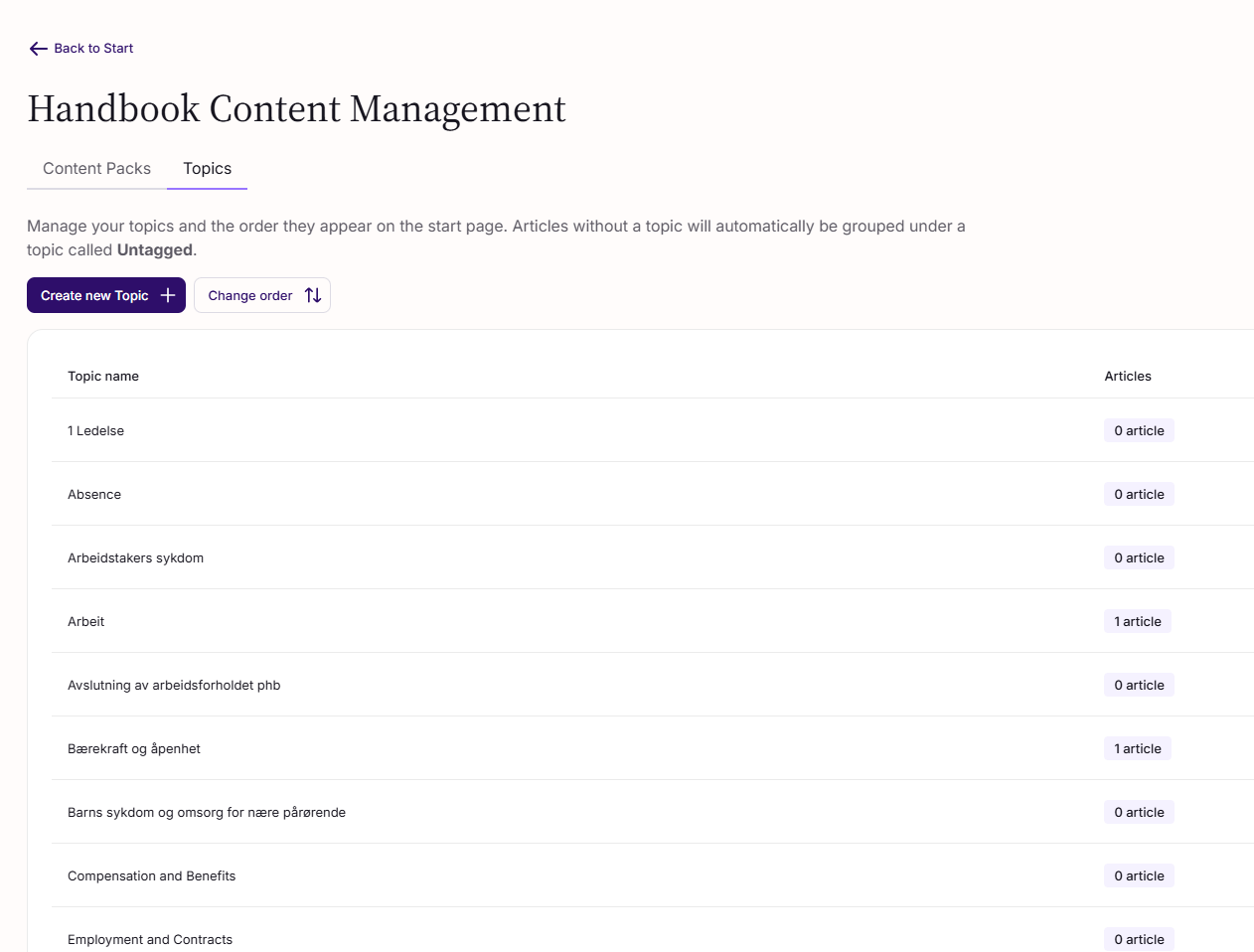
Where to find it
Go to Handbooks in the main menu. Then open Content Management. You'll see two tabs at the top: Content Packs and Topics. Switch to Topics to manage your handbook's topics.
What you can do
- See all topics for your tenant in one table, with the article count on each topic.
- Create a new topic with the Create new Topic button. Enter a name and confirm — the topic appears immediately.
- Rename a topic from the row's edit action. (Only available on custom created topics, not default topics)
- Delete a topic from the row's delete action. You'll be asked to confirm before the topic is removed. (Only available on custom created topics, not default topics)
- Reorder topics by clicking on Change order, then drag and drop the rows in the table. The new order is saved automatically.
- Reorder articles inside a topic by clicking a topic row to open the Articles in Topic view, then click on Change order and drag the articles into the order you want. The new order is saved automatically. Use the back button to return to the Topics table.
Who can use this
The Topics tab and all create / rename / delete / reorder actions are available to customer admins and template admins. Readers don't see the tab.
What changed
- Topic reordering moved. Topic reordering used to be on the Handbook start page. It's now only in the Topics tab.
- Article-within-topic reordering moved. This used to be in the old TopicNav location. It's now only in the Articles in Topic view inside the Topics tab.
If you've bookmarked or trained admins on the old reordering locations, point them to the new Topics tab.
Was this article helpful?
That’s Great!
Thank you for your feedback
Sorry! We couldn't be helpful
Thank you for your feedback
Feedback sent
We appreciate your effort and will try to fix the article