To reverse an approved travel claim or expense report, search for the employee's profile and navigate to Travel & Expenses. Then select either Travel or Expenses, depending on what you want to reverse.
Change the status to Approved and select the travel claim or expense report you want to reverse. This will activate the options at the bottom of the page, allowing you to reverse the selected item.
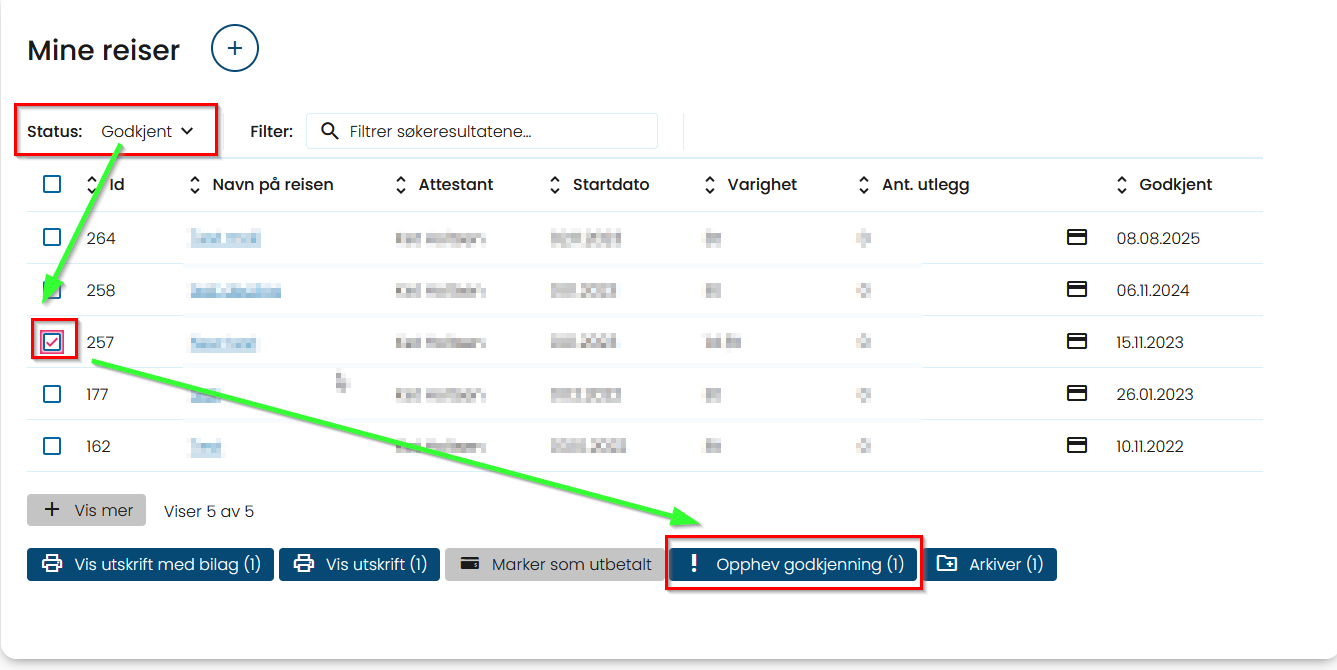
The travel claim or expense report will then return to the Started status. The employee can now make any necessary changes and resubmit it for approval, or you can delete it if that is the purpose of reversing the approval.
One situation you may encounter is if you have already created export files in Simployer and the travel claim or expense report is included in one of those files. In that case, you must first delete the export file before reversing the approval. Once this is done, you can generate a new export file containing the relevant travel claims or expense reports, ensuring they are removed from the list of new, unexported items.
Was this article helpful?
That’s Great!
Thank you for your feedback
Sorry! We couldn't be helpful
Thank you for your feedback
Feedback sent
We appreciate your effort and will try to fix the article