>>>Submitted by: Carsten Gondorf
Overview
Simployer One can import employee data from Visma.net (inbound). The employee import retrieves employee information from Visma.net and brings it into Simployer One, so you can create or update employee records based on data already maintained in Visma.net. It covers personal data, employment data, and compensation data.
The import is manual, not scheduled. It is intended for getting your existing Visma.net workforce into Simployer One when you first set up, so onboarding starts with correctly mapped data instead of manual re-entry. Before anything is written, the admin previews the field-level differences and confirms.
What this article covers
| 1. How It Works Import flow explained | 2. Prerequisites What you need first | 3. What Gets Imported Fields and matching |
| 4. Run an Import Step-by-step | 5. Import Results Tabs, statuses, results | 6. Key Rules Matching, limits, timing |
How It Works
This is an inbound integration: employee data flows from Visma.net into Simployer One. Employees are matched between the two systems using their employee number. The import reads employees and their positions from Visma.net, compares them with Simployer One, and shows a preview of what will be created or updated. Nothing changes in Simployer One until you confirm.
The import never deletes employees in Simployer One, and absence data is not part of the employee import.
Inbound Employee Flow
| Visma.net employees with positions | → | Import Preview review changes, then confirm | → | Simployer One employee records |
For each matched employee, the values from Visma.net update the corresponding fields in Simployer One. Employees that exist only in Simployer One are left untouched.
Prerequisites
| ✓ | Employee import enabled for your company. The feature is turned on per company. If you do not see Employee import under Settings > Export/Import, contact Simployer to have it enabled |
| ✓ | The initial Visma.net integration setup completed, including the general setup guide and approval in the Visma App Store |
| ✓ | Admin/Owner access to Simployer One (to run imports) |
| ✓ | Employee numbers aligned. The employee number must match between Simployer One and Visma.net for the same person, and be unique within the import scope. If they differ, align them before importing |
| ✓ | Complete employee records in Visma.net. Review records before importing so required data is present |
| ✓ | Supported position setups. Draft employees and employees with more than one position or an unsupported position type are blocked from import (see Import Results) |
What Gets Imported
Employees are matched on their employee number. The import covers personal, employment, and compensation data:
Personal First and last name, birth date, social security number / identification number, address, work email, work phone | Employment Employee number, employment start and end date, employment rate, employment type | Compensation Bank account details, salary information, payout period, effective salary date |
Run an Import
Imports are run manually and always start with a preview, so you can review before anything is written. Find it in Simployer One under Settings > Export/Import > Employee import.
1 | Open Employee import Go to Settings > Export/Import > Employee import. Until you select an integration and preview, the tabs show zero and the page prompts you to start. 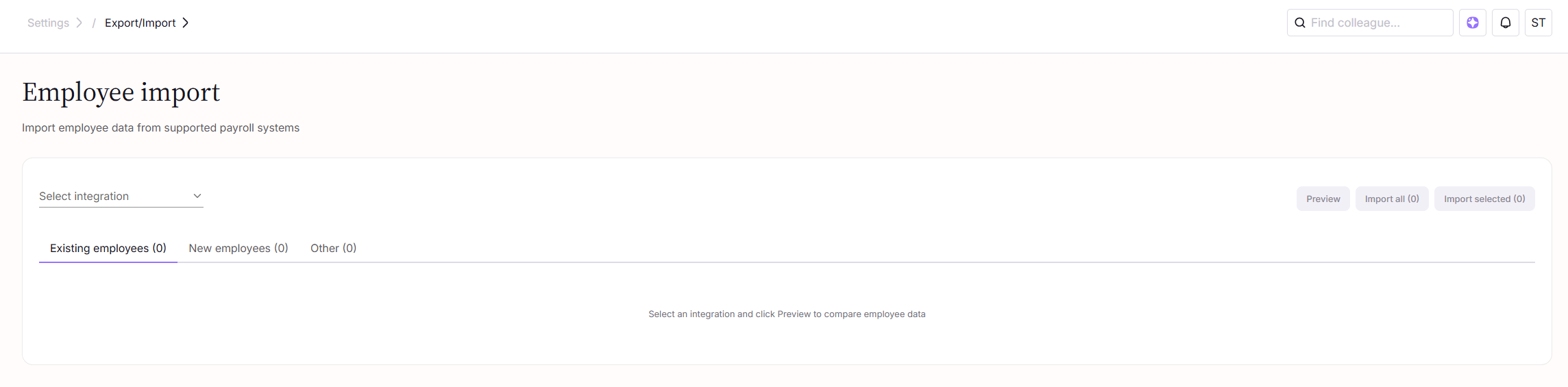 |
2 | Select the integration From Select integration, choose the Visma.net account to import from. If you have more than one Visma.net account connected, each appears as its own option (for example, Visma.net - Main account and Visma.net - 2nd account). 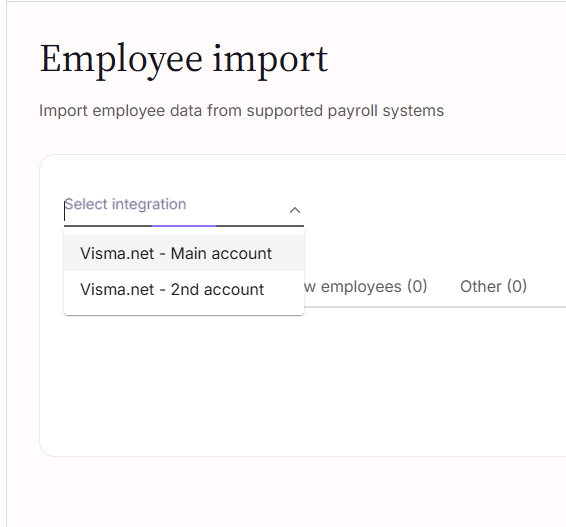 |
3 | Click Preview Simployer One fetches employees from Visma.net and compares them with your existing records. Results are grouped into three tabs: Existing employees, New employees, and Other. Within a tab, the Importable group lists rows that can be imported as-is; click a row to review the full details and the Differences from Visma.net. 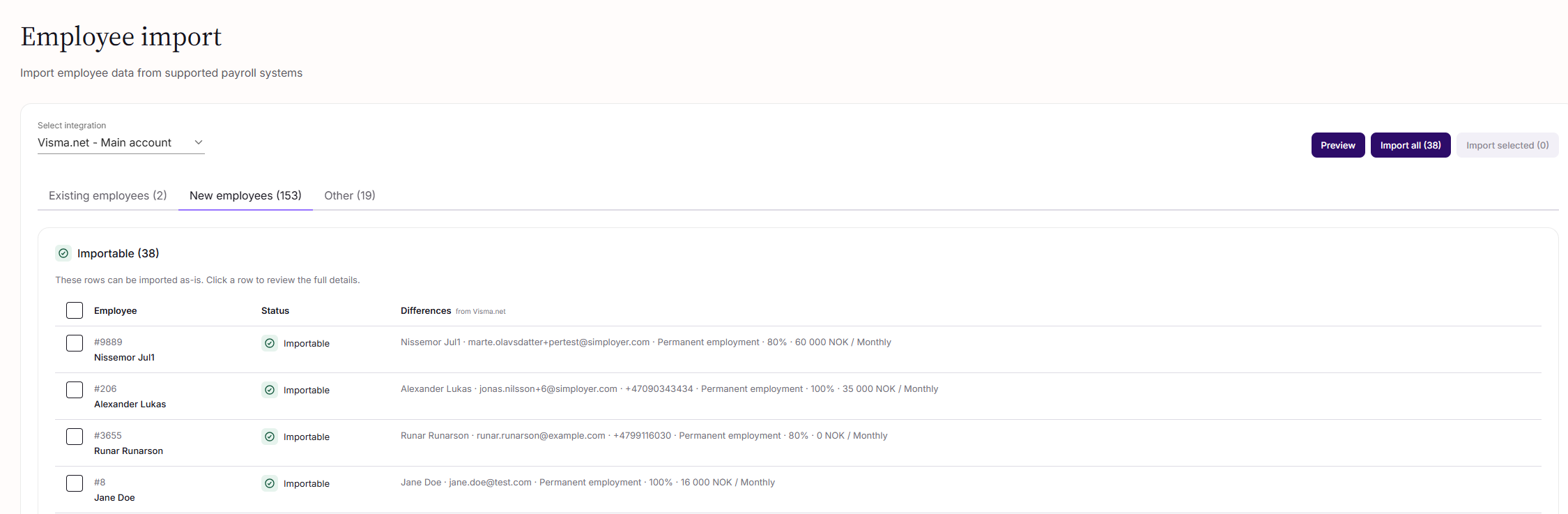 |
4 | Choose who to import Tick the employees you want, or use the header checkbox to select all in view. Start with a small number for your first run. 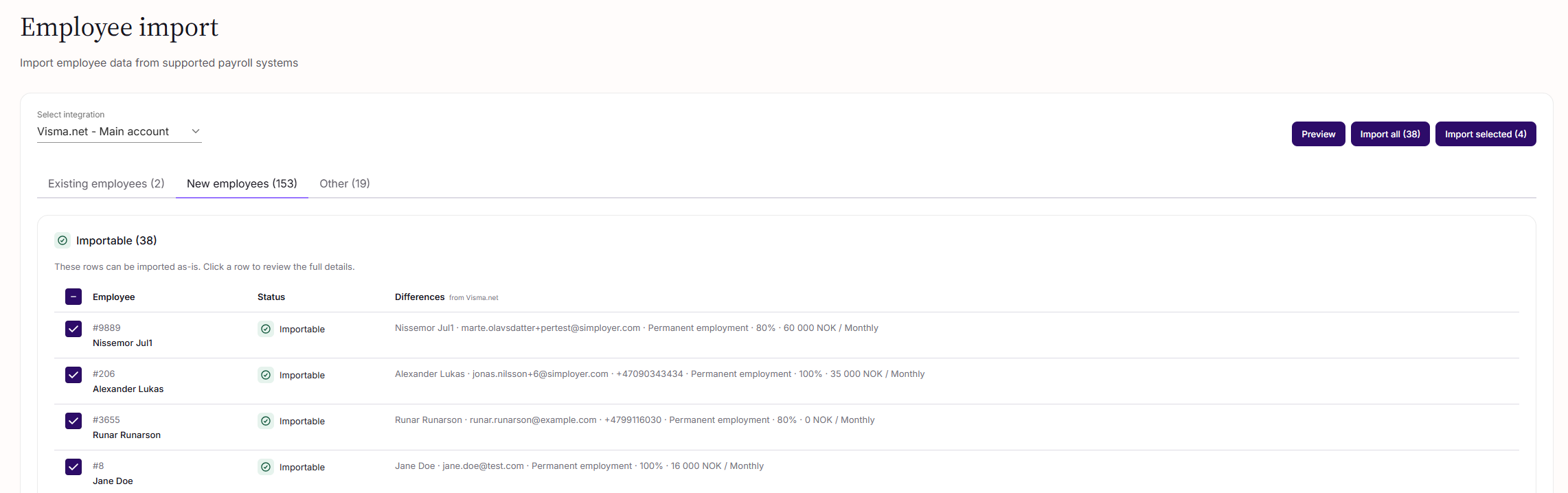 |
5 | Import Click Import selected to import the ticked rows, or Import all to import every importable row. Each button shows its count, for example Import selected (4). |
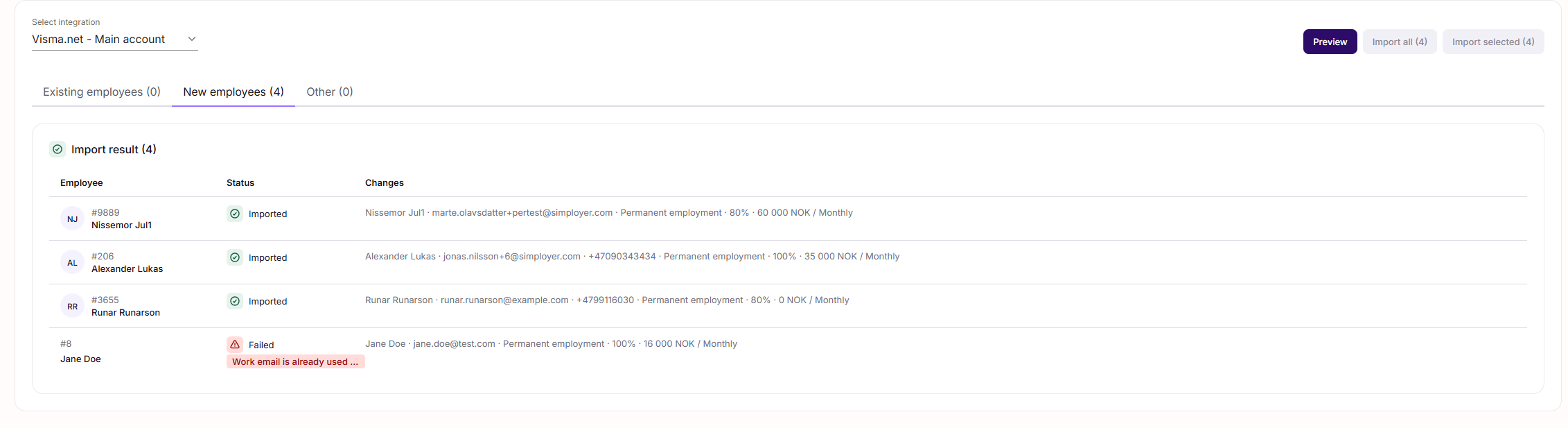
6 | Review the result Each row shows its result: Imported, or Failed with a reason (for example, Work email is already used). Fix the cause in Visma.net or Simployer One and re-run the import for any failed rows.
|
Understanding Import Results
The preview sorts every employee into three tabs so you can see what will happen before you import.
| Tab | What it contains | What happens on import |
|---|---|---|
| Existing employees | The same employee number exists in both systems. | The Simployer One record is updated, field by field, with the values from Visma.net. |
| New employees | In Visma.net and in the import scope, not yet in Simployer One. | A new record is created. |
| Other | Everything that cannot be matched or created: employees only in Simployer One, records with no employee number in Visma.net, or employees outside the import scope. | Not imported. Employees only in Simployer One are left untouched and are never deleted. |
Within the Existing and New tabs, rows that can be brought in as-is appear under Importable. After you import, each row shows its result in the status column: Imported, or Failed with a reason (for example, Work email is already used).
Key Rules and Limits
Employee number is the key Matching is by employee number. Two employees with the same number in the same import scope will be matched to the wrong record, so keep numbers unique within the import scope and aligned across both systems. | Import in batches Start with a small group and review the result before importing more. | One-time setup, not a sync The import bootstraps Simployer One at setup. Afterward, the ongoing flow runs outbound from Simployer One to Visma.net. |
Related Articles
Was this article helpful?
That’s Great!
Thank you for your feedback
Sorry! We couldn't be helpful
Thank you for your feedback
Feedback sent
We appreciate your effort and will try to fix the article