A pulse survey in Employee surveys can use predefined questions from the library, questions you create yourself, or a combination of both. You can also decide which questions count toward the survey KPI and who can own or use the pulse.
Who can create pulse surveys in Employee surveys?
To create pulse surveys, the user must have the Administrator or Manager role in Employee surveys.
What should I consider before creating a pulse survey in Employee surveys?
Before creating a pulse survey in Employee surveys, consider what you want to measure and how you plan to use the results.
For a relevant and effective pulse survey:
Define the purpose: Decide what you want to achieve and how you will follow up on the results.
Choose a theme: Focus the survey on a specific topic that is relevant to the employees.
Start with a few questions: Consider selecting 5–7 questions from the Question library.
Combine different question types: Use both broad and detailed questions to get a more comprehensive understanding of the topic.
Focus on actionable topics: Ask questions about areas where managers and employees can make improvements together.
Tip: Keep your pulse surveys short and relevant. Asking too many questions at once can make it harder to follow up on the results.
How do I start creating a pulse survey in Employee surveys?
To create a pulse survey in Employee surveys, start from the Pulse library. In this part of the setup, you add the pulse title, description, picture, questions, and access settings.
- Go to Employee surveys > Questions.
- Open the Pulse library tab.
- Click Create new pulse in the upper-right corner.
- Enter a pulse name.
- Enter a pulse description.
- Add a picture.
Optional: Use Language to add translations for the pulse title and description.
The first version you add becomes the default language for the pulse survey. The default language is shown when no translation is available or when the employee’s preferred language is not available.
Note: The pulse title and description are available under the information icon while employees answer the questions.
How do I add predefined questions to a pulse survey in Employee surveys?
You can add predefined questions from the library when you build a pulse survey in Employee surveys.
- In the question step, click Choose from library.
- To preview a question, click the magnifying glass icon.
- To save a question for future use, add it to your company library. Saved questions are available under Company questions.
- Click the plus icon on each question you want to add.
- Click Add or Add as copy in the lower-right corner.
Important: Use Add as copy only if you need to edit the question text. Questions added as copies do not keep the external benchmark, because Employee surveys treats the copied question as a new question. The external benchmark lets you compare your result for a question with results from other Simployer customers.
Questions added with Add show a lock symbol when you hover over them. You can delete locked questions from the pulse or rearrange them, but you cannot edit them.
Questions added with Add as copy show a cogwheel symbol when you hover over them. Click the cogwheel to edit the copied question.
Note: Editing a copied question follows the same steps as creating a new question. The copied question already contains information across the 6 tabs/steps. Review all 6 tabs, edit the information you want to change, then click Save.
How do I create a new question for a pulse survey in Employee surveys?
You can create your own questions while building a pulse survey in Employee surveys.
- In the question step, click Create new question.
- Choose the question template.
- In the Content step, phrase your question.
- Activate Increments if you want to use a fixed scale.
- In the Alert step, create an alert if low results should trigger an alert to group owners and administrators.
- In the Tags step, connect the question to a topic so Employee surveys can recommend actions based on the question topic. If you do not select a topic, no actions will be available for the question.
- In the Languages step, add translations for the languages you want to make available.
- In the Colors step, choose a background color from the default options or customize your own color.
- Click Save.
The default language for a question is the phrasing you added in the Content step. Employee surveys shows the default language when no translation is available or when the employee’s preferred language is not available.
Note: Most question templates use the same setup flow: Content, Alert, Tags, Languages, and Colors. Some templates may have exceptions, but you still need to go through each step shown in Employee surveys before you save the question.
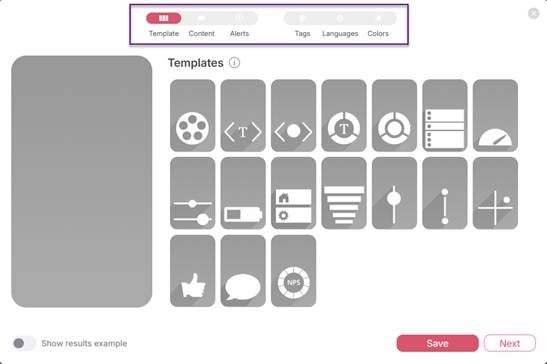
When you create or edit a question, Employee surveys guides you through Template, Content, Alerts, Tags, Languages, and Colors.
What should I consider when writing my own pulse survey questions?
When creating your own questions in Employee surveys, use clear and relevant wording to help employees understand what you are asking.
Follow these recommendations:
Focus on actionable topics: Ask questions about areas where managers and employees can influence the outcome.
Use simple language: Avoid overly formal wording. Write questions in language that employees recognize and understand.
Ask about one topic at a time: Avoid combining several topics in a single question when employees can only provide one answer.
Tip: Clear, focused questions make it easier to understand the results and identify areas for improvement.
Which question templates can I choose for a pulse survey in Employee surveys?
When you click Create new question, Employee surveys shows the available question templates. Select the template that matches the answer format you want to use, then continue through the setup steps shown for that template.
How do I choose KPI questions for a pulse survey in Employee surveys?
After you have selected or created all questions for the pulse survey, choose which questions should be included in the KPI.
To include questions in the KPI, turn on the KPI toggle. Then select the checkbox for each question that should be part of the KPI.
The KPI is one indicator for all selected questions. Each selected question is included equally in the KPI. Only numerical questions can be included in the KPI.
How do I set access for a pulse survey in Employee surveys?
Use the Access step to decide who owns the pulse survey and who the pulse survey is shared with. The pulse survey cannot be saved until the required setup information is completed.
- Administrators: Administrators can see all pulses created in an account
- Managers: Managers can only see and use pulses they created themselves or pulses shared with them
- Pulse owners: Pulse owners have full access to view, edit, and schedule the pulse
- Shared with: Users the pulse is shared with can see and schedule the pulse to their team, but they cannot edit it
- Company pulses: Add the pulse to Company pulses if all managers should have access to the pulse
Click Save when the pulse survey is ready.
Video guide: Create Custom Pulses and Questions
Create Custom Pulses and Questions
FAQs
Can I edit a predefined question in a pulse survey?
Yes, but only if you add the predefined question with Add as copy. A copied question can be edited, but it will not use the external benchmark.
Can I include all question types in the pulse KPI?
No. Only numerical questions can be included in the pulse KPI.
Was this article helpful?
That’s Great!
Thank you for your feedback
Sorry! We couldn't be helpful
Thank you for your feedback
Feedback sent
We appreciate your effort and will try to fix the article