The Manager view of Time Off Overview gives you a single page to see who on your team is away, plan around their absence, and check their time off balances — scoped to your own direct reports, without needing HR to pull it for you.
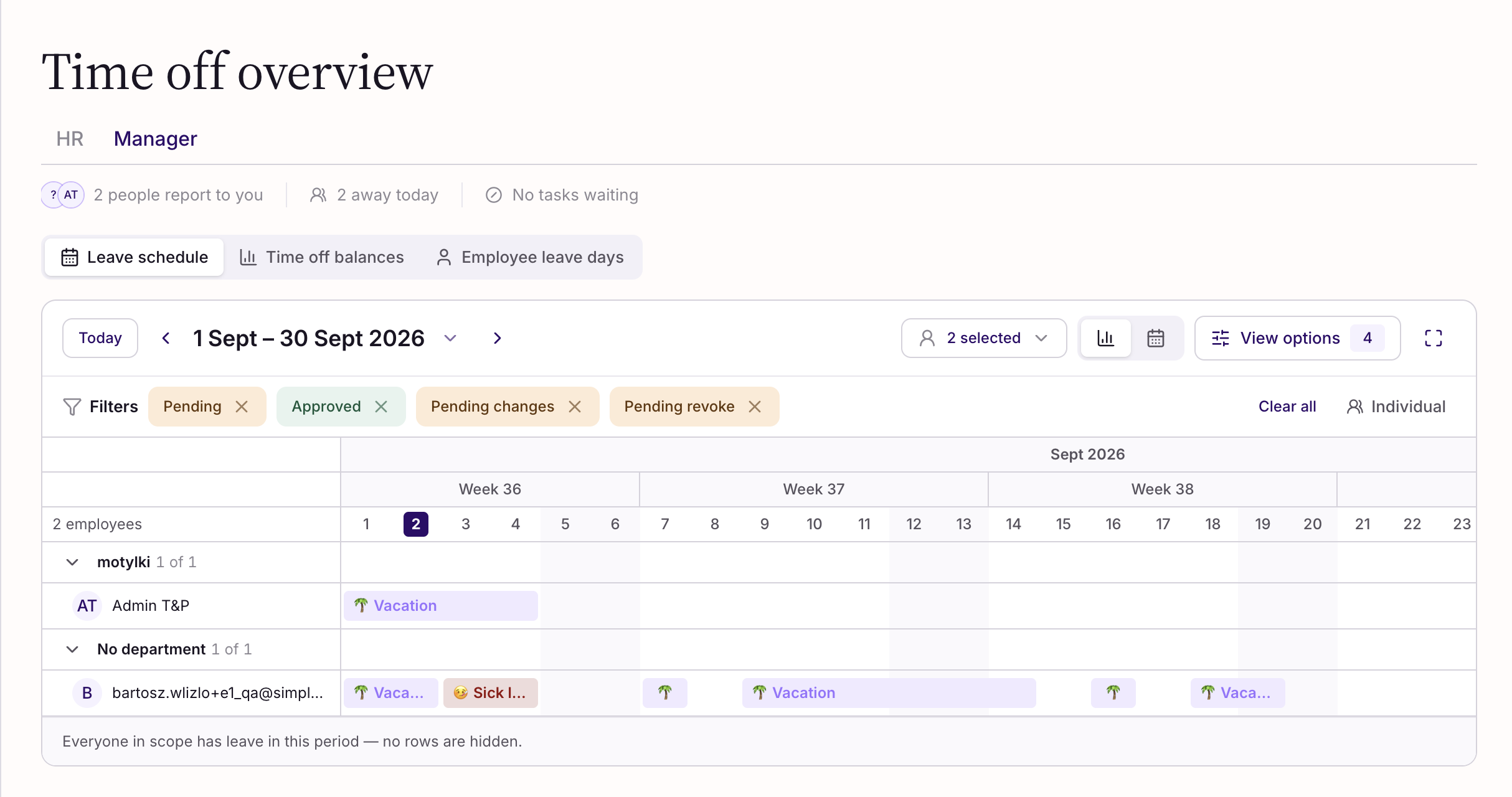
At a glance
At the top of the page, a band shows two facts about your team, followed by up to three tiles for anything waiting on you:
- Your team shows how many people report to you. Select it to see your full team list, with department and who's in today.
- Away today shows how many of your people are off right now. Select it to see today's absences, and select any row to open that person's leave.
- Up to three tiles below cover leave to approve, changes to review, and self-certified sick leave to follow up — each with an exact count, and anything overdue flagged separately from what's simply due today. Select a tile to go straight to that work. If nothing's waiting, you'll see "No tasks waiting" and the tiles disappear.
This band always reflects your own direct reports and isn't affected by filters elsewhere on the page. If nobody reports to you, you'll see a simple message instead, and the rest of the page still works.
Leave schedule
Below the band, switch to "Leave schedule" to see your team's absence laid out over time, filtered to your direct reports.
- Grouped view shows each department as a row, colored by how much of the group is away.
- Individual view shows each person as their own row, with a bar for every absence.
- Use the status filters (Pending, Approved, Pending changes, Pending revoke) to narrow what's shown.
- Toggle to Calendar view for a month-by-month grid, or expand to fullscreen for week-by-week planning.
Time off balances
The "Time off balances" tab lists your team's balances for whichever leave type you pick. Select a balance to edit it directly for someone on your team.
Employee leave days
Search for someone on your team in "Employee leave days" to see their balance breakdown, upcoming leaves, and leave history. Select Export to download their leave days for your records.
Who can see this
This view is built for managers, and is always scoped to your own direct reports — you can't point it at another manager's team.
Tip: If a tile shows "Tasks could not be loaded," the rest of the band still works — select Try again to reload just that row.
Still have questions? Reach out to your Simployer contact or visit the Help Center for more articles on Time & Pay.
Video guide: Managing Time Off as a Manager
Managing Time Off as a Manager
Was this article helpful?
That’s Great!
Thank you for your feedback
Sorry! We couldn't be helpful
Thank you for your feedback
Feedback sent
We appreciate your effort and will try to fix the article