As an owner or admin, you decide how the start page looks for everyone at your company: which widgets each role sees, in which order and in which column.
Everyone then sees your layout for their role.
In short
- Owners and admins get a Customize button on the start page
- You drag widgets to a new place, or use the move buttons, and hide the ones you do not want
- For each widget you choose who sees it: employees, managers, admins or all of them
- Nothing changes for anyone until you click Save for everyone
- Employees and managers cannot customize the page, they see the result
How do I customize the start page?
- Open the start page and click Customize. Only owners and admins see this button
- Check the heading: "Customize the start page for everyone at" followed by your company name. A notice says "Changes apply to everyone in your organisation. Nothing changes until you save."
- Arrange the widgets, choose who sees each one, and hide the ones you do not need
- Click Save for everyone. If you have not changed anything, the button says Done
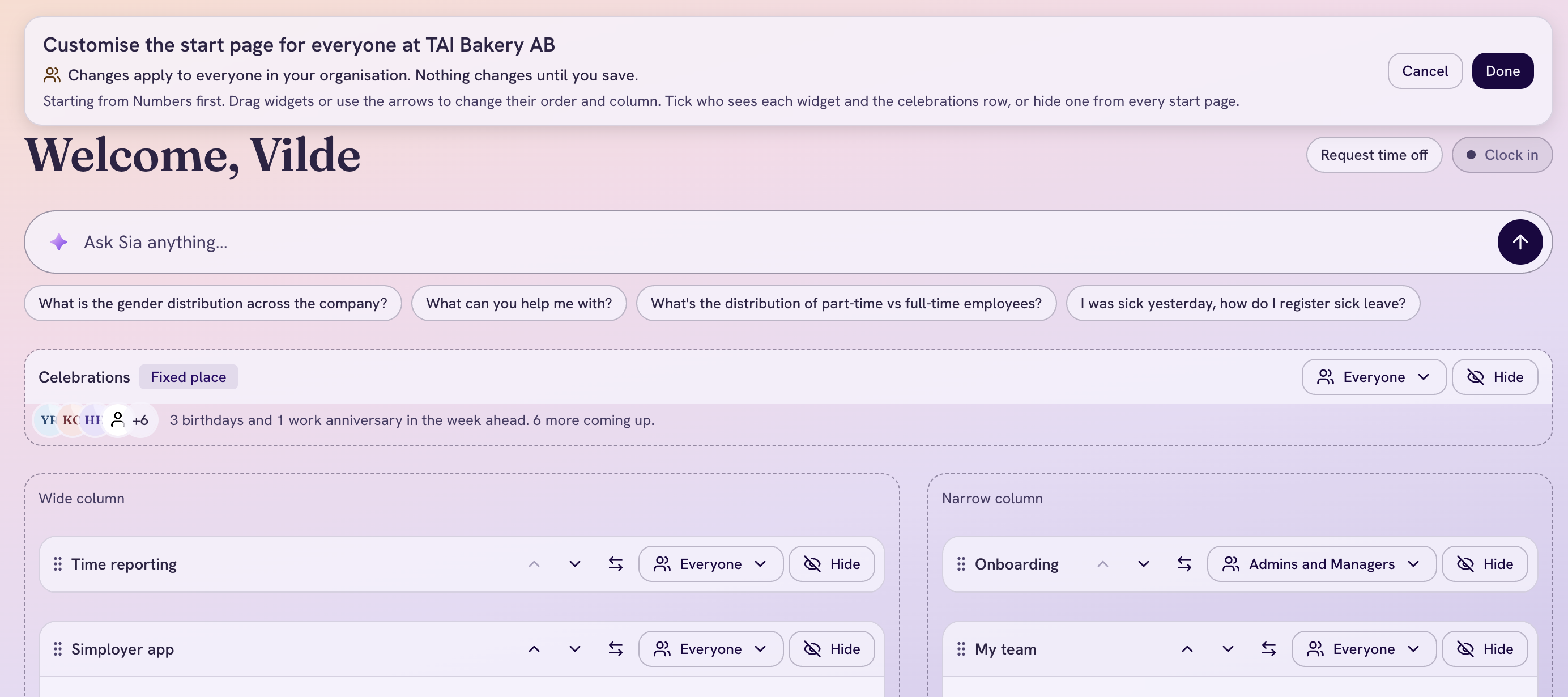
The start page in Customize mode, with the heading and the notice
How do I change the order of the widgets?
You can use drag and drop, or the buttons on each widget.
- Drag: pick up a widget and move it within its column or to the other column. A line shows where it will land
- Buttons: every widget has move up, move down and move to the other column. They work with a keyboard, a screen reader and touch, and a screen reader says where the widget went
A widget moved to the other column keeps its height and pushes the widget there down.
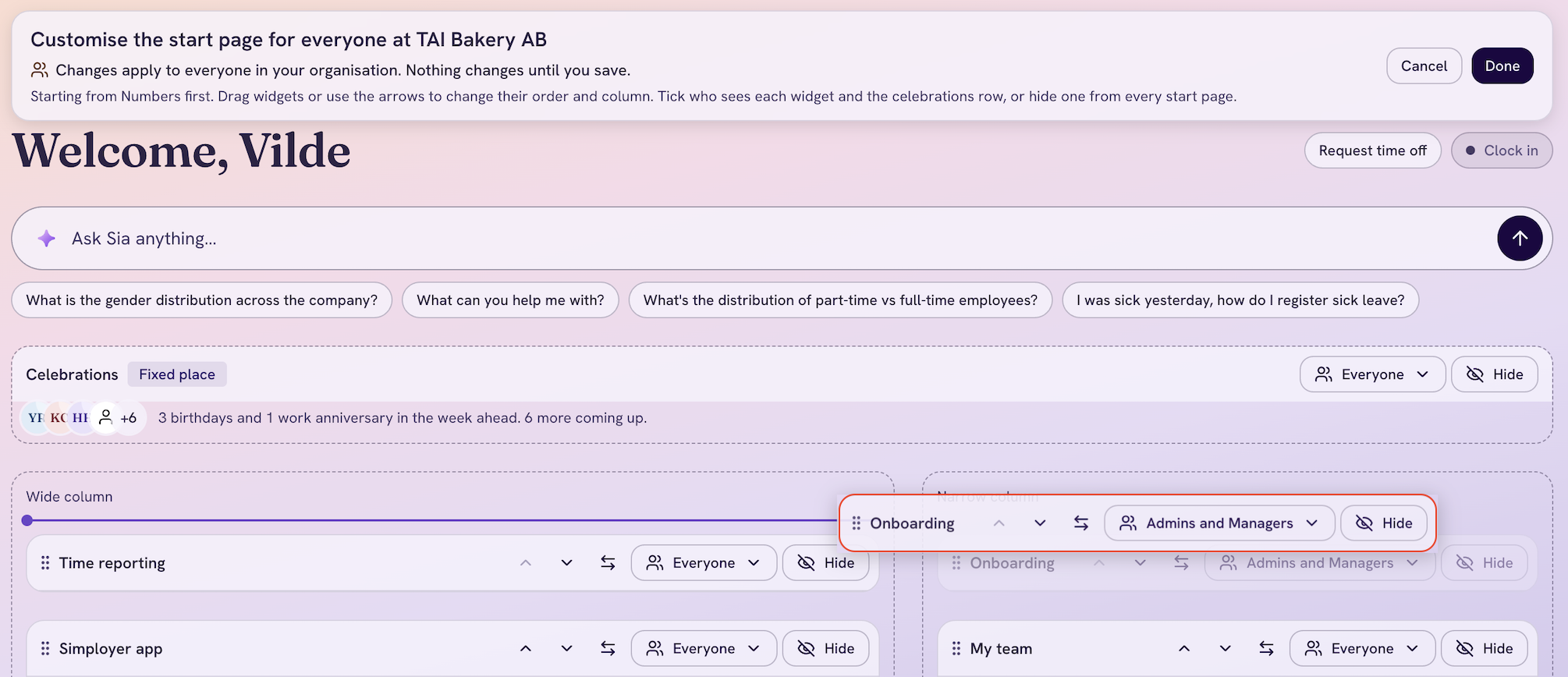 dragging a widget, with the line showing where it will land
How do I choose who sees a widget?
- Open the audience menu on the widget
- Tick Employees, Managers and Admins as needed. At least one stays ticked
- Read the note in the menu. It says who stops seeing the widget after you save
The celebrations row has the same menu. A person sees a widget if any of their roles is ticked. Everyone is an employee, managers are also managers, and owners and admins are also admins. A role that can never see a widget, such as employees for the company card, is shown as disabled.
To take a widget off every start page, hide it instead.
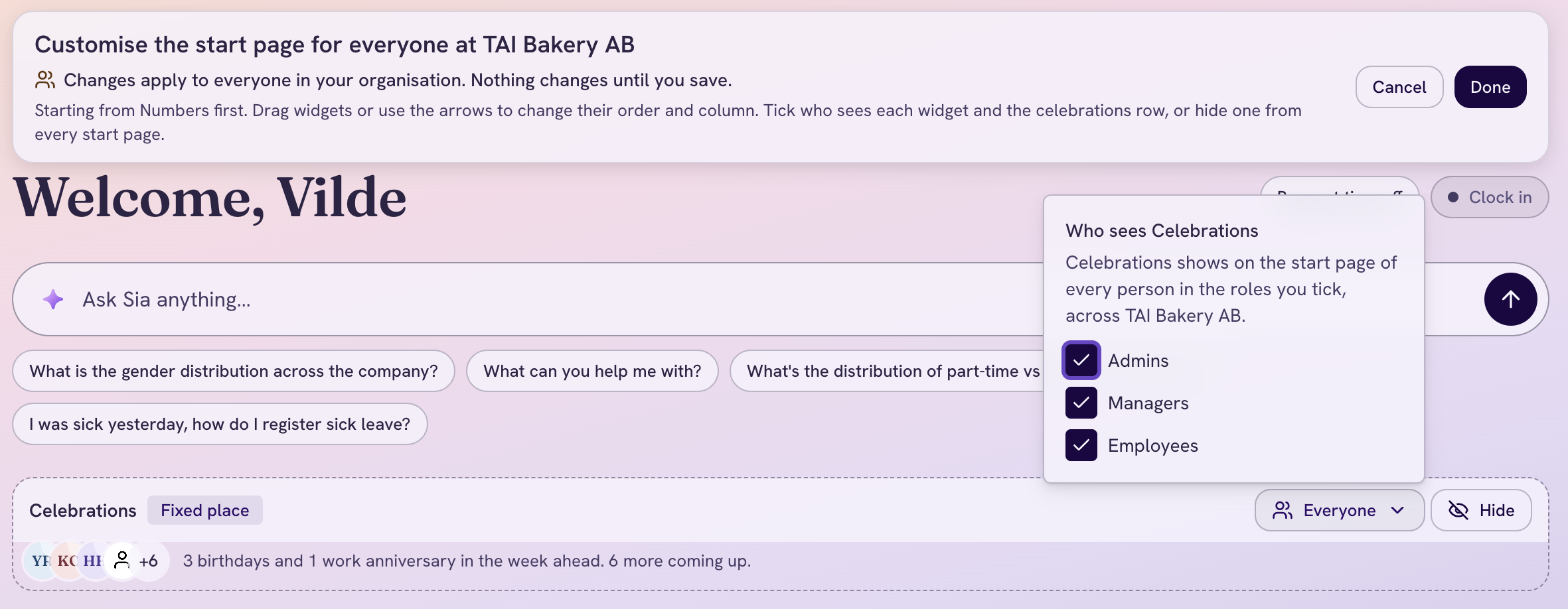
The audience menu open on a widget.
How do I hide a widget?
Use the hide button on the widget. You can also hide the celebrations row. A hidden widget is gone for everyone, whether or not you changed the order.
What happens to the standard lenses?
Until you change the order, people can still switch between the standard lenses on the start page.
- If you only hide widgets or change who sees them, the standard lenses stay
- If you change the order and save, everyone sees your order, admins and managers included, and the lens menu is gone. The first time you change the order, a badge says "Saving hides the standard lenses"
- Each person's earlier lens pick is kept. If you restore the standard lenses, people get their pick back
How do I undo my changes?
- Before you save: click Cancel or Undo changes to discard your changes
- Right after you save: use Undo in the confirmation message
- Later: click Restore the standard lenses. This deletes your saved order. Hidden widgets and audience choices stay as you set them
What do employees and managers see?
They see the start page with your changes. Widgets that are hidden, or not ticked for any of their roles, are gone. Widgets they are not eligible for stay hidden, whatever you tick. On a phone the page reads the wide column first, then the narrow column.
What changed from before?
- Every role saw the same widgets in the same order. Now owners and admins decide, per role
- Admins can hide widgets, or choose who sees them, for the whole company
- Once an admin saves a new order, everyone follows it and the lens menu is gone
- Until an admin customizes, the start page and the lenses work as before
Frequently asked questions about customizing the start page
Who can customize the start page?
Owners and admins. Employees and managers see the result but cannot change it.
Does Customize change only my own start page?
No. It changes the start page for everyone at your company. A personal start page for admins is not available.
Why can I not move the celebrations row?
The celebrations row keeps its place. You can hide it, or choose which roles see it.
What if another admin saves at the same time?
Your save does not overwrite their changes.
What happens when a new widget is added later?
It appears at the end of its usual column, for the roles it is meant for, until you change it.
Is Customize available in my language?
Yes. The text follows the language you use in Simployer One.
Was this article helpful?
That’s Great!
Thank you for your feedback
Sorry! We couldn't be helpful
Thank you for your feedback
Feedback sent
We appreciate your effort and will try to fix the article