With read confirmation, you can ask employees to confirm that they have read and understood an important handbook article, such as a policy, a routine or an updated guideline. You then see who has confirmed, and when.
Who this article is for: Handbooks administrators in Simployer One.
Note
Simployer does not send any email or notification when you require read confirmation. Copy the article link and share it with your employees yourself.
Before you start
- Read confirmation works on your company's own articles and on articles from Simployer.
- You can only ask people who have access to the article. A group is only shown if at least one of its members has access.
Turn on read confirmation for an article
- Go to Handbooks and select Content Management.
- Open the handbook/content pack that contains the article, and select the article.
- Select Read confirmation at the top right of the article.
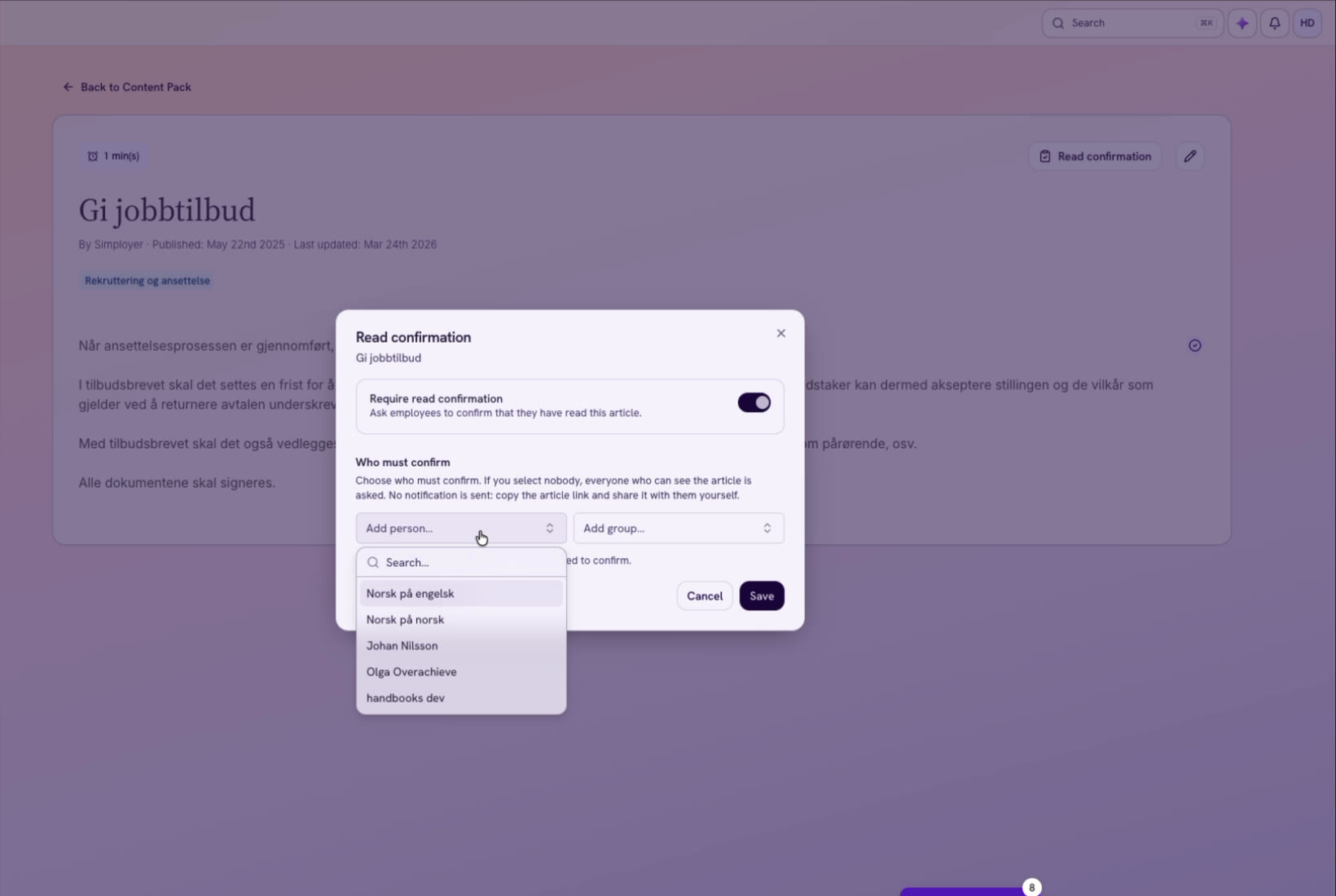
- Turn on Require read confirmation.
- Under Who must confirm, choose who should confirm the article:
- Add person: select individual employees.
- Add group: select a group. Everyone in the group is asked to confirm.
- Select nobody: everyone who can see the article is asked to confirm.
- Select Save.
The button on the article now shows Read confirmation On.
Share the article with your employees
Employees who must confirm the article see it in the Read and confirm card on their Handbooks start page. Because no notification is sent, we recommend that you also share the article link.
- Open the article and select Read confirmation.
- Select Copy article link.
- Paste the link into an email, a Teams or Slack message, or your intranet.
See who has confirmed
For all articles:
- Go to Handbooks and select Content Management.
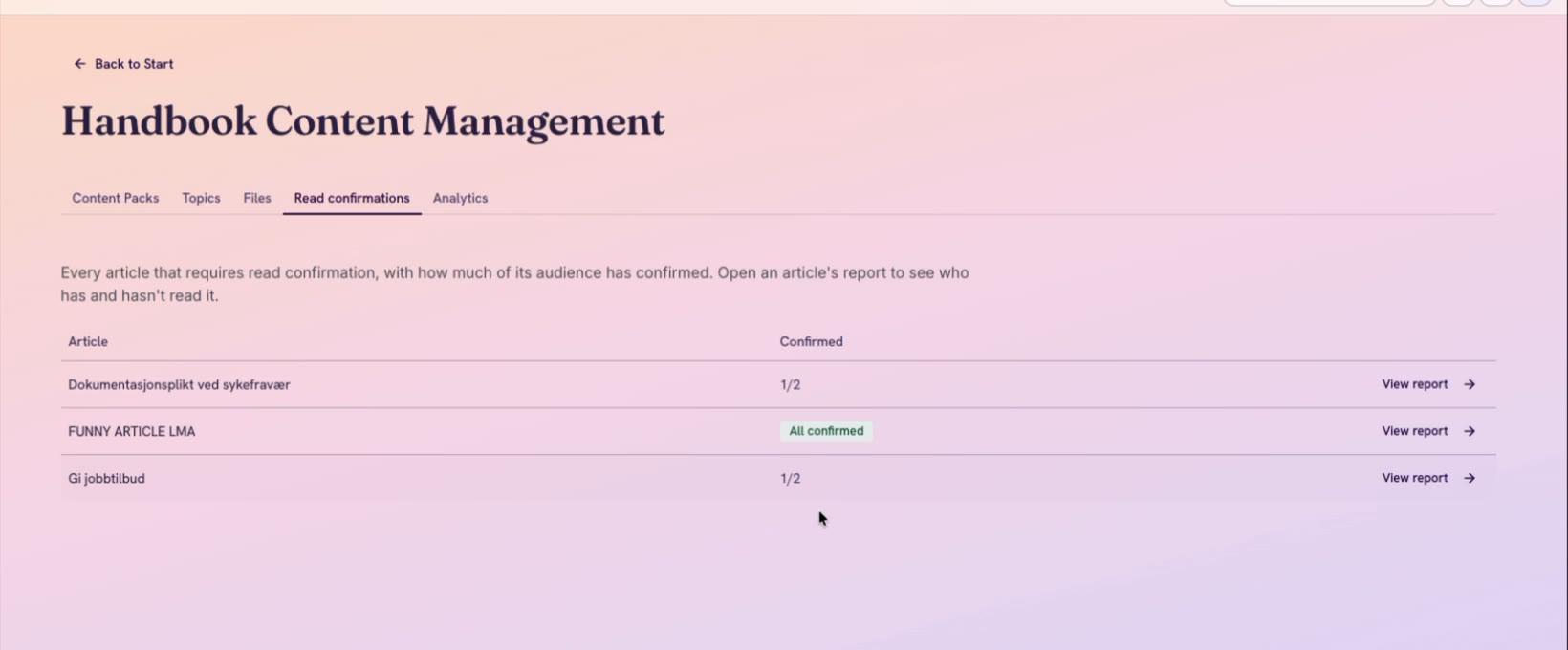
- Select the Read confirmations tab.
You see every article that requires read confirmation and how many people have confirmed it, for example 1/2. When everyone has confirmed, the article shows All confirmed. Select View report to see the details for one article.
For one article: open the article, select Read confirmation and then View confirmations.
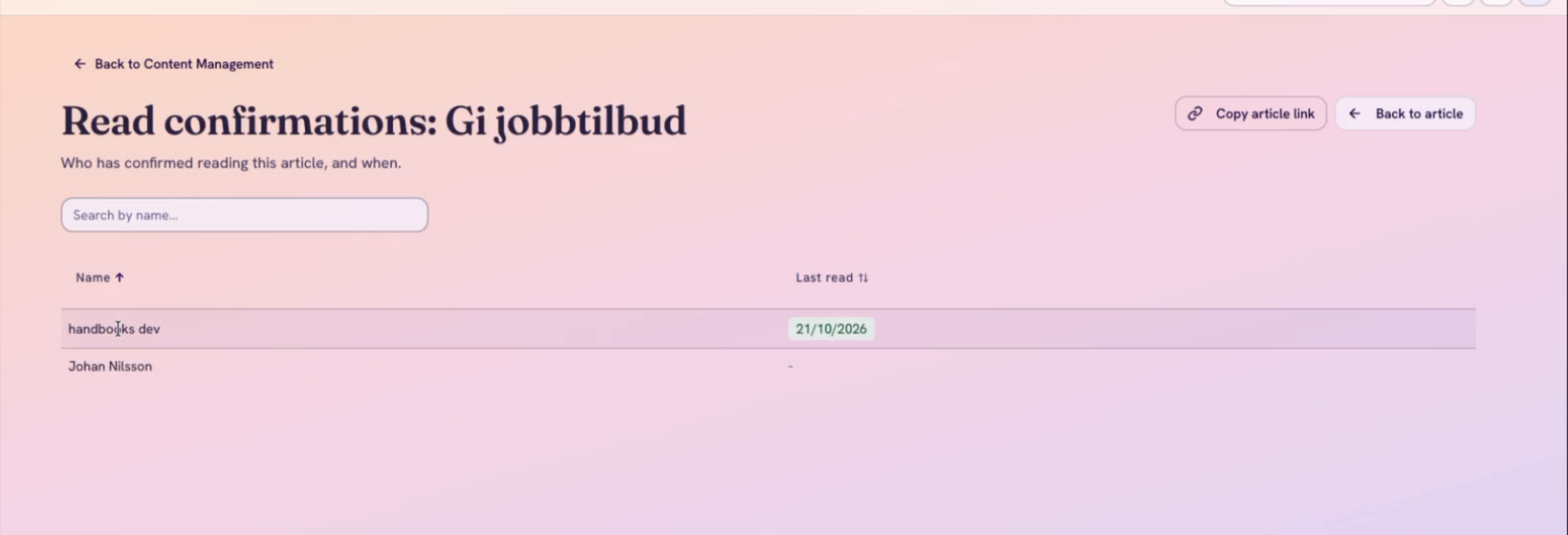
The report lists everyone who must confirm the article:
- Name: the employee's name.
- Last read: the date of their latest confirmation. A dash (-) means they have not confirmed yet.
You can search by name and sort by either column.
Ask employees to confirm again
Editing an article does not reset the confirmations. If you have made an important change and need everyone to read the article again:
- Open the article and select Read confirmation.
- Under Ask everyone to confirm again, select Ask again.
Everyone who must confirm is asked again. Earlier confirmations stay in the history, but no longer count.
Turn off read confirmation
- Open the article and select Read confirmation.
- Turn off Require read confirmation and select Save.
Employees are no longer asked to confirm the article. The report and its history are kept. If you turn read confirmation on again, the people and groups you selected come back.
What happens when something changes
| When | What happens |
|---|---|
| You edit the article | Earlier confirmations stay valid. Use Ask again if employees need to confirm again. |
| You turn off read confirmation | Employees are no longer asked. The report and history are kept. |
| The content pack is switched off, unpublished or deleted | Employees are no longer asked, and the article leaves the Read confirmations tab. Switch the content pack back on and it returns. |
| The article is unpublished or deleted | Employees are no longer asked. The report of a deleted article is kept as a read-only record. |
| Someone loses access to the content pack or leaves a group you selected | They are no longer asked or listed in the report. Their earlier confirmation is kept. |
What read confirmation does not do yet
- Set a deadline or send reminders.
- Send email, push or chat notifications.
- Ask employees again on a schedule, for example once a year.
- Select employees by role. You can select people and groups.
Troubleshooting
An employee does not see an article they should confirm
Check the following:
- Require read confirmation is turned on for the article.
- You selected the employee, a group they are in, or nobody (which means everyone who can see the article).
- The employee has access to the article's content pack.
- The article is published and its content pack is switched on.
- The employee has not already confirmed. Check the report for a date.
- The employee has refreshed the page. If the start page or article was open when you turned on read confirmation, it can take up to 5 minutes to appear.
An employee has confirmed, but the article is still on their start page
The Read and confirm card can take up to 5 minutes to update. Refreshing the page updates it at once.
Related article: Confirm that you have read a handbook article
Was this article helpful?
That’s Great!
Thank you for your feedback
Sorry! We couldn't be helpful
Thank you for your feedback
Feedback sent
We appreciate your effort and will try to fix the article