Important: For all new integration setups, it is strongly recommended to perform your initial sync with only a few users in the scope. This helps ensure data accuracy and smooth onboarding before including your whole organization.
Reference General Setup
Before configuring this integration, please complete the Simployer HRM Integration – General Setup Guide. This guide covers the initial steps for setting up integrations in Simployer and ensures that you have configured the necessary base settings for successful data sync.
Overview
With this Visma.net integration you will connect Simployer One to your Visma.net account through API and can then do the following:
Scheduled and/or manual sync of employee data such as personal information, employment data, compensation data and more from Simployer One to Visma.net.
All new employees will be created as draft so that the final approval of activating the new employee(s) is done in Visma.net
Sync time off data such as sickness, parental leave and vacations to Visma.net for the period that you choose. You have full control over what absences are exported for what employees and for what period.
Requirements
To connect Simployer One to Visma.net, the integration must first be approved in the Visma App Store. The administrator completing these steps must have the Integration Administrator role for the company in Visma.
Steps for approving the Visma integration
1. Go to apps.visma.com and click Logg inn (Log in) in the top right corner.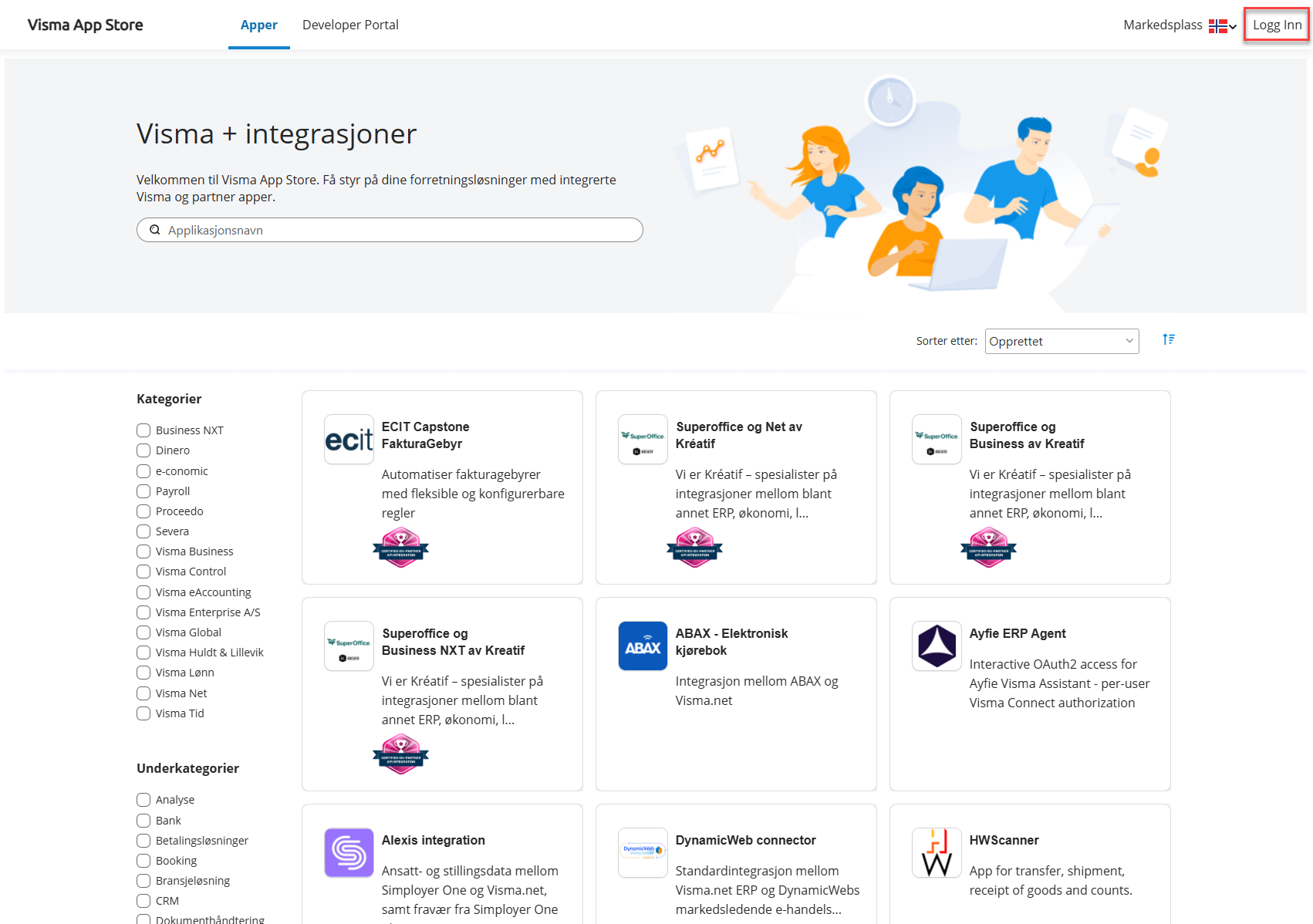
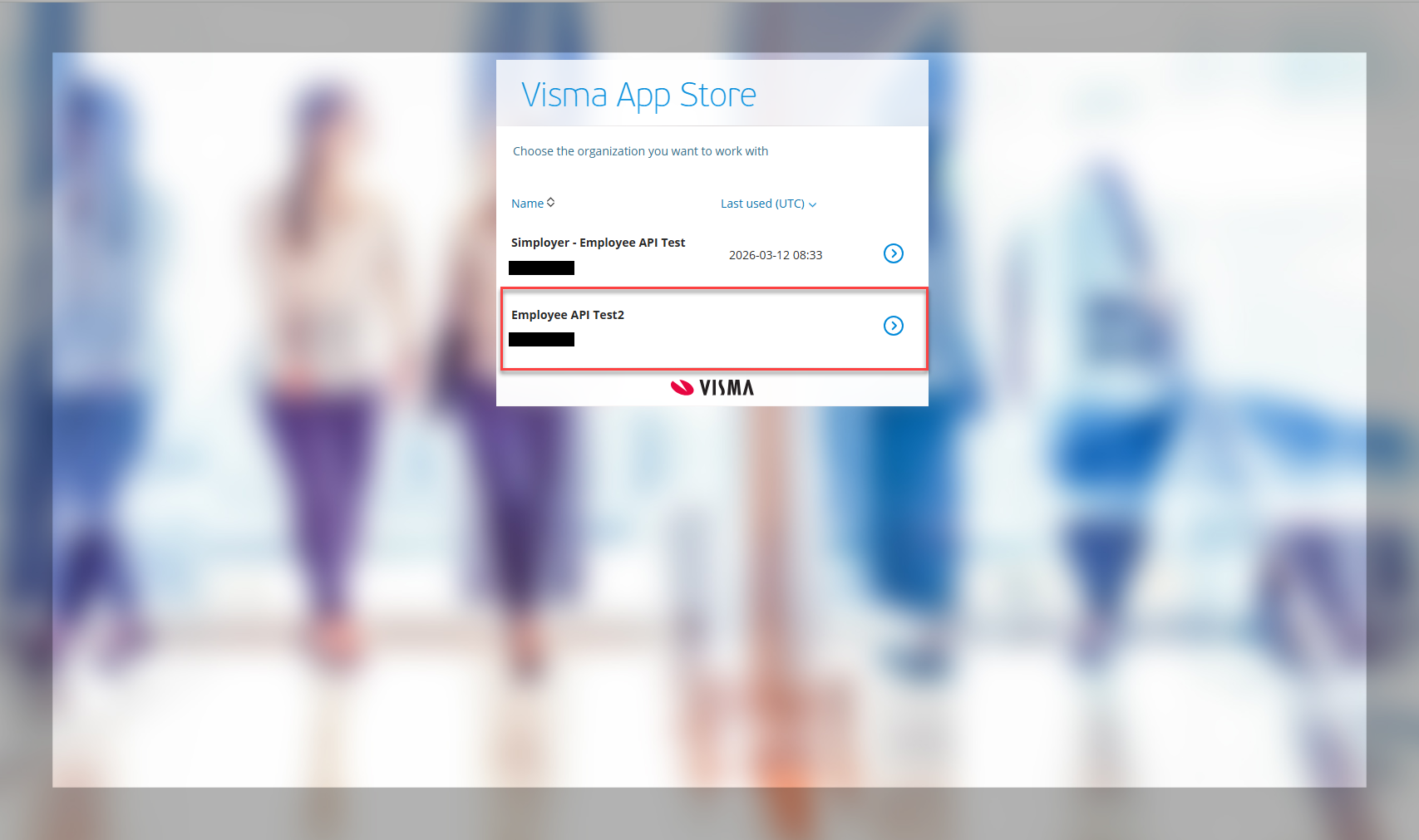
2. Select the organisation you want to set up the integration for.
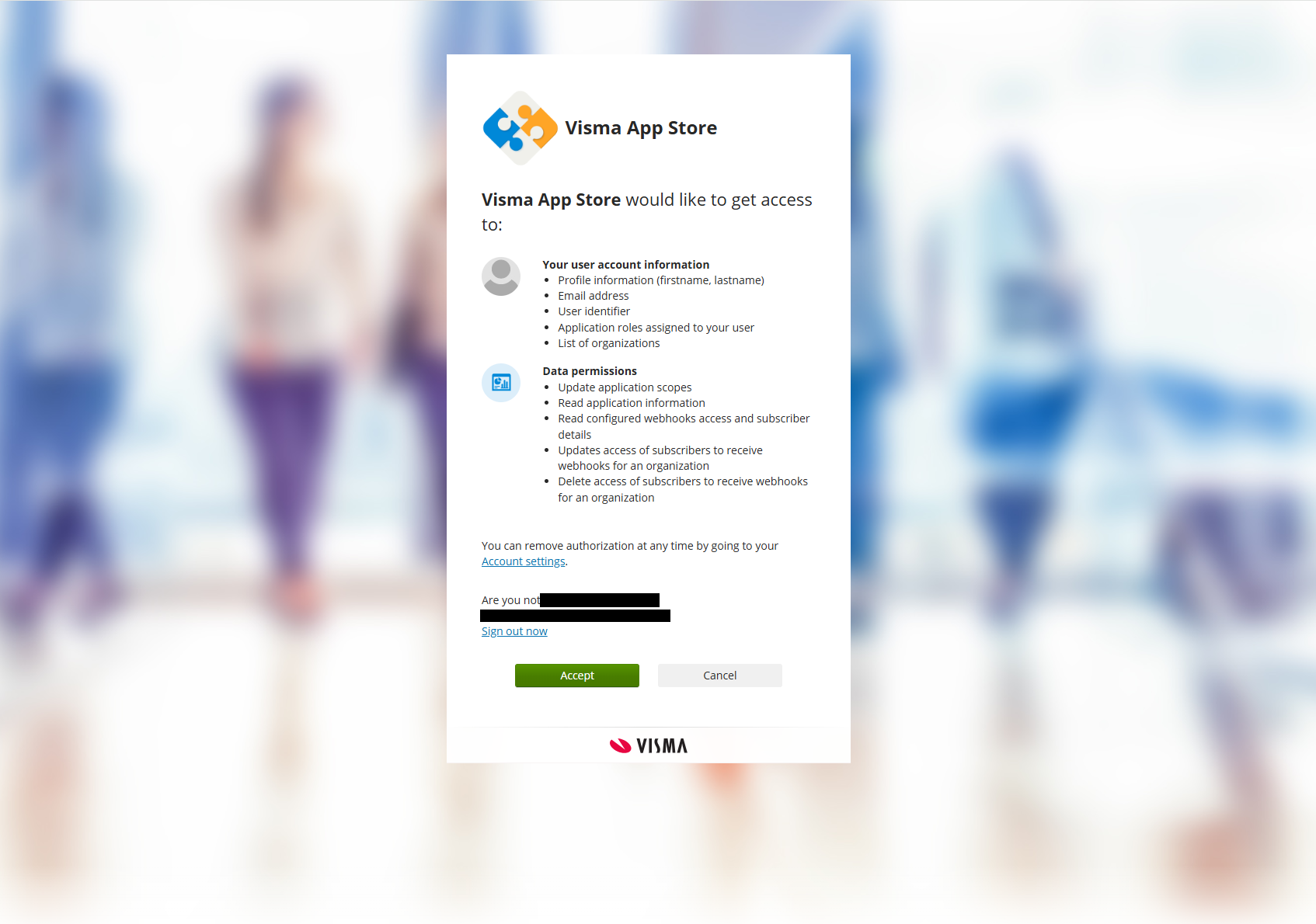
3. The App Store requests access to your user account information and data permissions. Review the listed permissions and click Accept.
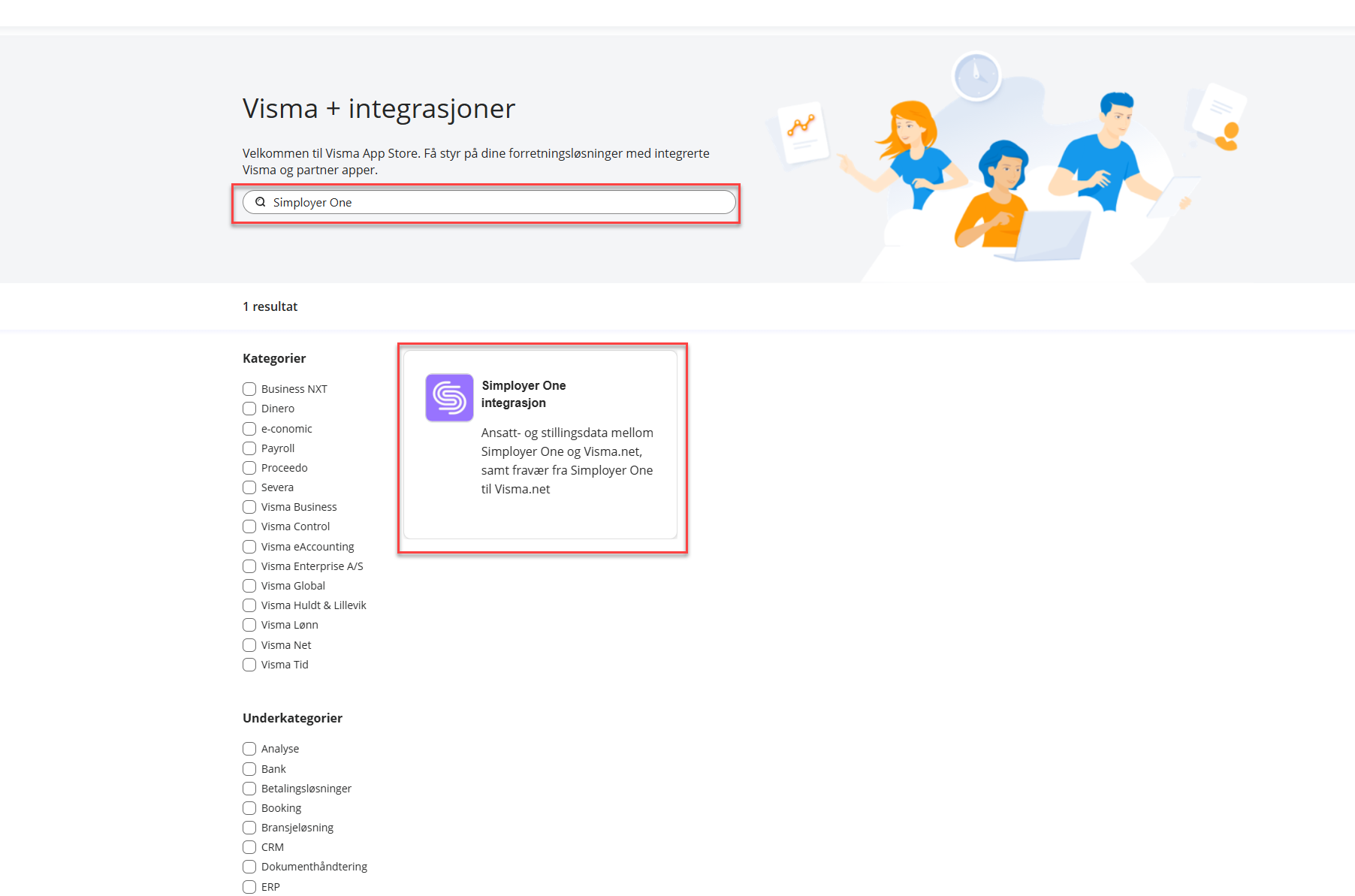
4. In the search bar, type Simployer One and click the Simployer One integrasjon card.
5. On the integration detail page, click Velg tillatelser (Set permissions).
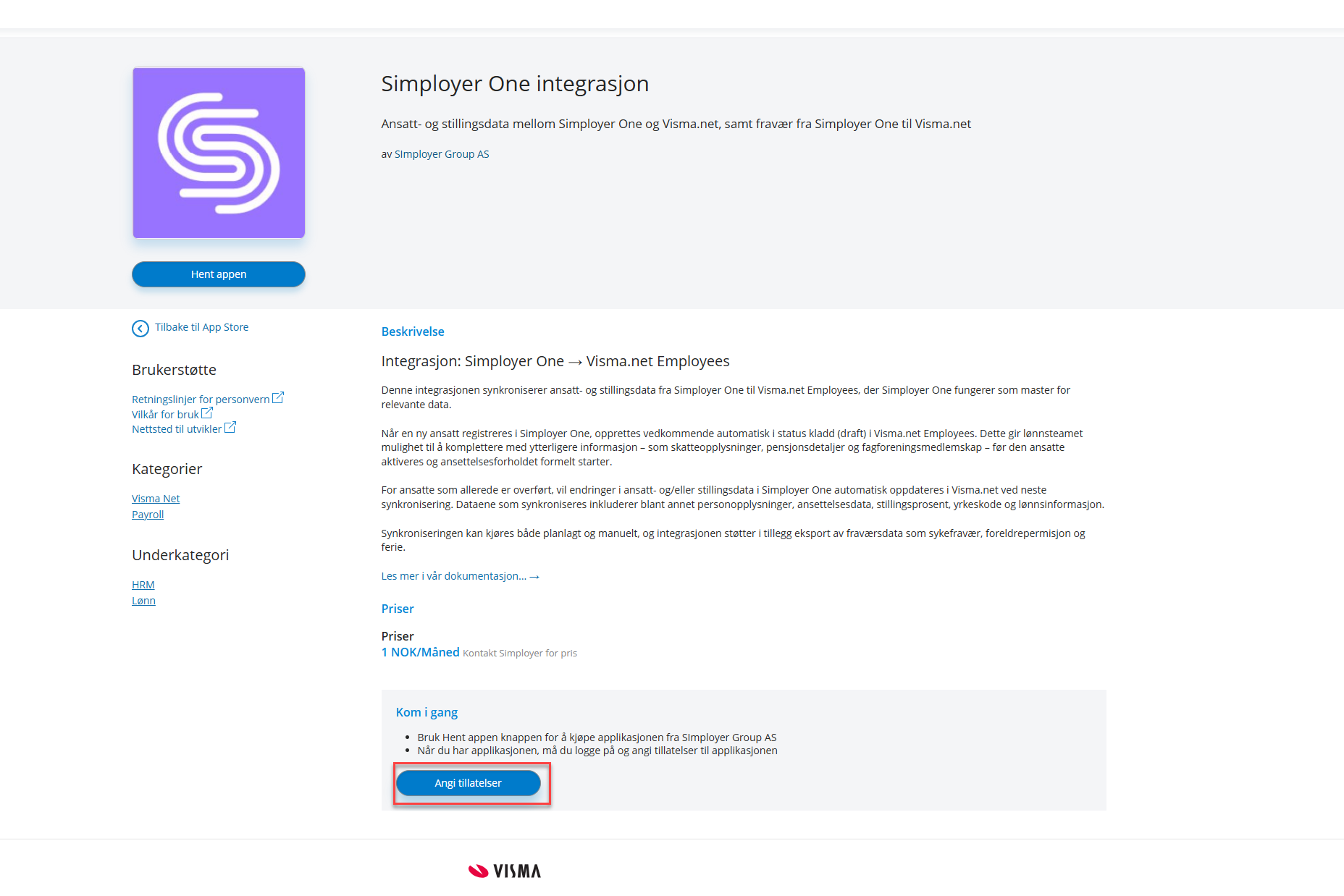
Toggle ONall four required permissions:
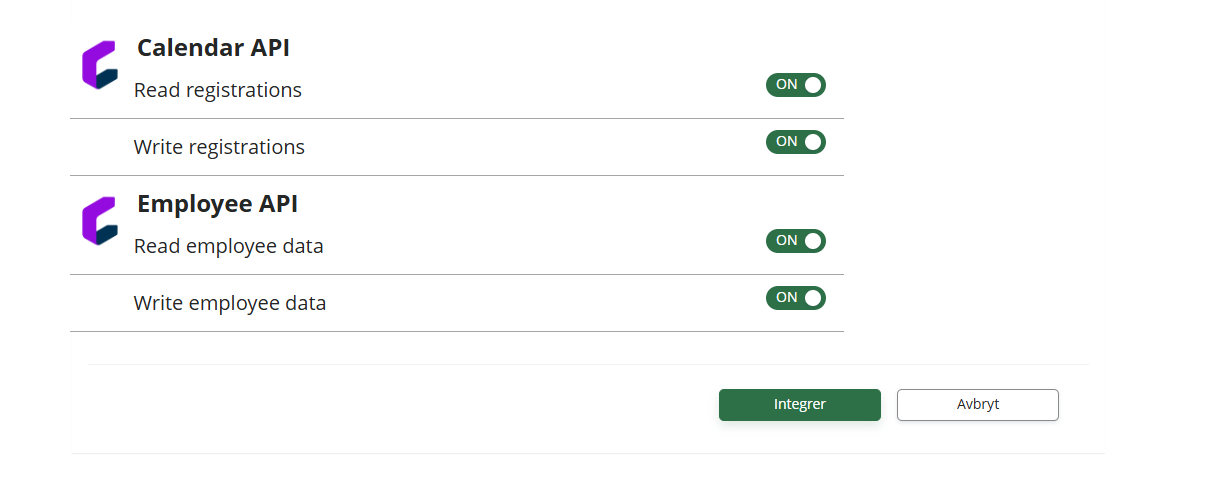
- Calendar API: Read registrations
- Calendar API: Write registrations
- Employee API: Read employee data
- Employee API: Write employee data
6. With all permissions toggled ON, click the green Integrer (Integrate) button.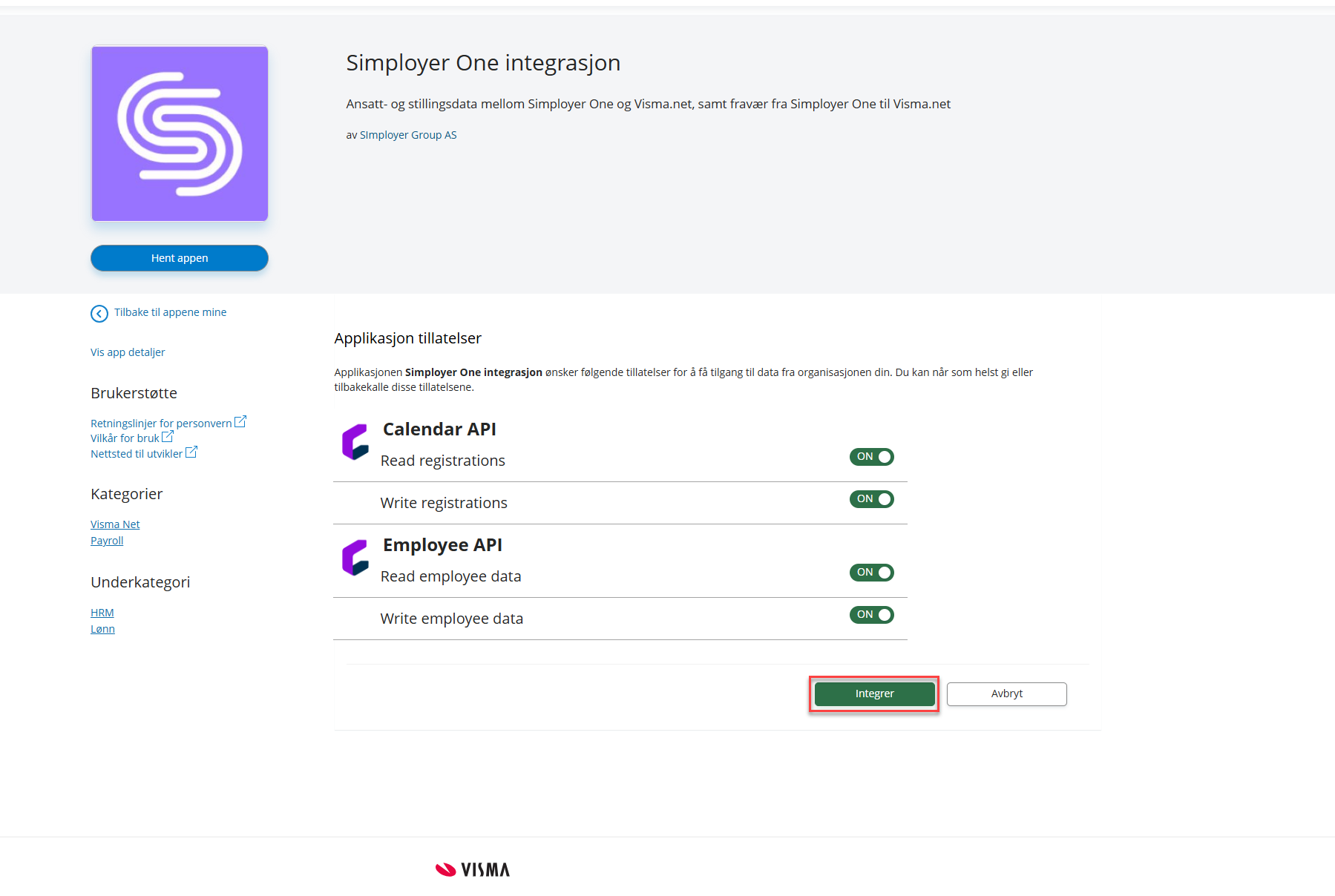
7. A confirmation dialog shows the permissions being granted. Review them and click Aksepter (Accept).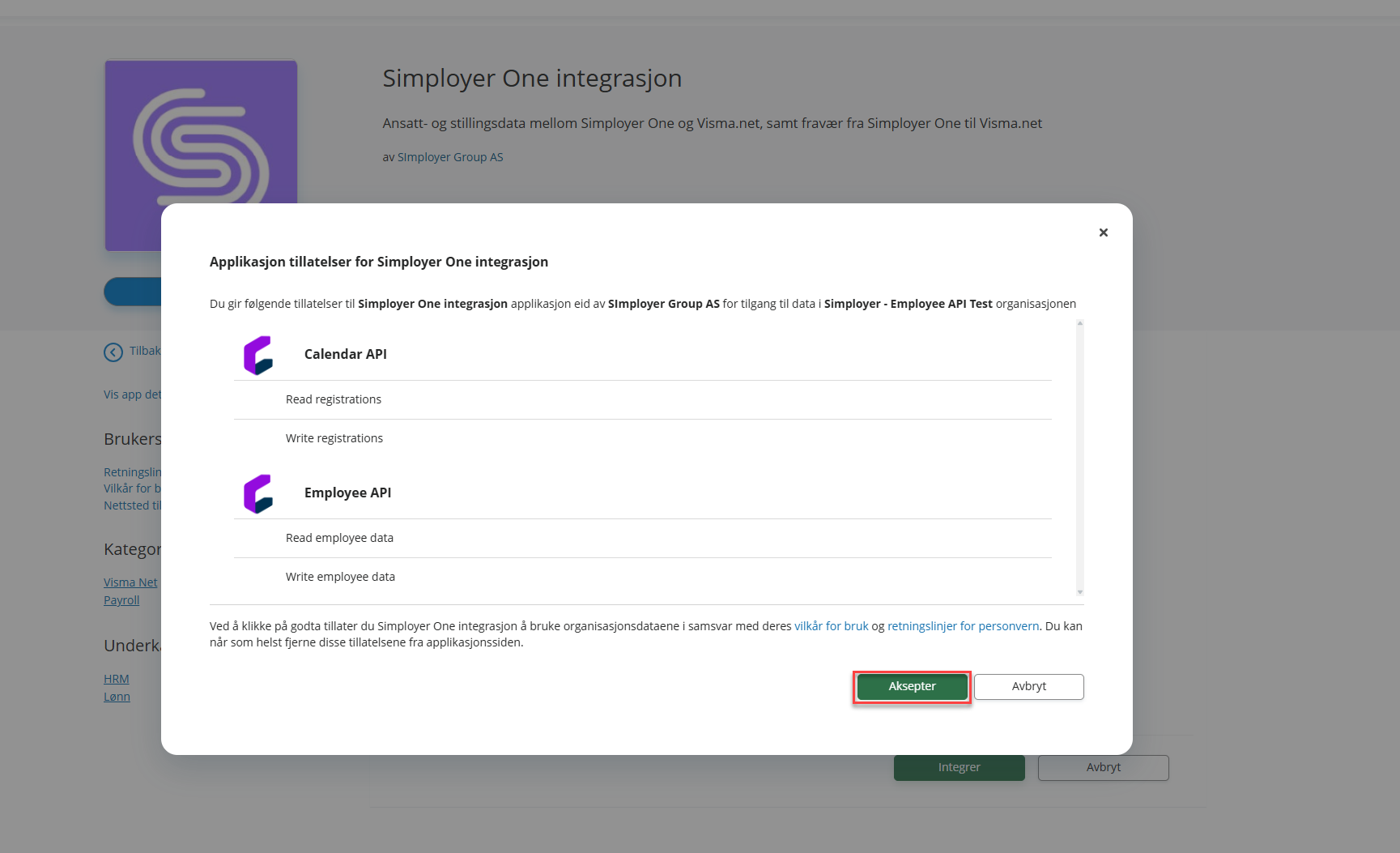
The integration is now approved in the Visma App Store. Continue with the configuration steps below to complete the setup in Simployer One.
Finding your tenant ID
- Your company has a unique Tenant ID required for integration.
- Find it in the top-right corner of the Visma App Store, under the company selector.
- Share this Tenant ID with us if requested.
The following requirements is needed to for the integration.
Visma.net
You need to have access to the following valid credentials
Visma tenant ID
Simployer One
Valid Access token for Public API
At-least one Access token for Public API needs to be created that will be used to connect the two systems. If you have not created an access token you need to do that from Settings - Access tokens
Terminology & Field Mapping (Simployer One → VismaNet)
This section explains what key fields are called in VismaNet so customers can more easily verify data and troubleshoot.
Key Field Names in VismaNet
Concept | In Simployer One | In VismaNet |
Occupational code | Occupational code in Employment Note field | Occupational Code (Type of work) |
Employment rate | Employment rate | Part Time Factor |
Employment Type (Temporary or Permanent) | Employment Type | Appointment Type |
Payout period | Payout period | Contract Salary Type |
Salary amount | Compensation amount | Monthly Salary / Hourly Salary / Yearly Salary (depends on Contract Salary Type) |
Salary Field Selection in VismaNet: (based on Contract Salary Type)
Payout Period in Simployer One determines the Contract Salary Type in VismaNet:, which determines which Visma salary field is updated.
Payout Period (Simployer One) | Contract Salary Type (VismaNet:) | Visma Salary Field Updated |
Monthly | Monthly | Monthly Salary |
Hourly | Hourly | Hourly Salary |
Annual | Annual | Yearly Salary |
Important: Amount is sent to Monthly Salary / Hourly Salary / Yearly Salary based on the Contract Salary Type.
Before You Start (Employee Data Requirements)
Every employee must have complete information in Simployer One before they can be synced to VismaNet:. Missing data will cause the employee to be skipped.
Mandatory Information
Personal Information
First Name
Last Name
Birthdate
National ID (SSN)
Work Email Address
Full Address (including country)
Bank Account
Choose based on account type:
Norwegian Bank Accounts:
Country
Account number
International Bank Accounts:
Country
IBAN
BIC/SWIFT code
Account number
Employment Details: (At least one employment record)
Employment start date
Employment rate (in percentage, e.g., 100%) (VismaNet: Part Time Factor)
Occupational code in employment note field (must be 7 digits) (VismaNet: Type of Work)
Salary Information
Salary amount
Salary Effective Date
Payout period must be one of (VismaNet:: Contract Salary Type):
Monthly
Hourly
Annual
Valid active compensation record
Field Rules & Formats
Occupational Code Format
The occupational code is a 7-digit Norwegian occupational classification code that must be entered in the Employment Note field. (Visma.net: Type of Work)
Supported Formats
Format | Example | Notes |
Exact 7 digits | 0111101 | Basic format |
With description | 3120105 - Computer Engineer | Code followed by description |
Important: If the occupational code format in “note” field is invalid, the employee will be skipped during sync.
What You Can Change in Visma
Some fields can be changed directly in Visma.net without being overwritten by the next sync:
Safe to Change in Visma
These will NOT be overwritten:
Payment Type - If you change from bank transfer to cash, your choice is preserved
Private/Mobile phones - Manually-added phone numbers (non-Business type)
Private emails - Manually-added email addresses (non-Business type)
Tax information * Pension details * Union memberships * Sick leave information * Company cars
Will Be Updated from Simployer One
These fields are included in update. Simployer One is considered as master for these fields, so changes will be overwritten in vismanet. It is recommended to make changes to these fields in Simployer One only.
Employee name
Birthdate
National ID
Business email (work email from Simployer One)
Business phone (phone number from Simployer One)
Address
Bank account details
Employment rate
Occupational code
Salary amount
Employment type (Temporary/Permanent)
Hardcoded Fields (Cannot Be Changed)
Some fields are automatically set to specific values by the integration and cannot be customized. These are system defaults:
Work Time Agreement
Fixed Value: 0387f476-2471-4816-8b94-cdabb8fe4c21 (Normal 37.5 hours per week - “Normalarbeidstid - 37,5 t/u (Norway)”)
What This Means: All employees are synced with this standard work time agreement.
Can you change it in Visma.net? Yes - you can manually change this in Visma.net after the initial sync
Will sync overwrite your change? No - this field is never updated by future syncs.
Type of Position (Employment Type in VismaNet)
Fixed Value: Ordinary
What This Means: All employees are synced as "Ordinary" position type
Can you change it in Visma.net? Yes - you can manually change this to other types (e.g., maritimArbeidsforhold, Freelancer, Pension)
Will sync overwrite your change? No - this field is never updated by future syncs
Email Type
Fixed Value: Business
What This Means: Email addresses from Simployer One are always synced as "Business" type
Can you add other email types in Visma.net? Yes - you can add additional email addresses with different types (e.g., Private)
Will sync overwrite your additions? No - only the Business email is updated; your additional emails are preserved
Phone Type
Fixed Value: Business
What This Means: Phone numbers from Simployer One are always synced as "Business" type
Can you add other phone types in Visma.net? Yes - you can add additional phone numbers with different types (e.g., Private)
Will sync overwrite your additions? No - only the Business phone is updated; your additional phones are preserved
Payment Method
Fixed Value: bank
What This Means: All employees are set up for bank transfer payment
Can you change it in Visma.net? Yes - you can change payment method to cash if needed
Will sync overwrite your change? No - payment method changes in Visma.net are preserved
Print Payslip
Fixed Value: false (disabled)
What This Means: The "Print Payslip" option is disabled by default
Can you change it in Visma.net? Yes - you can enable this in Visma.net
Will sync overwrite your change? No - this setting is preserved
Salary Type
Fixed Value: Period
What This Means: Salary is recorded as period-based (not hourly-based at the system level)
Note: This is different from "Contract Salary Type" (Monthly, Hourly, or Yearly), which IS controlled by the Payout Period in Simployer One and will be synced
Employment End Reason (when employee has end date - offboarded)
Fixed Value: arbeidstakerHarSagtOppSelv (Employee has resigned)
What This Means: When an employee's end date is synced, this termination reason is automatically set
Can you change it in Visma.net? Yes - you can manually change to a different reason (e.g., employer termination, contract expired)
Will sync overwrite your change? No - if you manually update the end reason in Visma.net, it will be preserved
Key Takeaway: All hardcoded fields can be manually adjusted in Visma.net after the initial sync, and your changes will not be overwritten by future syncs.
How Position and Employment Work
Understanding this concept helps troubleshoot issues:
Position or Employment (Visma.net)
Represents an employee's entire tenure at the company
Created when employee is first synced
Start Date is based on hire date in Simployer
Tracks changes over time using history records
Employment (Simployer One)
Can have multiple records during the same tenure.
Each change is tracked in Visma as a history entry within the same Position. Therefore, in Simployer One for any update to rate, employment type, and/or occupational code, a new employment record should be created with start date as the the start of date required in Vismanet.
Example
Scenario:
Employee hired Jan 1, 2024, gets a rate change on July 1, 2024
In Simployer One:
Employment 1: Jan 1 - June 30, 2024 (80%)
Employment 2: July 1, 2024 - present (100%)
In Visma.net:
ONE Position starting Jan 1, 2024
Employment rate(Part Time Factor) history: 80% (Jan 1 - June 30, 2024)
Employment rate(Part Time Factor) active: 100% (July 1, 2024 - present)
Key Point: Changes in Simployer One Employment do NOT create new Position/Employment in VismaNet. They update the existing Position with new history entries.
How Compensation Works
Understanding this concept helps troubleshoot salary sync behavior:
Compensation (Simployer One)
Employees can have multiple compensation records (for example, during a Salary Review process customers can create compensation with backdated start dates).
At a time, only the most recent compensation record is synced to Visma.net.
Salary Sync Behavior (Visma.net)
Only the most recent compensation amount is synced to Visma.net.
Compensation records with backdated start dates are supported. As long as the most recent compensation record is the one currently applicable, it will be synced to Visma.net.
Example (Salary Review with backdated start date)
Scenario:
Customer runs a Salary Review and creates a new compensation record in May with a backdated start date.
In Simployer One:
Compensation 1: Effective Date Jan 1, 2024 — Amount: 45,000 (Monthly)
Compensation 2: Effective Date Apr 1, 2024 — Amount: 48,000 (Monthly) (created in May, but backdated)
What gets synced to Visma.net:
At a time, only the most recent compensation record is synced, so the integration will send 48,000 (Monthly Salary) based on Contract Salary Type (Monthly).
Key Point:
Compensation records with backdated start dates are supported. As long as the most recent compensation record is the one currently applicable, it will be synced to Visma.net.
Salary Types: Monthly, Hourly, Annual
The integration supports three different salary types based on how employees are paid.
How It Works
Payout Period in Simployer One determines which Visma salary field is used to send salary amount:
Payout Period | Visma Field Used | Example |
Monthly | Monthly Salary | 45,000 NOK per month |
Hourly | Hourly Salary | 250 NOK per hour |
Annual | Yearly Salary | 540,000 NOK per year |
Important: The system automatically sets the correct salary field based on the payout period. You don't need to do anything special - just ensure the payout period and compensation amount is set correctly.
Changing Salary Type
If an employee's payout period changes (e.g., from Monthly to Hourly):
Update the payout period in Simployer One
Update the compensation amount to match the new period
Next sync will create a new salary history entry in Visma
Employment Type: Temporary vs Permanent
Supported Types
The integration supports two employment types: * Permanent (fast in Visma) * Temporary (midlertidig in Visma)
How It's Determined
In Simployer One, if the employment type field contains the word "temporary" (case-insensitive), it syncs as Temporary. Otherwise, it syncs as Permanent.
Changing Between Types
You can update an employee from Temporary to Permanent or vice versa:
Create new Employment with updated Employment type in Simployer One.
Next sync will create a new employment form history entry in Visma
Note: If the employment type in Visma is set to something other than Temporary or Permanent, the integration will NOT update it. This preserves special employment types set directly in Visma.
Points to Remember:
Before Integration Setup:
New Tenant in Simployer One with Employees already existing in Vismanet:
Ensure Employee Hire date is same as Position Start Date in Vismanet.
Ensure Bank Account, SSN and other fields have accurate Country, Currency added in Simployer One.
Ensure Employment in Simployer One has Occupational code (Type Of Work in vismanet).
New Tenant in Simployer One with no prior data in Vismanet:
Ensure fields mandatory for this sync have valid values in Simployer One.
After Integration Setup:
Every new employee is created as a draft employee in Vismanet.
After the first sync, this draft employee should be manually hired in Vismanet. This can be done by Edit Draft → Hire Employee in new Vismanet UI. Updates should only be made on Active/Hired Employee if history of those updates are required in VismaNet.
Any update to the fields included in Sync should be done in Simployer One. Manual update of those fields directly in Vismanet should be avoided as Simployer One is the master system for this integration.
DO NOT Delete or Update the Hire Date once employee is synced to Vismanet.
Troubleshooting
Employee Not Syncing?
Step 1: Check for Error Messages Look in sync logs for messages like: "Skipping this employee. [Field] is missing"
Step 2: Verify Required Data Go through the Employee Data Requirements checklist above.
Step 3: Common Issues
Issue | Solution |
Missing bank account country | Add country field to bank account |
Invalid occupational code | Check Employment Note field - must be 7-digit code |
Missing payout period | Set payout period to Monthly, Hourly, or Annual |
No active employment | Ensure active employment has no end date |
Missing salary information | Add compensation record with amount |
Salary Not Updating?
Possible Causes:
No active employment - Check if employment has an end date in the past
Wrong payout period - Must be Monthly, Hourly, or Annual (not Weekly, etc.)
Missing compensation - Verify compensation record exists with an amount
Common Error Messages
Error Message | What It Means | How to Fix |
"Skipping this employee. First name is missing" | Employee profile incomplete | Add first name in Simployer One |
"Skipping this employee. Address country field is missing" | Address incomplete | Add country to employee address |
"Skipping this employee. Bank account country is missing" | Bank account incomplete | Add country to bank account |
"Skipping this employee. International bank account is missing IBAN" | International account needs IBAN | Add IBAN for non-Norwegian accounts |
"Skipping this employee. International bank account is missing BIC/SWIFT" | International account needs BIC | Add BIC/SWIFT code |
"Skipping this employee. Norwegian bank account is missing account number" | Norwegian account needs number | Add account number |
"Skipping this employee. Employment is missing start date" | Employment record incomplete | Add start date to employment |
"Skipping this employee. Employment note field must contain a valid 7-digit typeOfWork code" | Invalid occupational code | Add valid 7-digit code to Employment Note |
"Skipping this employee. Salary is missing" | Invalid occupational code | Add valid 7-digit code to Employment Note |
"Skipping this employee. Payroll information is missing" | No payroll record | Add payroll information |
"Skipping this employee. No active employment found" | All employments ended | Check employment end dates |
"Unsupported payout period: WEEKLY" | Wrong payout period type | Change to Monthly, Hourly, or Annual |
Time Off data
Time off data is handled from Manage Time → Export time off.
Simployer fields | VismaNet fields | Mapping conditions (if any) (Simployer → VismaNet) |
Leave type code | eventCode | code from the Leave type. Needs to be configured on each leave type according to Visma.net documentation. |
Duration | inputType | One day or longer period → “FullDay” is sent to Visma for each day Half day → is sent to Visma as “Percent” Minutes → is sent to Visma as “Interval” |
properties.percent properties.interval | Value of “Percent” OR value of “Interval” | |
Leave startdate | startDate | For longer leaves → Earliest date within the requested payrollDateRange. Example. An employee has Parental leave for all of 2024 (January 1 -- December 31). When selecting April and exporting leaves for only April 2024-04-01 will be used as the sta |
Leave enddate | EndDate | For longer leaves → latest date within the requested payrollDateRange. With same example as above 2024-04-30 will be used as EndDate |
Was this article helpful?
That’s Great!
Thank you for your feedback
Sorry! We couldn't be helpful
Thank you for your feedback
Feedback sent
We appreciate your effort and will try to fix the article