Edit your email signature
In Recruitment there are two types of email signature: your personal signature, and your company signature.
Setting your personal email signature
Go to Settings → Personal → My Account and scroll down to the Email Signature box to add and update a personal email signature. Click Save changes. The message Account updated successfully is shown.
Note
If you are copying and pasting, please use CTRL+C and CTRL+V, and ensure you are copying from within the same browser, to ensure logos and HTML come across correctly.
Setting the Company Email Signature
If you are your company's Account Owner or Admin, you will also be able to set a company signature which will be used on automated emails.
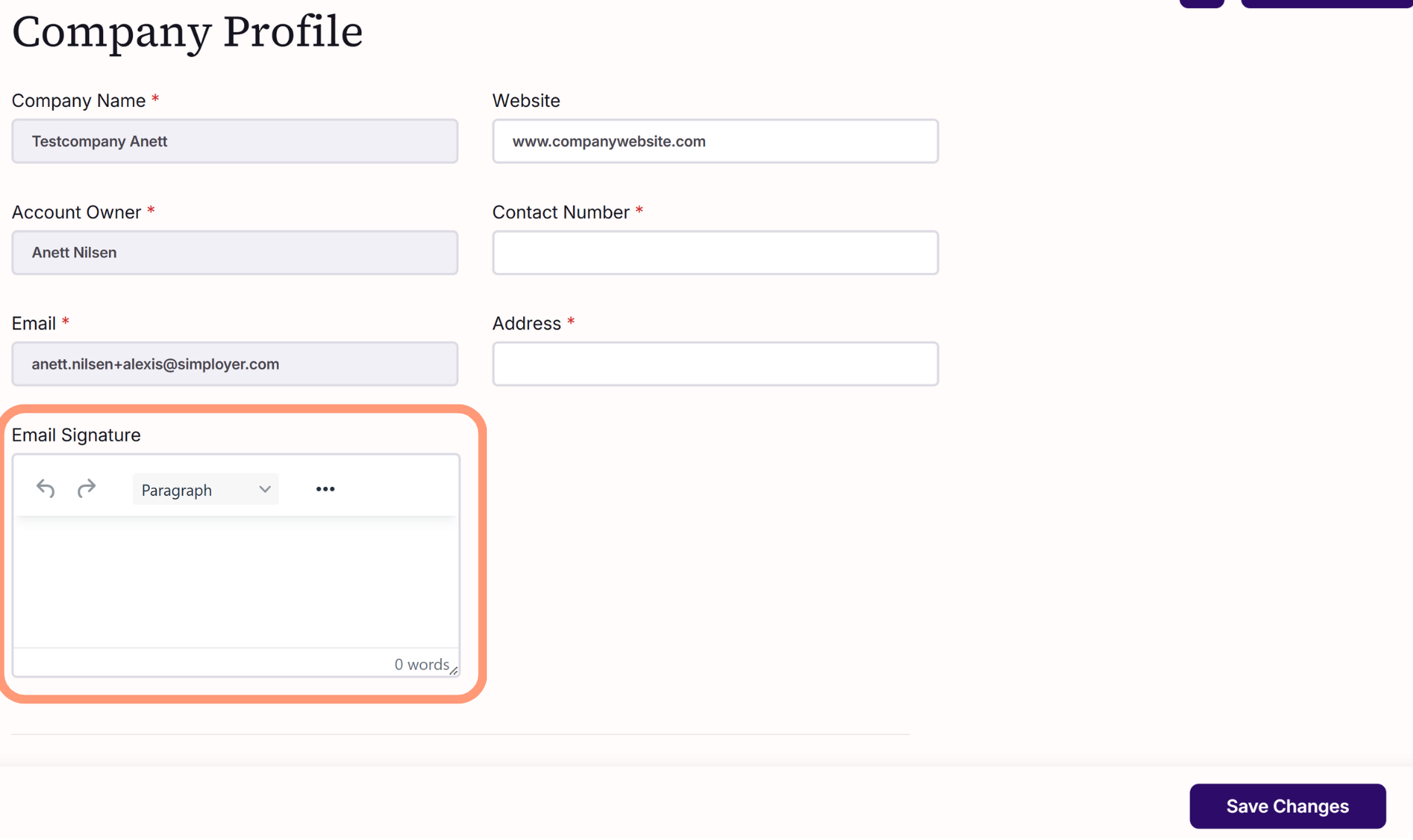
Head to Settings - Company - Profile to see and edit the email signature for the company. Click Save changes.
Note
The company profile can only be saved when all required fields (marked *) are filled in, including Contact Number and Address. Otherwise you'll see "Please complete all required fields with valid data".
Note
If you are copying and pasting, please use CTRL+C and CTRL+V, and ensure you are copying from within the same browser, to ensure logos and HTML come across correctly.
Was this article helpful?
That’s Great!
Thank you for your feedback
Sorry! We couldn't be helpful
Thank you for your feedback
Feedback sent
We appreciate your effort and will try to fix the article