Installing Sia in Slack and Microsoft Teams
Modified on Wed, 10 Dec, 2025 at 11:01 AM
Installing Sia in Slack and Microsoft Teams
Sia is Simployer One’s AI assistant. In Microsoft Teams and Slack, Sia can answer HR questions, complete HR tasks, and run advanced multi-step analyses by securely combining data across multiple Simployer One products. Sia then turns the results into clear actions you can take, such as approving requests, spotting risks, or preparing leadership-ready summaries.
Before you start
- Sia must be enabled for your organization by an admin
- Your organization must connect Sia to Microsoft Teams and/or Slack
- After the integration is installed, users can start using Sia in chat
Install Sia (admins)
This section is for admins setting up the integration for the organization.
Install Sia in Slack
- In Simployer One, go to Settings (or Admin) and then Integrations
- Open Slack
- Select Connect and follow the prompts to install and authorize the Slack app
- Confirm the integration is active
Install Sia in Microsoft Teams
- In Simployer One, go to Settings (or Admin) and then Integrations
- Open Microsoft Teams
- Select Connect and follow the prompts to sign in and grant permissions
- Confirm the integration is active
Access Sia in Teams and Slack
You can start interacting with Sia as soon as the integration is installed for your organization.
In Slack
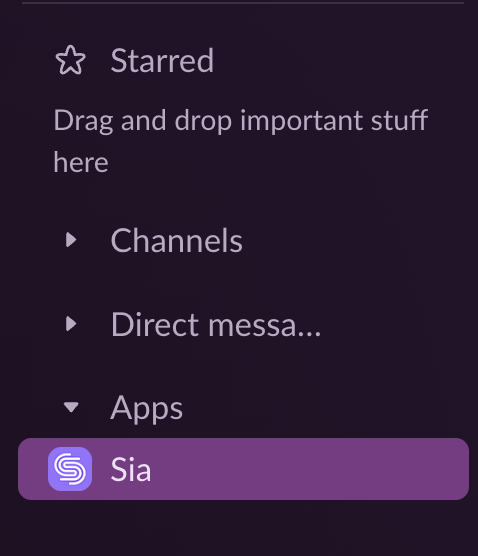
- Find Sia under Apps in the left sidebar
- Send Sia a direct message to ask questions or perform tasks
In Microsoft Teams
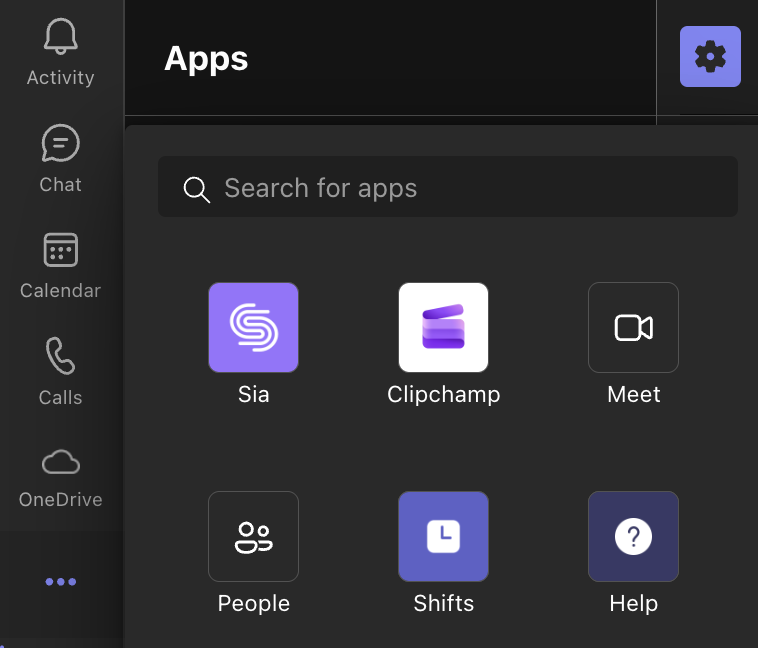
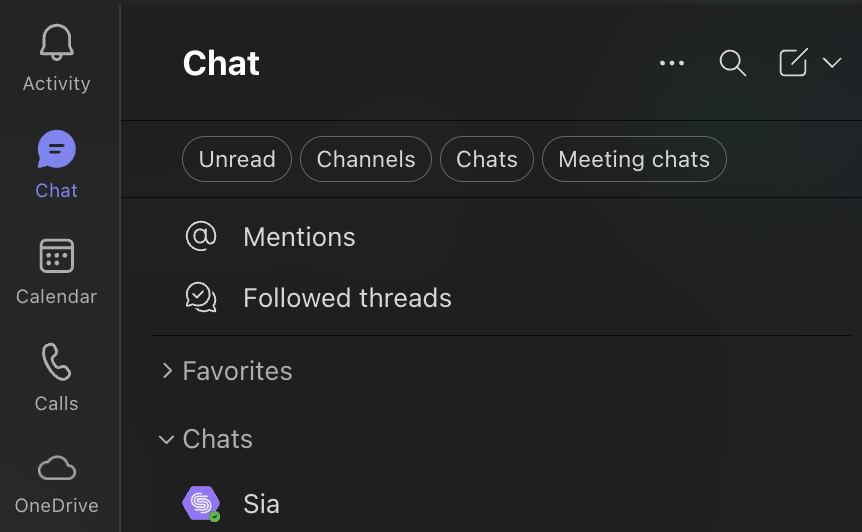
- Find Sia in Apps
- Open the Sia chat to ask questions or perform tasks
What you can do with Sia in Teams and Slack
Sia supports the same core capabilities as in the Simployer One web app, with the added benefit of real-time notifications and actions delivered directly in chat.
1. Receive and act on notifications
Notifications show up when something needs attention, so work happens at the right moment without switching tools.
Managers
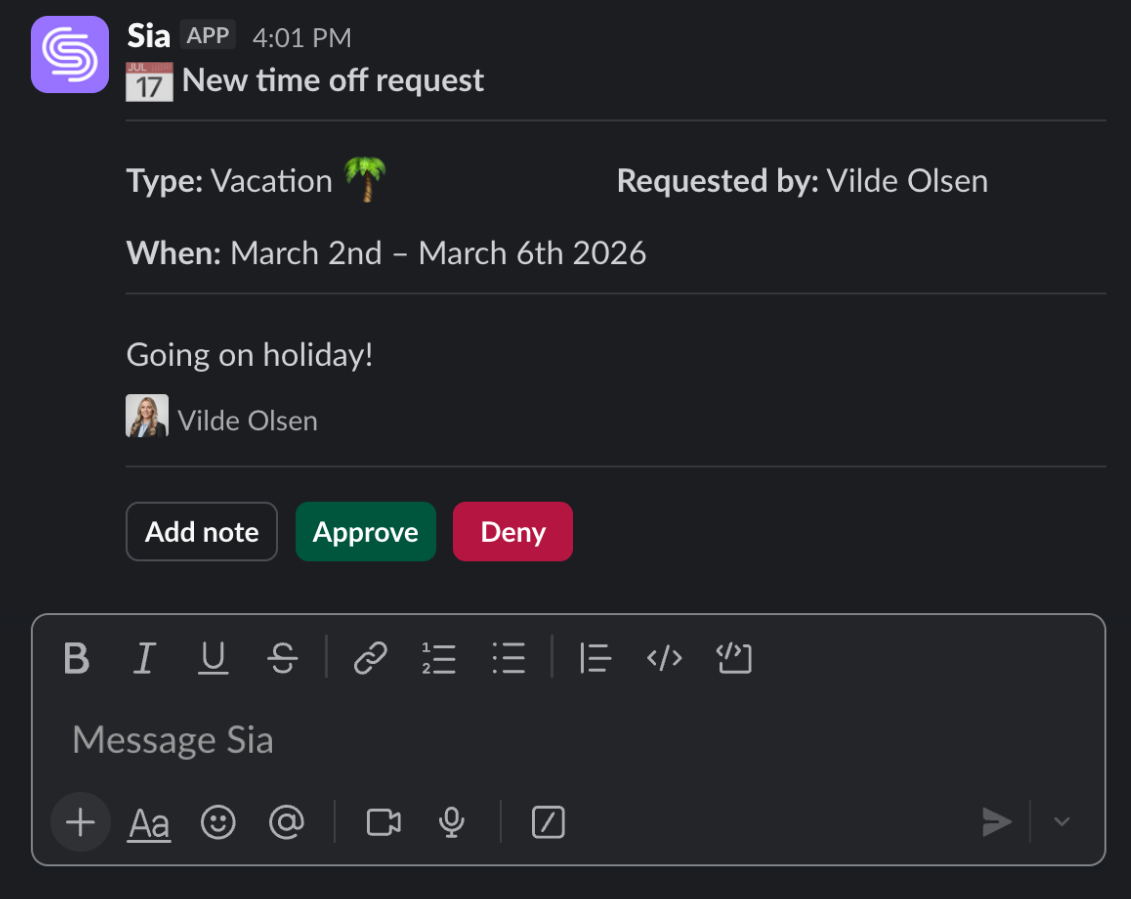
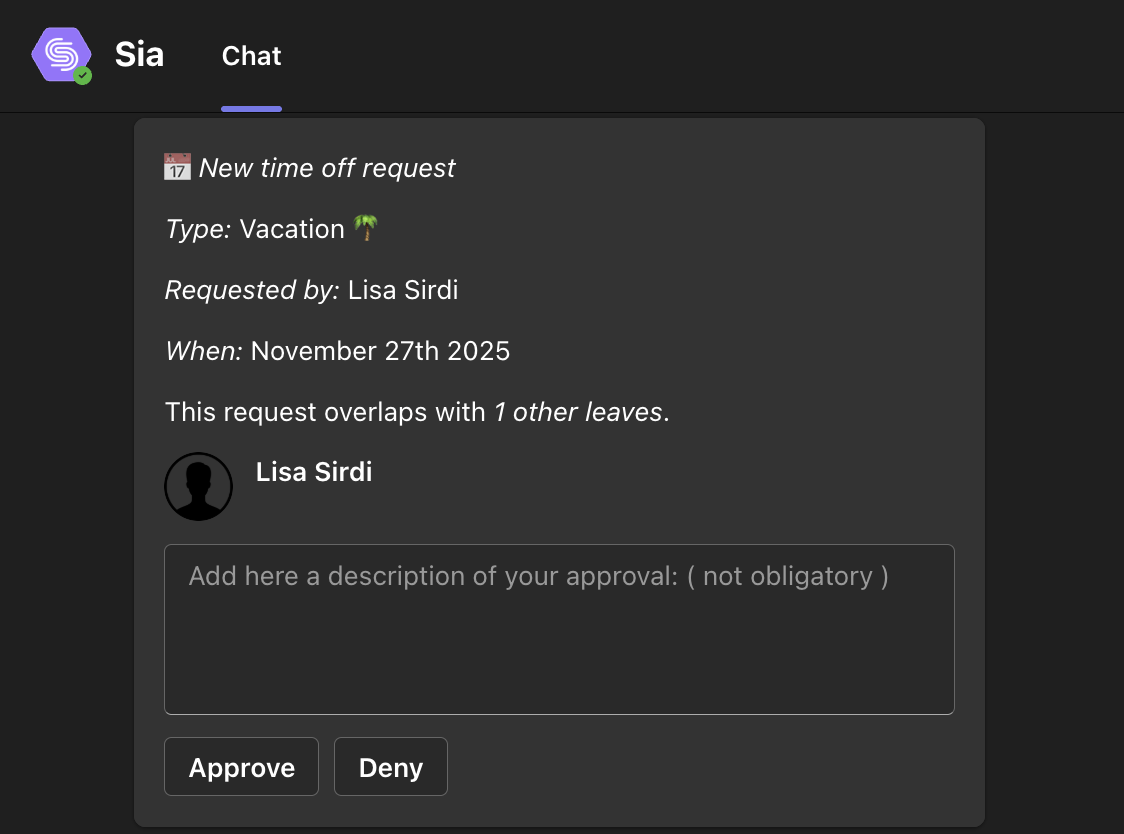
If an employee submits a leave request, Sia can notify you right away. You can approve or deny the request directly in the message.
Employees
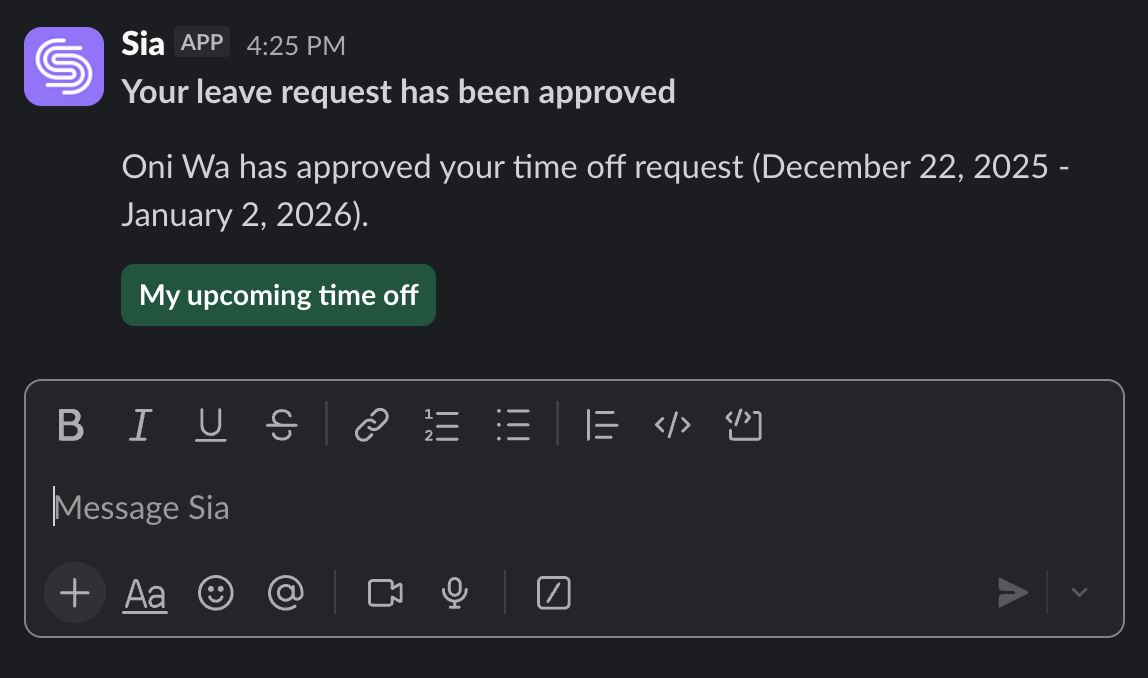
When a manager takes action, such as approving your vacation request, you will be notified in chat.
Examples of notifications
- “New time off request”
- “Your leave request has been approved.”
- “A new review cycle has been launched.”
Send notifications to Slack channels (optional)
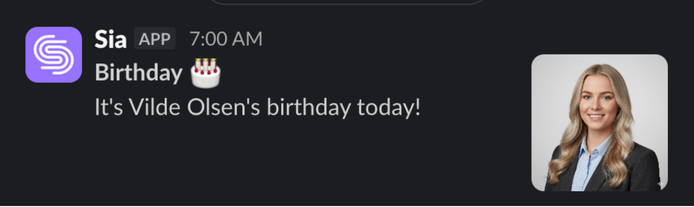
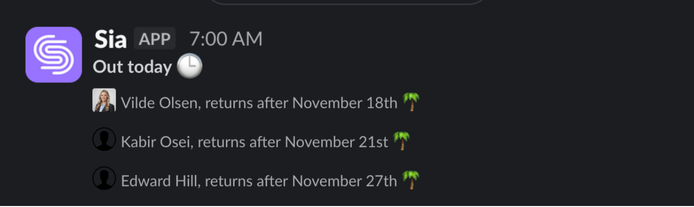
In addition to direct messages, Sia can post certain notifications to Slack channels. This helps teams share visibility and stay aligned.
Admins can choose:
- Which Slack channels should receive notifications
- Which notification types should be posted there
Examples of channel notifications
- Birthdays
- Work anniversaries
- Remote work status updates
- Who’s on leave
2. Ask HR and policy questions
Employees can ask Sia questions about their organization’s handbooks and HR policies.
Examples
- “What does our parental leave policy say?”
- “How long can I be on sick leave before I need documentation?”
- “What’s the mileage rate for travel reimbursement?”
Sia can search within your organization’s policy documents to provide answers quickly.
3. Complete common HR tasks
You can perform day-to-day HR tasks directly in Teams or Slack. If any details are missing, Sia will ask follow-up questions to complete the task.
Examples
- “Apply for vacation from 12–14 June.”
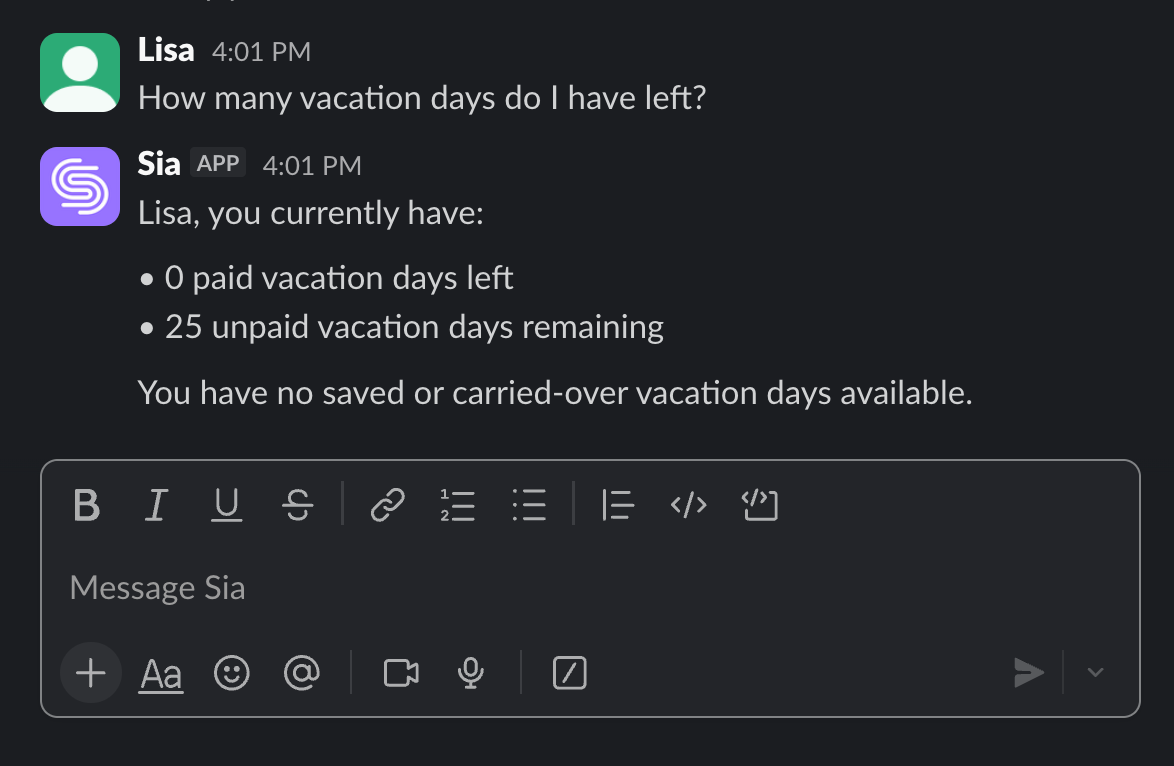
- “Show me my vacation balance.”
- “Register sick leave for today.”
- “Set my work status to working remotely.”
4. Owners and admins: ask about expert content
If your role includes access to Expert content, you can ask questions related to compliance, employment law, and HR best practices.
Examples
- “What are the rules for temporary employment contracts in Norway?”
- “How do we handle overtime for part-time employees?”
5. Suite-wide analysis (advanced)
Sia can also handle multi-step requests that combine data from multiple Simployer One products and convert it into a clear recommendation or next action. Sia’s available data and permissions depend on which Simployer One products your organization uses and what access your role has.
Copy these examples and paste them in as a starting point to your prompts to Sia:
Capacity crisis detection (planning + approvals)
“We’re planning a major product launch in Q1. Show me our current headcount trends, who’s planning to leave or take extended vacation in January–March, and identify which departments might have capacity issues. Then suggest which pending leave requests I should prioritize approving vs. asking to reschedule.”
Team health intelligence (risk + prediction)
“My engineering team’s NPS scores dropped 15 points this quarter. Show me their engagement data, average tenure, recent performance reviews, and compare their vacation usage to company average. Are we at risk of losing key people?”
Executive dashboard on demand (board-ready summary)
“Prepare a summary for our board meeting: current headcount and FTE rate, joiners and leavers trend for the past 12 months, average tenure and age, gender distribution, and flag any departments where employee engagement scores are below company average.”
Tip: Advanced prompts work best when you include a timeframe, such as “last 12 months,” and specify the output format you want, such as “summary,” “bullets,” or “table-style snapshot.”
Using Sia effectively
Be clear and specific
The more detail you provide, the more useful the response will be. Instead of “vacation,” try:
- “How many vacation days do I have left this year?”
- “Apply for vacation from 12–14 June and tell me who needs to approve it.”
Use Sia for HR tasks and HR information
Sia specializes in HR workflows, personal HR data, and organizational information. For non-HR topics or technical issues, Sia may not have the answer.
Know when human support is needed
Sia may guide you to contact HR when:
- The question requires human judgment
- The situation is sensitive
- The request goes beyond the system’s available data
What Sia can and cannot do in Teams and Slack
What Sia can do
- Access your organization’s HR handbooks and policies
- Use your personal HR data when needed to complete your request
- Retrieve employee and organizational information
- Send notifications for approvals and updates
- Complete tasks like leave requests, absence registration, and status updates
- Support Owners/Admins with Expert content queries (if enabled)
What Sia cannot do
- Replace HR advisors for complex or sensitive decisions
- Access external websites or sources of information
- Reliably understand very unusual or ambiguous requests
- Share your data outside the system (your information is not shared with external AI models)
Get the most out of Sia in Teams and Slack
Sia is built to reduce time spent on routine HR tasks, help you find information quickly, and keep you up to date on what needs your attention.
✨ Start by sending Sia a message or respond to your next notification and see how much time you can save.
Was this article helpful?
That’s Great!
Thank you for your feedback
Sorry! We couldn't be helpful
Thank you for your feedback
Feedback sent
We appreciate your effort and will try to fix the article