For employees, managers, admins and owners
Sia can be added to Microsoft Teams in a few clicks, so you can chat with your HR assistant directly from where you work. Once the app is added and connected to your Simployer One account, you can ask questions, complete HR tasks, and receive notifications inside Teams.
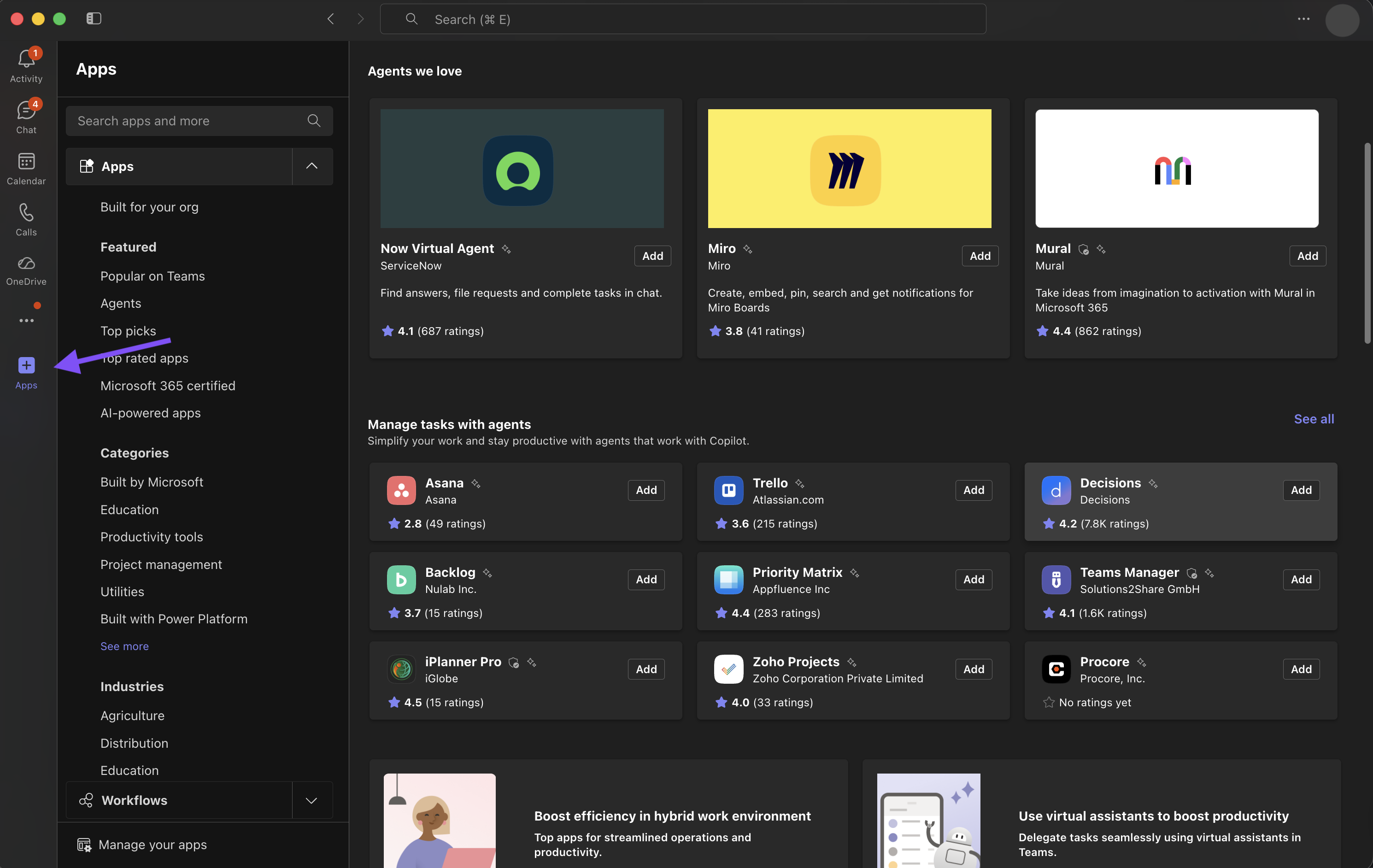
Click Apps in the left-hand menu. Search for Sia by Simployer and click on the app.
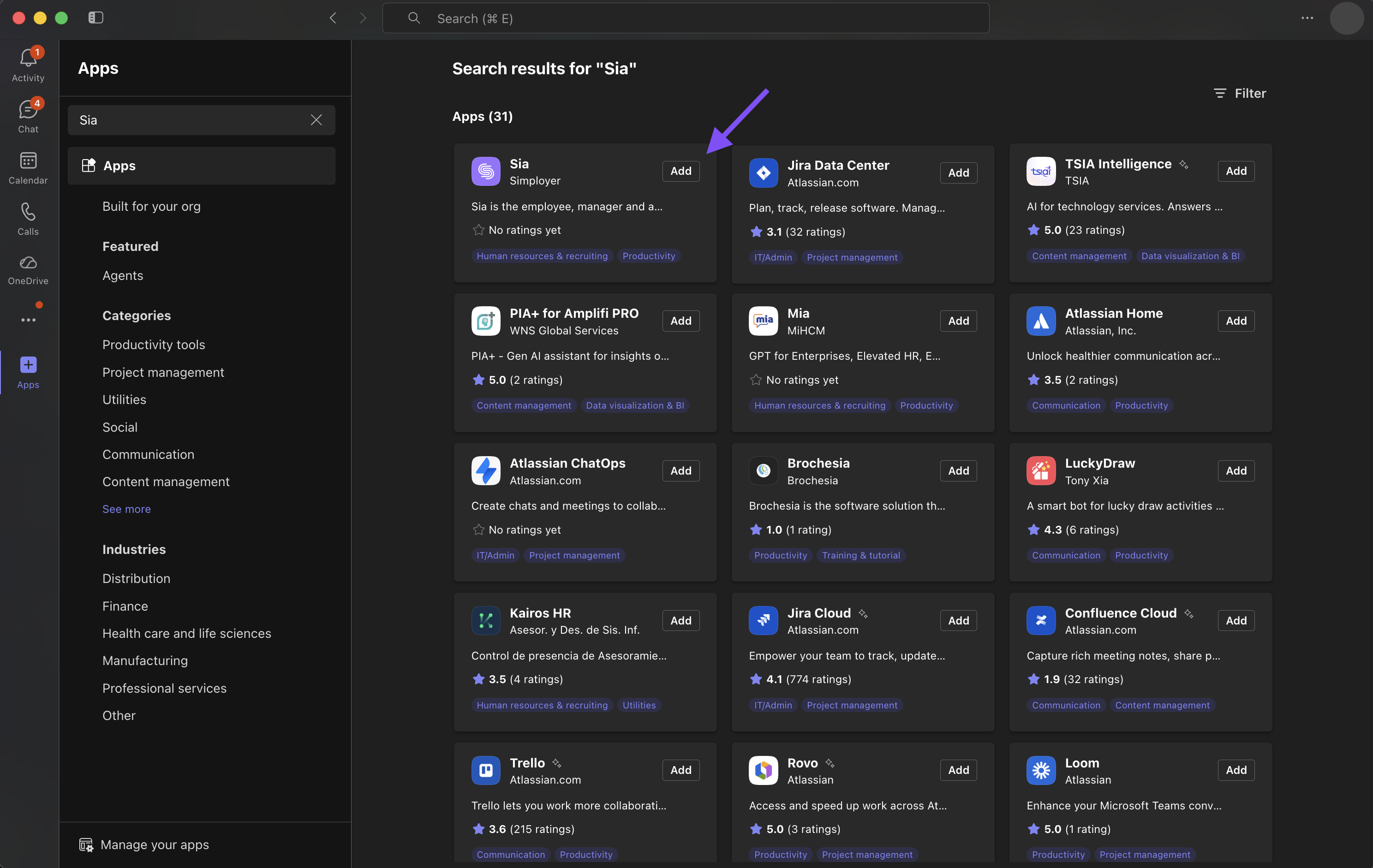
A pop-up window will be displayed, click on the button Add to install
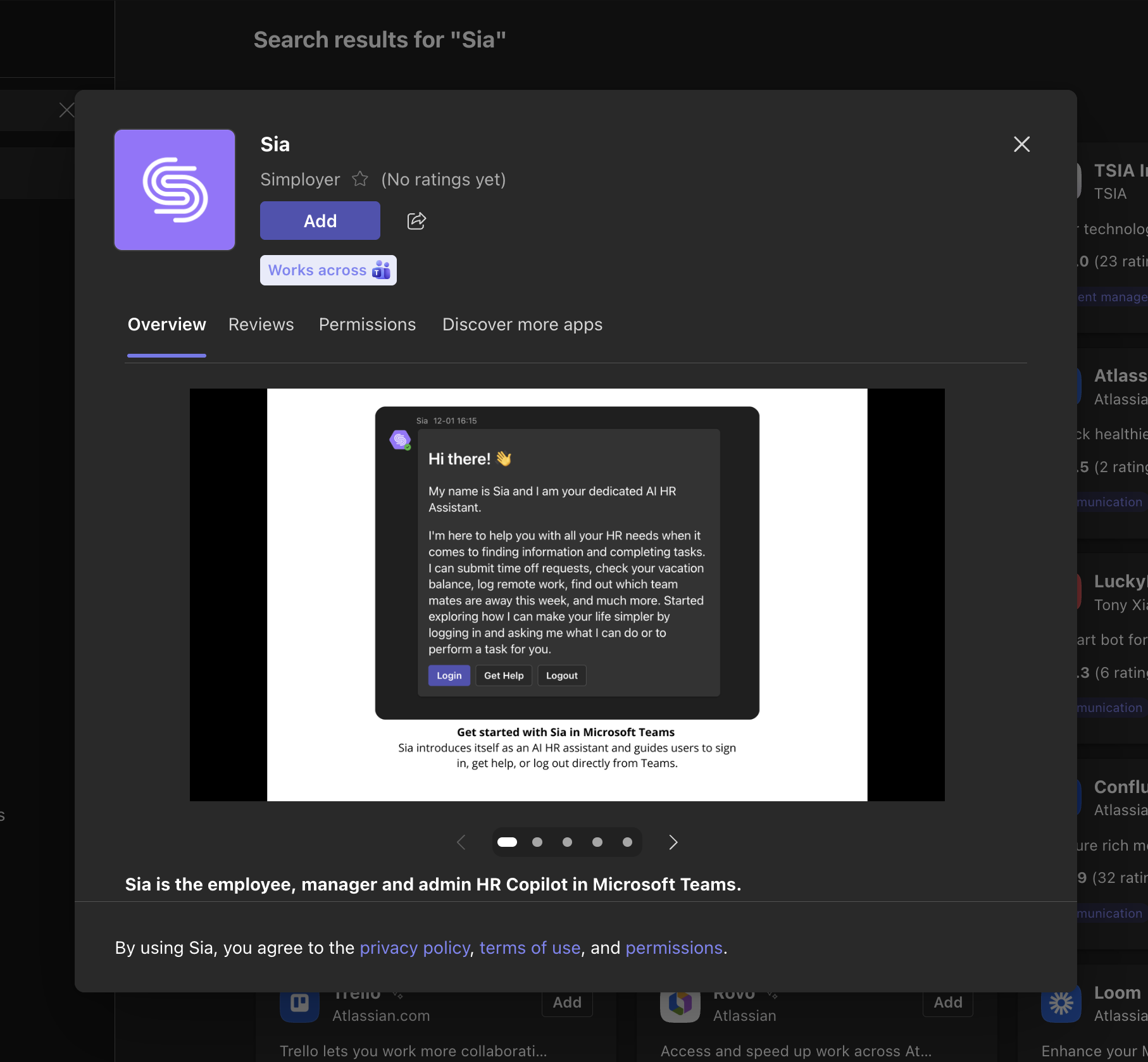
Sia has now been installed! Click Open to open the chat
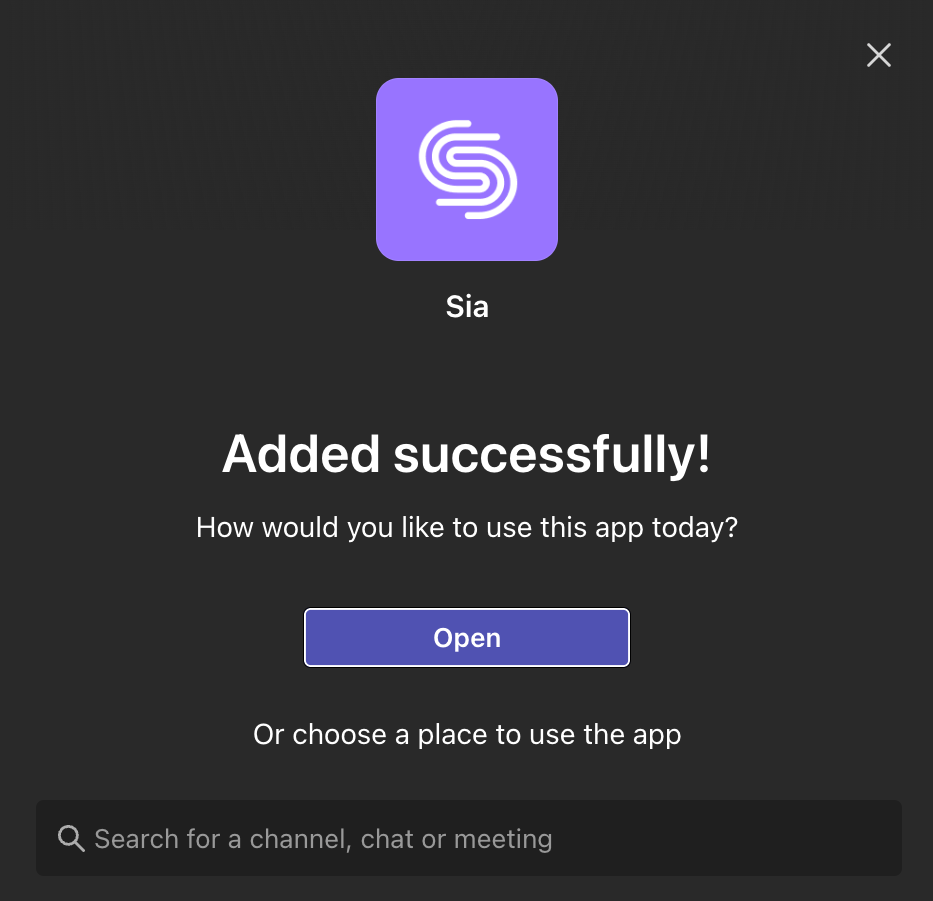
You will see a welcome message from Sia. Click Login to connect your Simployer One account.
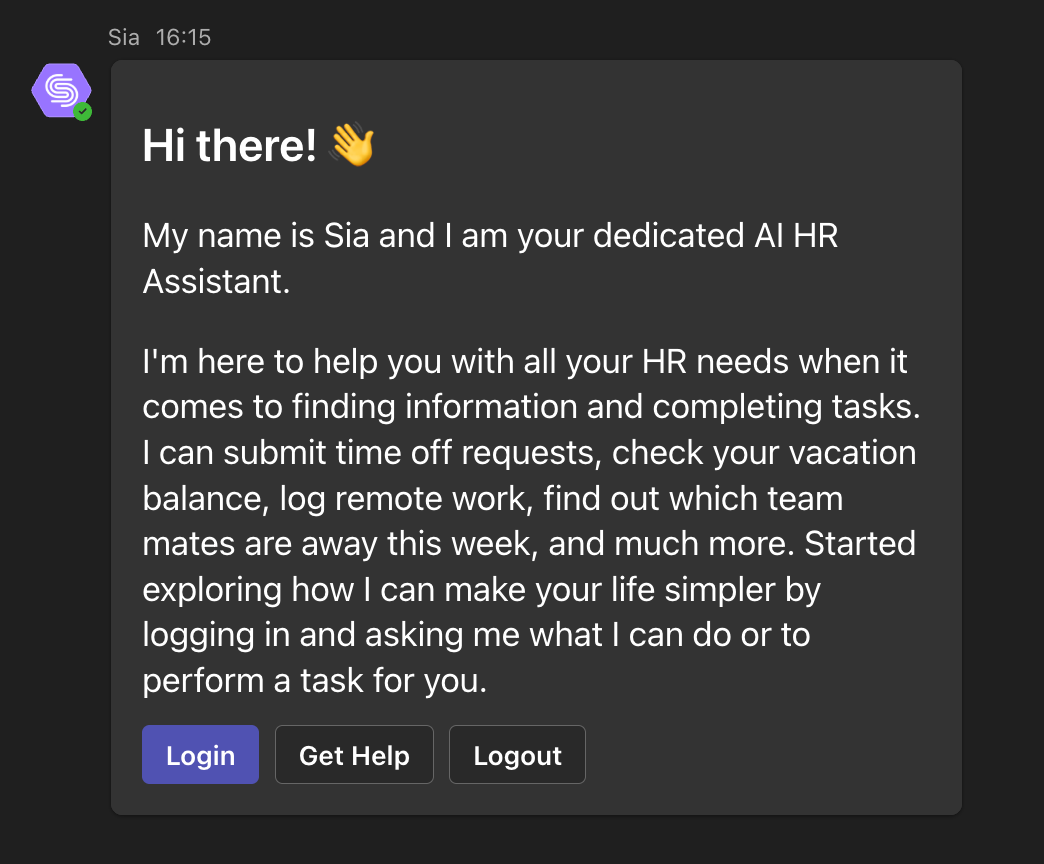
You will be redirected to your browser to log in to Simployer One and set up the connection.
When the login is complete, return to Microsoft Teams. Sia is now ready to use.
Note: If you are asked to log in again later, it usually means your Simployer One session has expired. Logging in again will re-authenticate your account.
Quick start prompts
Once connected, try these prompts to get started:
“help”
“How many vacation days do I have left this year”
“Show me my vacation balance”
“Register sick leave for today”
“What does our parental leave policy say”
What you can do with Sia in Teams
After Sia is connected to your Simployer One account, you can:
Check your vacation balance and other personal HR information
Register absences such as sick leave
Find policy information based on your organization’s handbooks
Respond to requests and notifications, such as approvals, inside Teams, depending on your role and access
You can explore more advanced prompts in the general Sia help article, including multi-step and suite-wide analysis. The capabilities are the same across Slack, Teams, and the web app, but this article focuses only on how to connect and start using Sia in Microsoft Teams.
Was this article helpful?
That’s Great!
Thank you for your feedback
Sorry! We couldn't be helpful
Thank you for your feedback
Feedback sent
We appreciate your effort and will try to fix the article