TABLE OF CONTENTS
- 1. Your conversations
- 2. Preparing your reflections
- 3. After both have submitted
- 4. Signing off
- 5. Managing who can see your conversations
1. Your conversations
You'll be invited to conversations by your manager — or sometimes by another reviewer in your organisation, such as a project lead or an HR partner. Each invite is your starting point for a structured discussion about your work, growth, or anything else worth reflecting on together.
Where to find your conversations
There are three places to find a conversation:
Email notifications — You'll get an email each time a conversation is created for you, when it's ready to be shared, when it's closed, and at a few other key moments. Each notification includes a direct link to open the conversation.
My conversations — the main page listing all conversations where you're the subject. This is your home base in Reviews & Check-ins.
Your profile — Open the Reviews & Check-ins tab on your own profile to see the same list of conversations.
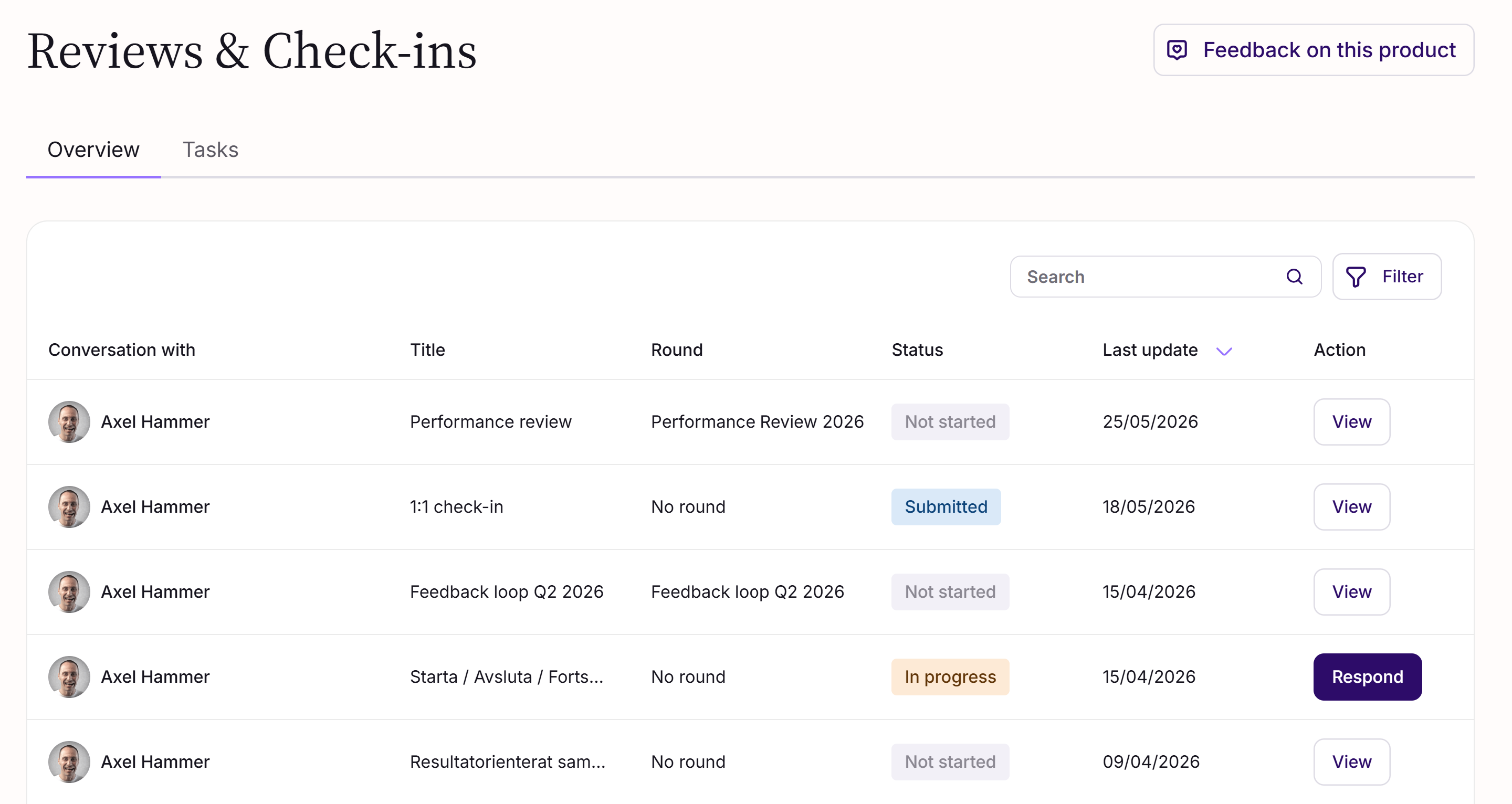
The conversation list
Each row in the list shows:
Conversation with — the reviewer (usually your manager)
Title — the title set by the reviewer
Round — the Conversation Round it's linked to, if any
Status — the current stage of the conversation
Last update — when the conversation last changed
Action — a button to take the next step, depending on the status:
Respond — you haven't submitted your reflections yet
Review — the conversation is closed and ready for you to read and sign
View — no action needed from you, but you can open the conversation
Finding a conversation
For quick navigation:
Sort the list by clicking any column header. By default, conversations are sorted by Last update (newest first).
Filter by status or round.
Search by conversation title, template, or reviewer name.
2. Preparing your reflections
Once you've been invited to a conversation, both you and the reviewer prepare independently. You each write your own reflections on the same discussion points, without seeing the other's responses — they become visible only when both of you have submitted.
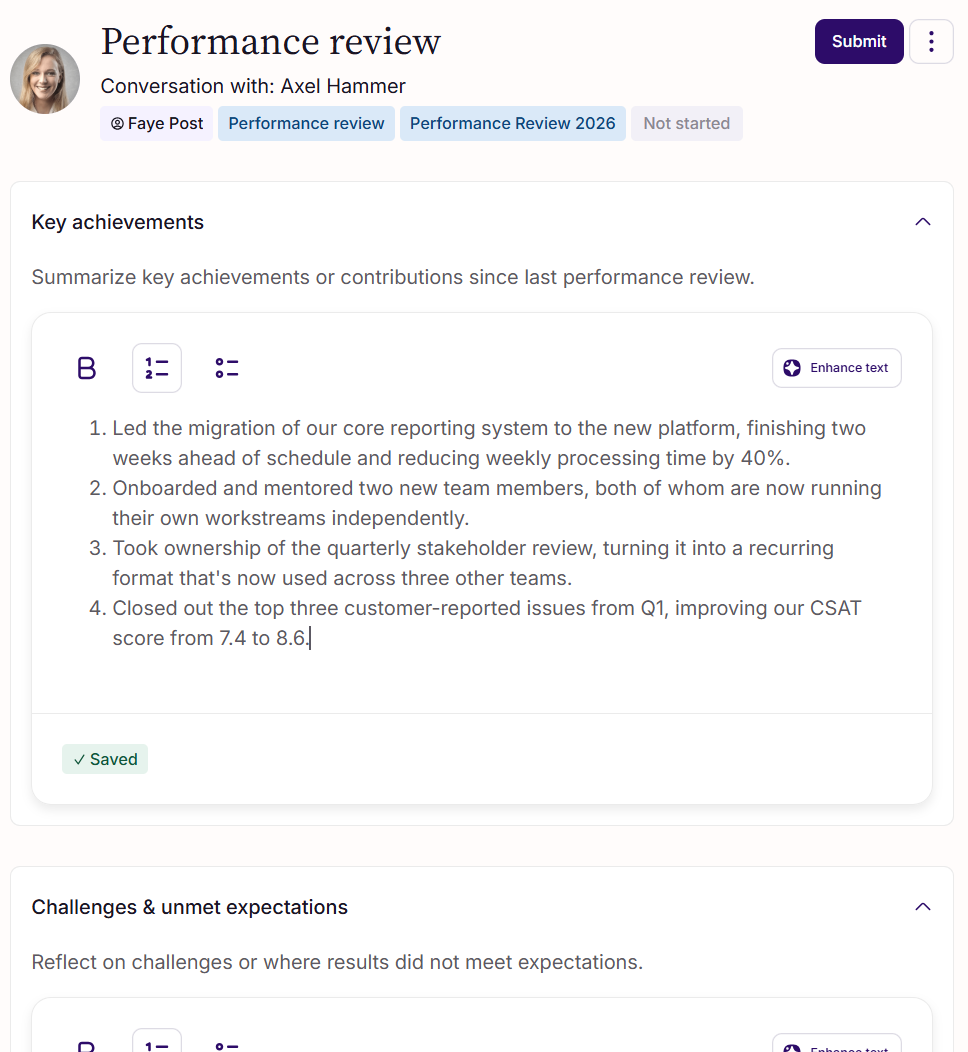
Opening the conversation
You can open the conversation in a few ways:
Click the link in your invite email
Click Respond in your My conversations list
Open it from the Reviews & Check-ins tab on your profile
Click the Prepare for Conversation task in your Action Hub
Writing your responses
Each discussion point has its own text field. Write your reflection in each one, in your own words.
Your input is auto-saved as you write, so you can come back later to finish. Nothing is shared with the reviewer until you submit.
Getting help from AI
If you'd like to refine what you've written, click the Enhance button next to your response. A window opens with your original text and following options:
Rephrase
Fix spelling & grammar
Make longer
Make shorter
Translate
The AI knows which discussion point you're working on and tailors its suggestion accordingly. You can apply the suggested change or keep your original — your choice.
Submitting
When you're ready, click Submit.
You don't have to answer every discussion point — but if you skip any, you'll see a warning before submitting. You can choose to submit anyway.
Once you've submitted, your responses are locked. You can't undo a submission, but you'll be able to clarify or expand on anything through comments once the conversation is shared.
What happens next
If the reviewer hasn't submitted yet, the conversation waits for them.
If they have already submitted, the conversation becomes shared as soon as you submit — and both responses become visible side-by-side.
Note on visibility
By default, neither you nor the reviewer can see each other's responses until both of you have submitted. Your organisation may have enabled an optional setting called Early access for reviewer, which lets the reviewer see your responses as soon as you submit, while they're still preparing their own. This is one-way: you still can't see the reviewer's responses until they've also submitted.
3. After both have submitted
Once both you and the reviewer have submitted, the conversation moves into its collaborative phase. Both responses become visible, and you can now add comments, build an action plan together, and produce a summary.
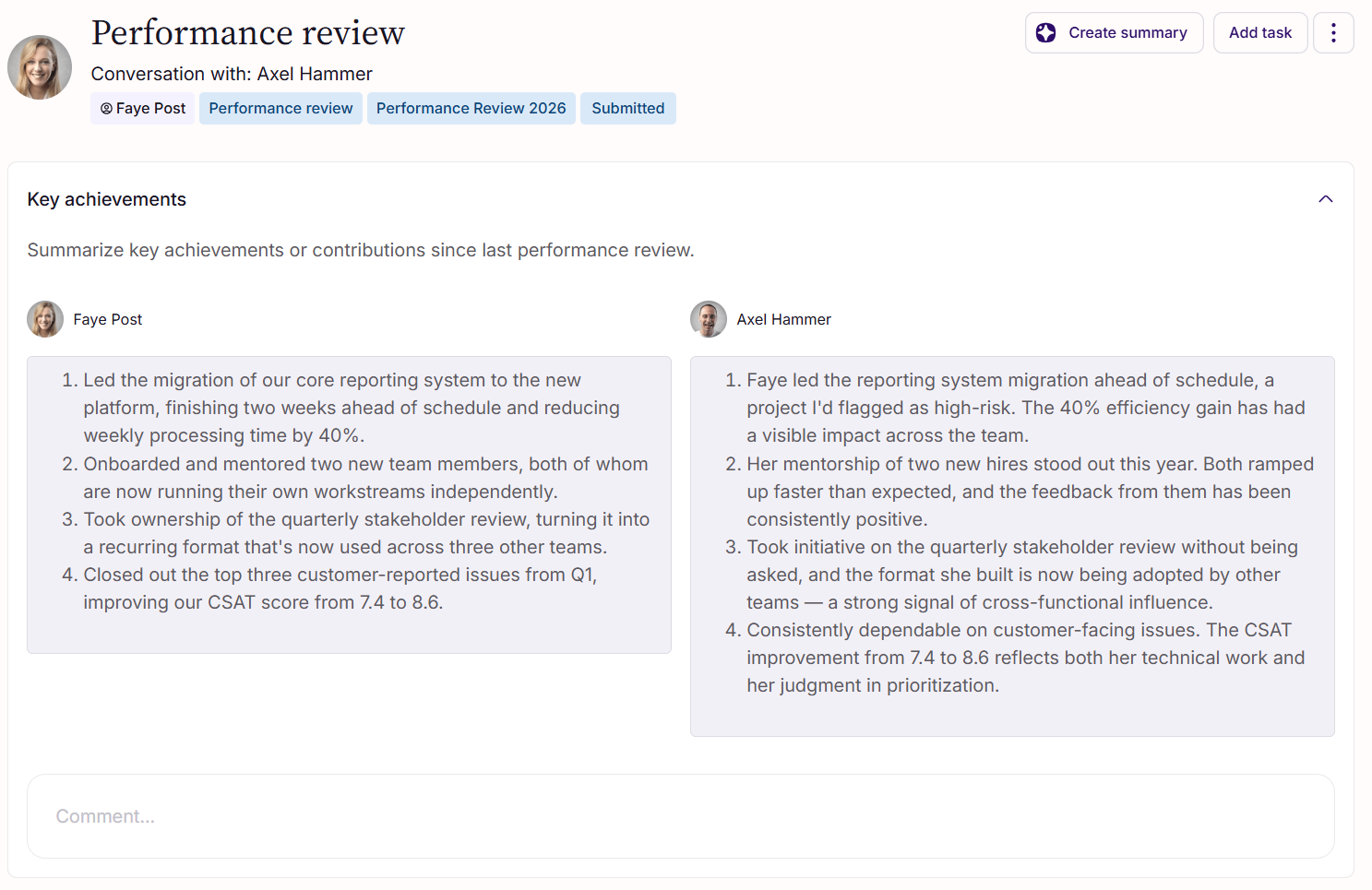
Side-by-side view
Responses become visible to both of you, presented side-by-side:
Left side — your reflections
Right side — the reviewer's reflections
Each discussion point shows both responses next to each other, making it easy to compare perspectives during the conversation.
Comments
Below each discussion point, both of you can add comments. Comments are useful for:
Clarifying or expanding on a response
Capturing notes during the live conversation
Agreeing on conclusions or next steps
Each comment is shown with the author's name and a timestamp, and is visible to both participants immediately.
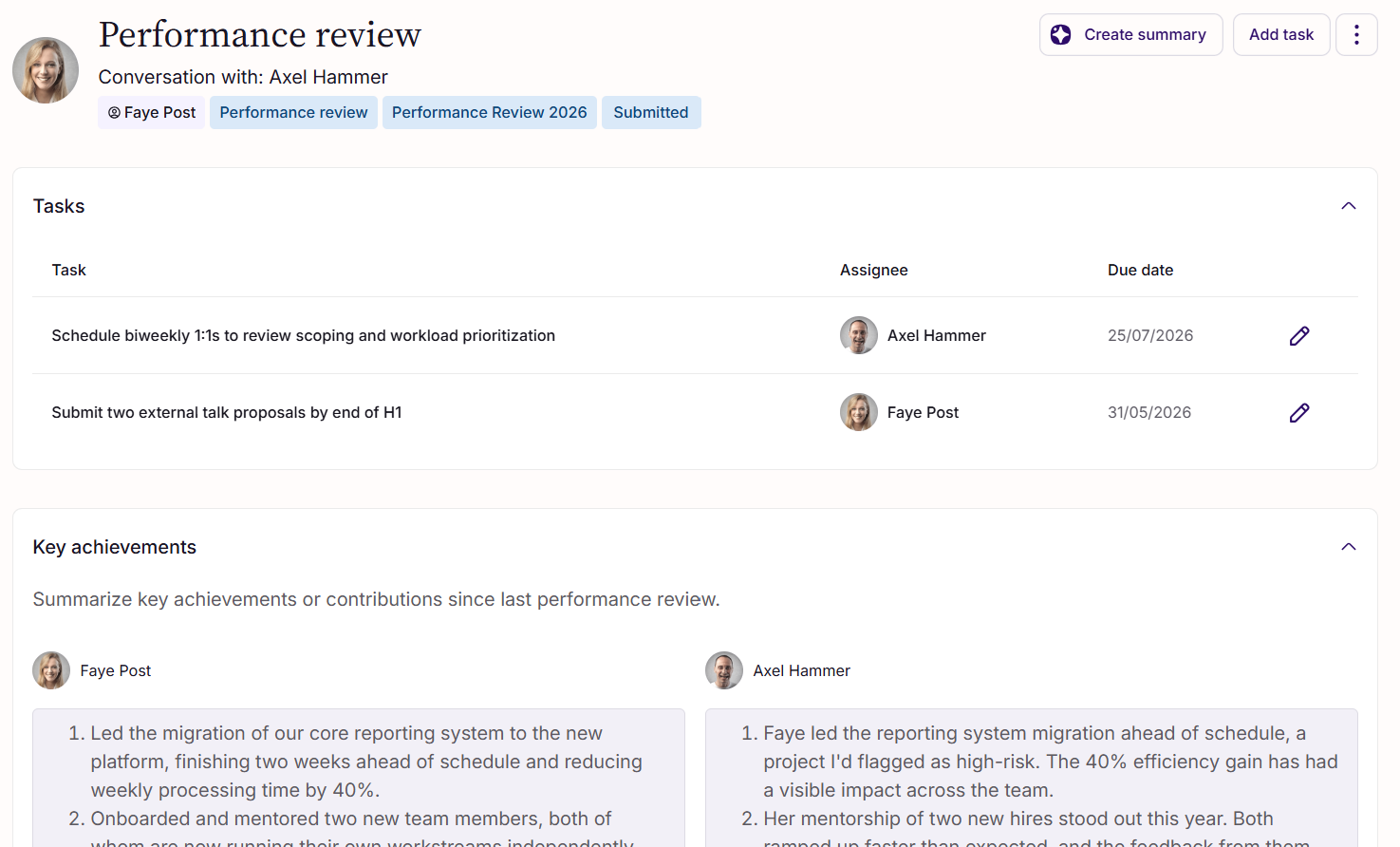
Tasks
You and the reviewer can build an action plan together by adding tasks to the conversation.
Each task has:
Title (required)
Description (optional)
Assignee — either you or the reviewer
Due date (optional)
While the conversation is open, tasks are in draft mode — both of you can add, edit, or delete them, and they don't appear anywhere else yet.
When the reviewer closes the conversation, tasks become finalised. Any tasks assigned to you appear in your general task list, where you can mark them as Done once you've completed them. After this point, the task details (title, description, due date, assignee) can no longer be changed.
AI-generated summary
Either of you can generate a summary that captures the key points from the conversation.
Click Generate summary to produce a draft based on the responses and comments. The summary is editable — you or the reviewer can refine the wording, and changes are auto-saved.
You can also get AI help while editing the summary, using the same Enhance options available for responses: Rephrase, Fix spelling & grammar, Make longer, Make shorter and Translate.
A summary is optional. If neither of you wants one, simply leave it empty — or remove a generated draft if you change your mind.
4. Signing off
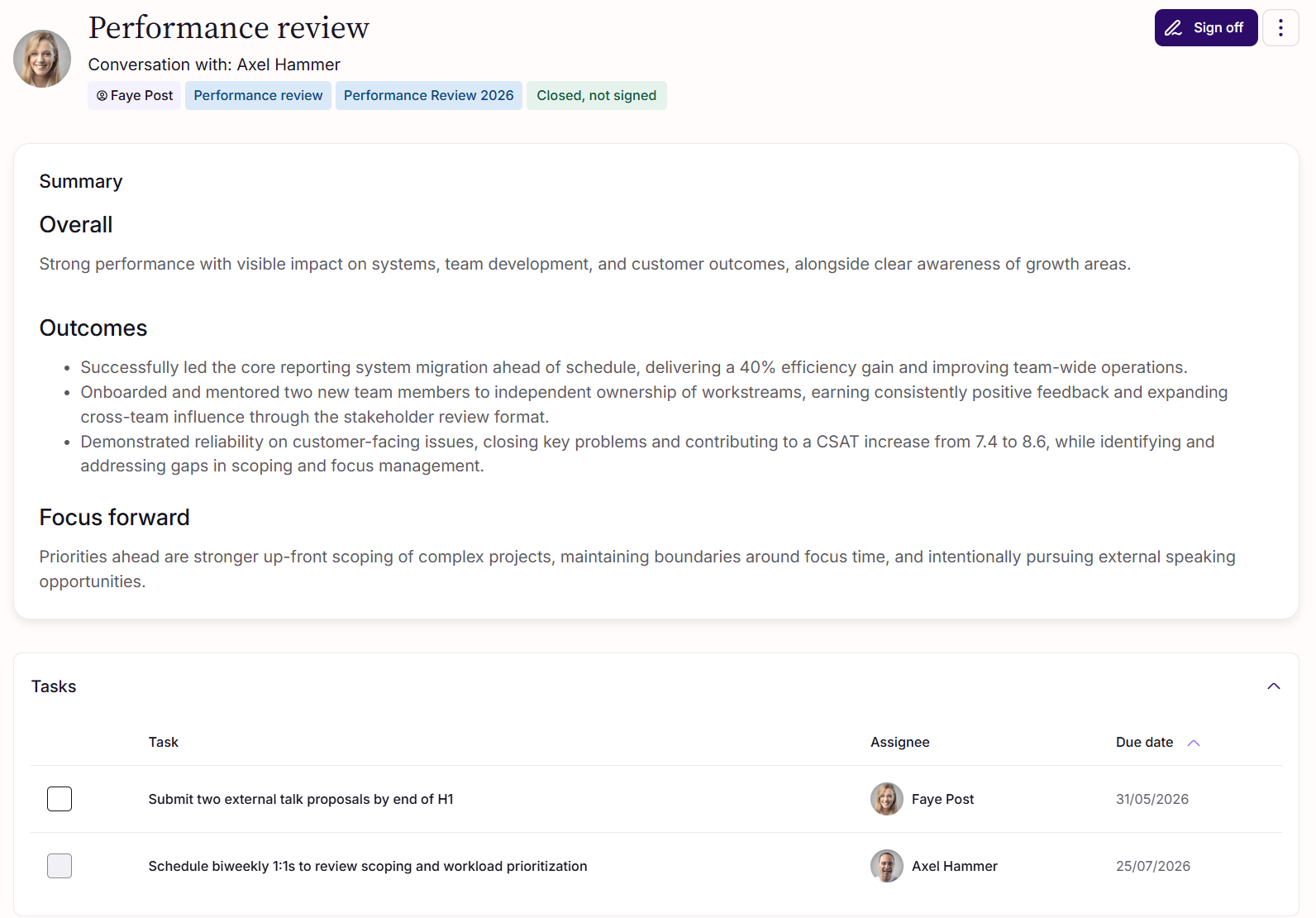
When the conversation is complete, the reviewer closes it. At that point everything becomes read-only, and the conversation is ready for you to review and sign.
Reviewing the closed conversation
You'll get a notification when the conversation is closed. Open it from the email link, from My conversations (the action button changes to Review), or from the Sign the Conversation task in your Action Hub.
Take a moment to read through the responses, comments, summary, and tasks. Everything is now read-only — both yours and the reviewer's.
Signing
When you're ready, click Sign to acknowledge that you've taken part of the content of the conversation. Signing doesn't mean you agree with everything — it simply confirms that you've seen and read the final version.
After you've signed, the conversation's status changes to Closed.
If the reviewer re-opens the conversation
Sometimes the reviewer may need to re-open a closed conversation — for example, to adjust the summary or add a missing comment. If that happens:
New comments may be added and the summary may be updated
Tasks remain unchanged
Your previous signature is invalidated — you'll need to sign again once the reviewer closes the conversation a second time
You'll get a notification when the conversation is re-opened, and another one when it's closed again and ready for your signature.
5. Managing who can see your conversations
Your conversations are private to you and the reviewer by default. Sometimes, though, someone else in your organisation may need access — for example, a new manager, an HR partner, or a senior leader. You're in control of who that is.
How others can request access
If another user opens one of your conversations — through a shared link, for example — they'll see a prompt to request access. The request comes to you, not to the reviewer, because the conversation is about you.
You'll get a notification each time a new request is made, along with a Review Access Request task in your Action Hub.
Approving or denying requests
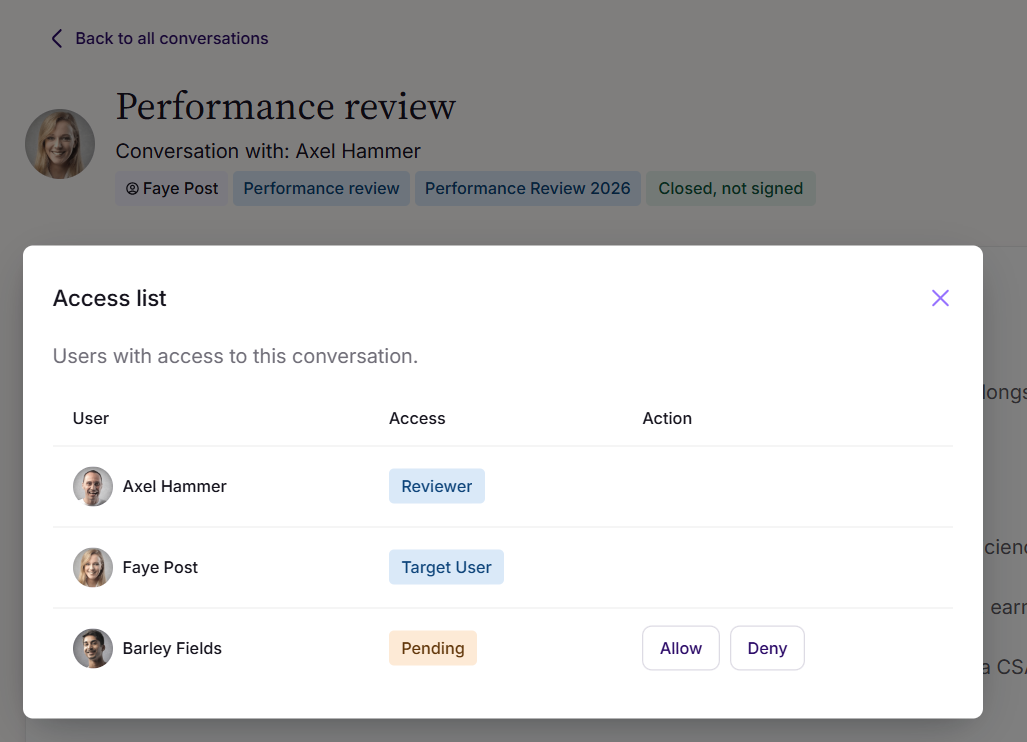
Open the conversation, click the More menu, and choose View Access. You'll see a list of:
Everyone who currently has access
Any pending access requests
For each request, you can choose to Allow or Deny. If you allow it, the person becomes a viewer and is notified.
Removing access later
You can change your mind at any time. From the same View Access modal, you can remove any previously approved viewer. They'll lose access immediately.
If you removed someone by mistake, or want to grant access to someone you previously denied, they can simply request access again.
When viewers can actually see the conversation
Approved viewers can only see the conversation once it has been closed. Before that, the conversation stays private between you and the reviewer, even for users you've approved.
Viewers see the same view you do — except they can't sign the conversation or see your task list.
Was this article helpful?
That’s Great!
Thank you for your feedback
Sorry! We couldn't be helpful
Thank you for your feedback
Feedback sent
We appreciate your effort and will try to fix the article