Learn how to view your vacation balance, understand your remaining vacation days, and see how your vacation balance is calculated.
Your Vacation account in Simployer One shows how many vacation days you have used, saved, and still have available during a selected vacation period.
How do I view my vacation balance in Simployer One?
To check your vacation balance:
Go to Employees and open your employee profile.
Select the Time off tab.
Click My overview.
Find the Vacation account section.
Your vacation account displays the selected vacation period, its status, and your vacation balance.
You can use the left and right arrows next to the vacation period to navigate between different periods.
Tip: If you prefer to check your vacation balance using the Simployer One Slackbot, see How to install and use Simployer One Slackbot.
What do the different vacation balance fields mean?
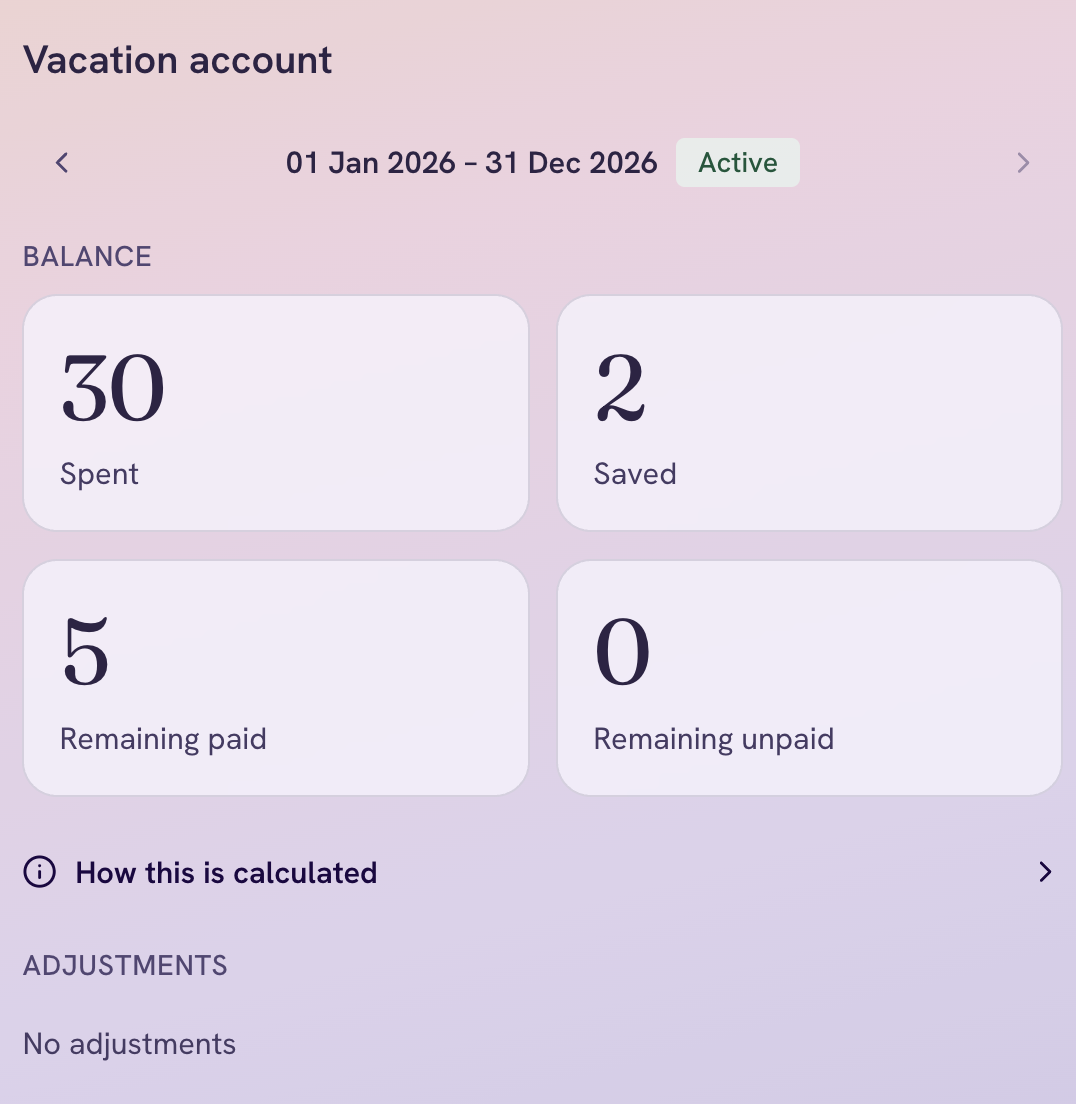
Your Vacation account in Simployer One displays four balance fields:
Spent: The number of vacation days used during the selected vacation period.
Saved: The number of vacation days marked as saved in your vacation account.
Remaining paid: The number of paid vacation days you have left.
Remaining unpaid: The number of unpaid vacation days you have left.
For example, your vacation balance might show:
How is my vacation balance calculated in Simployer One?
You can see a detailed breakdown of your vacation balance by clicking How this is calculated in your Vacation account.
To view the calculation:
Open your employee profile.
Go to Time off > My overview.
Find the Vacation account section.
Click How this is calculated.
A panel opens showing how your vacation days are calculated for the selected vacation period.
The calculation includes:
Carried over from last year: Vacation days transferred from the previous vacation period.
Earned vacation days: Vacation days earned for the selected period.
Vacation days at the start of this cycle: The total of carried-over and earned vacation days.
Total spent vacation days this year: The number of vacation days used during the vacation period.
Vacation days left this year: The number of paid vacation days remaining after subtracting spent vacation days from the starting balance.
Example of a vacation balance calculation
Calculation | Days |
|---|---|
Carried over from last year | +5 |
Earned vacation days | +30 |
Vacation days at the start of this cycle | 35 |
Total spent vacation days this year | −30 |
Vacation days left this year | 5 |
In this example, the employee started the vacation period with 35 vacation days, including 5 days carried over from the previous year. After spending 30 days, the employee has 5 paid vacation days remaining.
You can also expand Carried over from last year to view additional details.
How are unpaid vacation days calculated?
Unpaid vacation days are counted separately and are not included in the paid vacation balance.
The How this is calculated panel also displays:
Unpaid vacation days at the start of this cycle: The number of unpaid vacation days available at the beginning of the period.
Unpaid vacation days left this year: The number of unpaid vacation days remaining.
For example, if you started the period with 0 unpaid vacation days, the panel displays 0 unpaid vacation days remaining.
Where can I see adjustments to my vacation balance?
Your Vacation account includes an Adjustments section below the vacation balance. The vacation balance can be adjusted only by owner and admin.
This section displays adjustments associated with your vacation account.
If there are no adjustments, the section displays No adjustments.
Where can I see my upcoming vacation and leave history?
In Time off > My overview, you can also see your upcoming leave requests and previous leave records.
Upcoming leaves: Displays upcoming leave requests, including the leave type, dates, and status, such as Pending or Approved.
Leave history: Displays previous leave records, including the leave type, dates, and status.
To view more previous leave records, click Show all leave history.
These sections help you track your vacation requests and other types of leave alongside your vacation balance.
Was this article helpful?
That’s Great!
Thank you for your feedback
Sorry! We couldn't be helpful
Thank you for your feedback
Feedback sent
We appreciate your effort and will try to fix the article