Phone-based two-factor authentication via SMS verification codes.
Prerequisites
Before enabling MFA, ensure the following requirements are met:
- Owner role access in Simployer One (required to access Authentication Settings)
- All users must have work phone numbers configured in their profiles
- Phone numbers include country codes (e.g., +47 for Norway, +48 for Poland, +46 for Sweden)
- Users have been notified about the upcoming MFA requirement
Best Practice: Export a list of all users and verify their phone numbers are complete before enabling MFA. This prevents lockouts.
Before enabling: All users must have a work phone number set in their profile. Users without a phone number will not be able to log in.
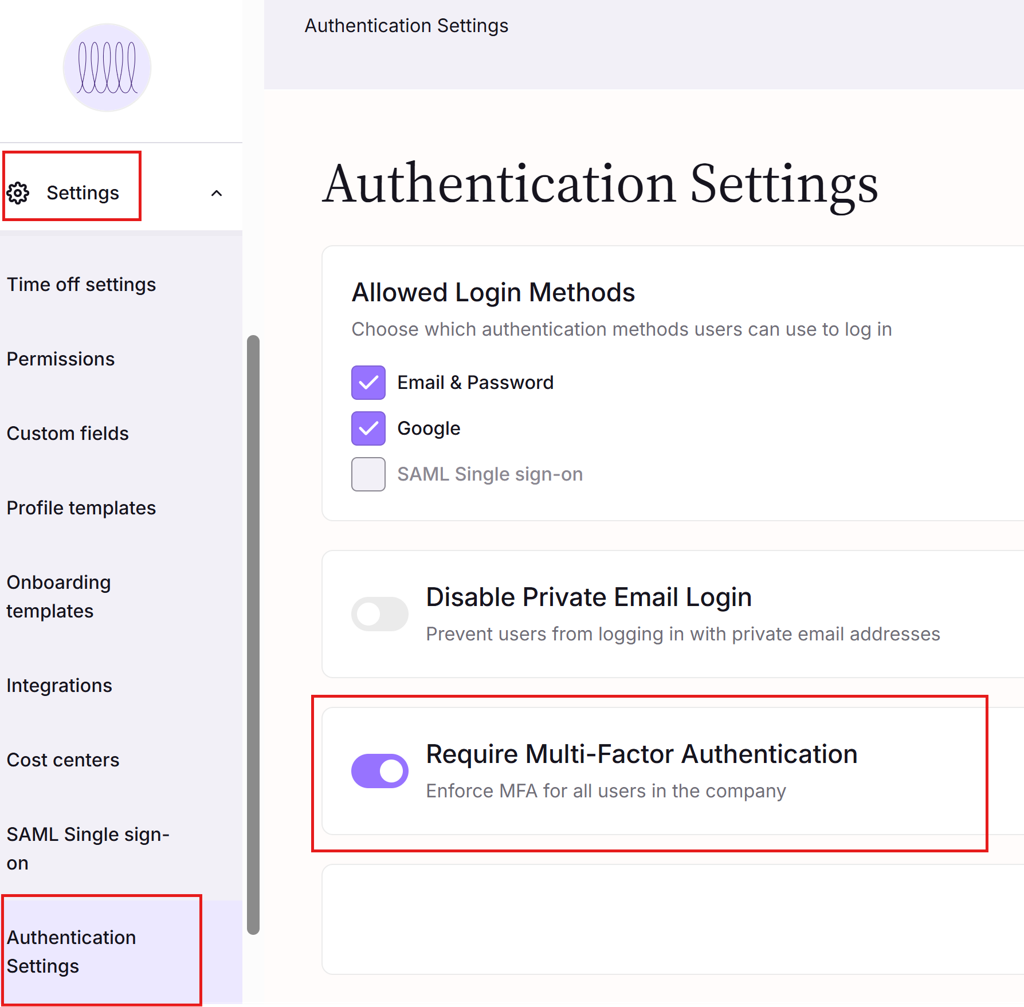
Enabled MFA For A Tenant:
- Log in to the Simployer One as an owner.
- Go to the Settings => Authentication Settings Page
- Enable the Multi-Factor Authentication for all users on this page.
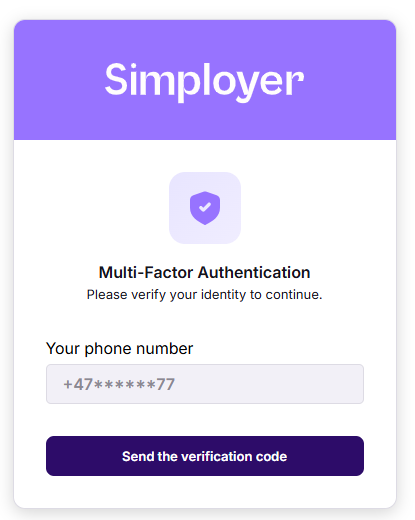
User logs in with MFA enabled
After entering the username and password, the user will see this dialog:
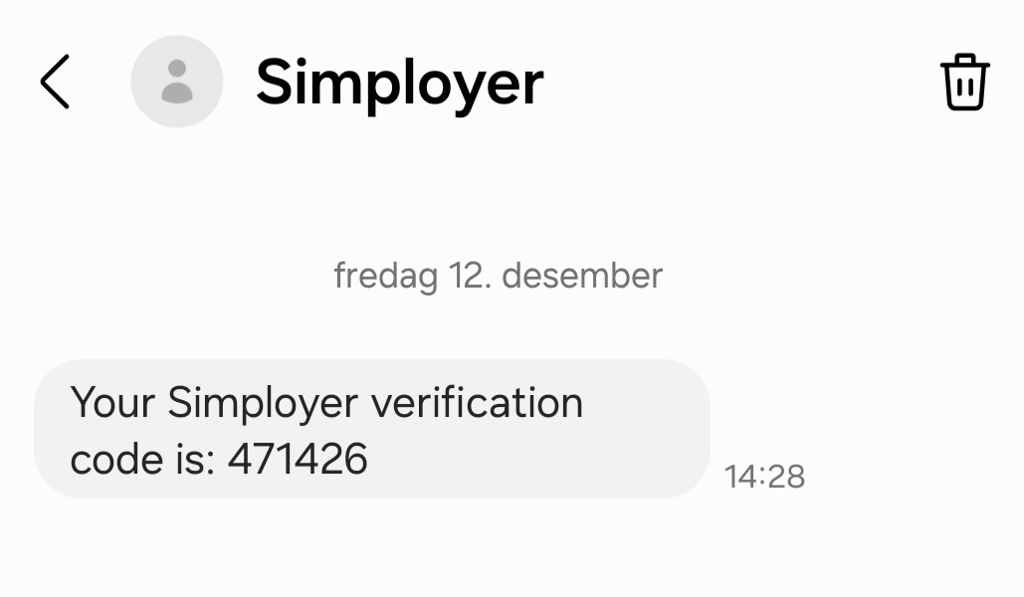
The user received an SMS like this:
Then enters code:
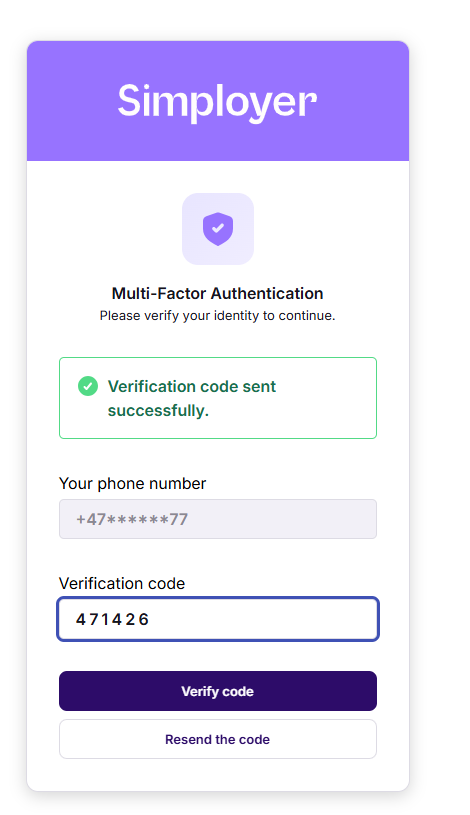
And the login process is completed.
Changing Work Phone Numbers with MFA Enabled
When Multi-Factor Authentication is enabled, users cannot directly edit their work phone number. Instead, they must complete a verification wizard to confirm their identity before making changes.
Self-Service Phone Number Change
Users can change their own work phone number through a four-step verification process:
- Enter a verification code sent to their current phone number
- Provide their new phone number
- Enter a verification code sent to the new phone number
- Confirm the change is complete
This feature is available when:
- MFA is enabled for the company
- The user is viewing their own profile (not another employee's)
- The user has an existing work phone number
Owner-Managed Phone Number Changes
If a user cannot access their current phone or has no work phone number configured, only users with the Owner role can add or update the phone number without verification.
After an Owner updates a user's phone number, the change takes effect immediately on the user's next login.
Related
Was this article helpful?
That’s Great!
Thank you for your feedback
Sorry! We couldn't be helpful
Thank you for your feedback
Feedback sent
We appreciate your effort and will try to fix the article