Work Phone Change Process (MFA Enabled)
When Multi-Factor Authentication (MFA) is enabled for your organization, changing a work phone number uses a separate, dedicated flow with phone verification. This document describes the behaviour from a customer perspective.
How This Differs From the Normal (Non-MFA) Flow
Aspect | Normal flow (MFA disabled) | MFA flow (MFA enabled) |
|---|---|---|
| How to change work phone | Edit Work section, change phone in form, Save | Dedicated pencil next to Work phone → separate dialog |
| When editing other Work fields | Phone editable in the same form | Work phone locked (lock icon); not editable in form |
| Verification | None | Verify current phone, then new phone (SMS codes) |
1. Separate Flow and Dedicated Edit Button
Work phone has its own pencil icon next to the "Work phone" label (not the section Edit in the top right). Use that pencil to open the "Change Work Phone" dialog. The general Work section Edit does not change the phone.
2. Work Phone Is Disabled When Editing Other Work Section Fields
When you click section Edit (Save/Cancel at the top), work email, employee number, title, reports to, office, etc. become editable. The Work phone field in that view is locked (lock icon) and cannot be edited there. Change work phone only via its dedicated pencil.

3. Phone Change Flow: Verify Current, Then Add and Verify New Number
The "Change Work Phone" dialog has 5 steps:
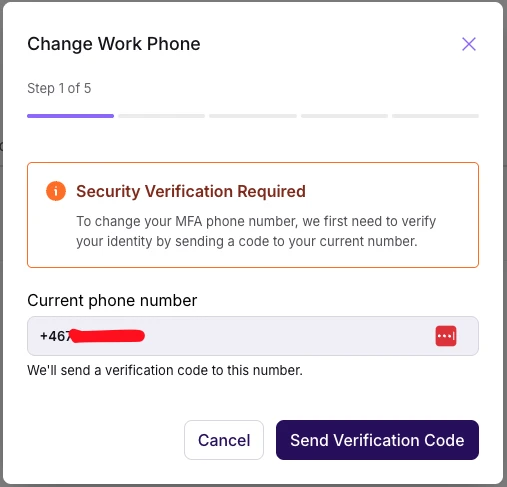
Step 1 – Start
Current number shown; click Send Verification Code (or Cancel).
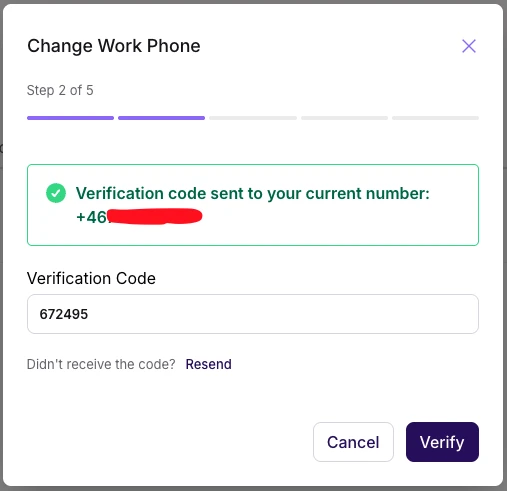
Step 2 – Verify current phone
Enter 6-digit code sent to current number; click Verify. You cannot continue without this.
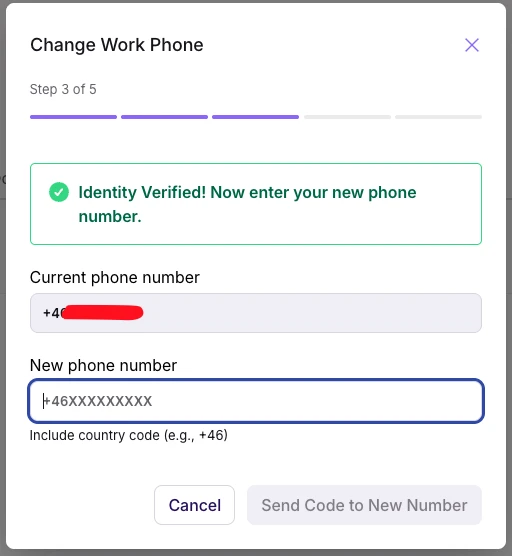
Step 3 – Enter new phone number –
Enter new number (with country code); click Send Code to New Number.
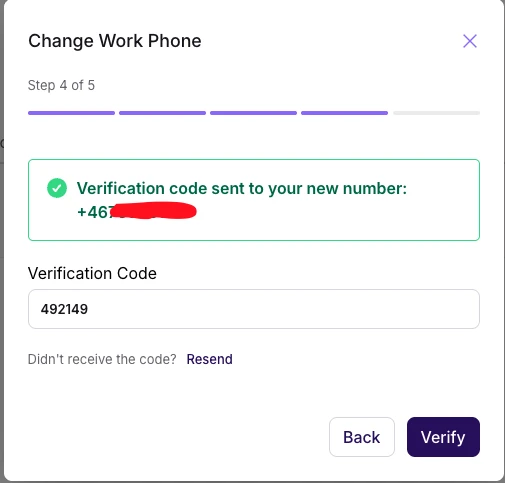
Step 4 – Verify new phone
Enter 6-digit code sent to new number; click Verify.
Step 5 – Complete – Summary shown; close dialog. Work phone is updated.
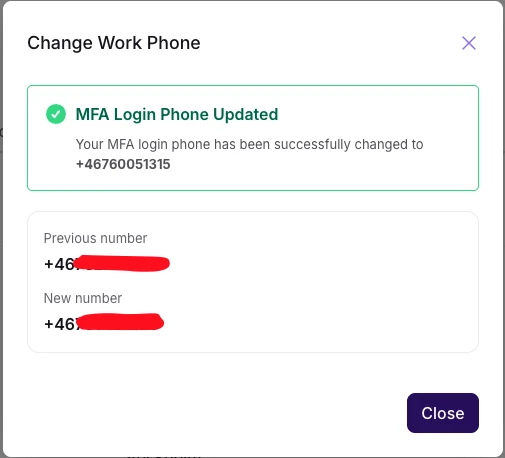
The system always verifies the current phone first, then the new one. You cannot skip current-phone verification.
4. User phone change by Owners
Owners can change the work phone number of any other user if required, without additional verification. The next time the affected user logs in, MFA will use the updated phone number for login verification.
Please note that when Owners change their own work phone number, they must go through the same verification process as other users.
Troubleshooting
- No access to current phone — Contact HR or IT for assistance.
- SMS code not received — Check signal and number; wait 10 seconds and use Resend; check spam/blocked.
- Invalid code — Use the latest code; codes are 6 digits and expire after a short time.
- Maximum attempts reached — Wait about 20 minutes before trying again.
- Phone number already in use — Each work phone must be unique; contact HR if the number is assigned to someone else.
Was this article helpful?
That’s Great!
Thank you for your feedback
Sorry! We couldn't be helpful
Thank you for your feedback
Feedback sent
We appreciate your effort and will try to fix the article