Your workweek settings control which days count as working days, what hours employees work, and which time zone applies. These settings affect time off, time reporting, and the information shown in analytics and reports. You can set a workweek at three levels: company, office, and individual employee.
Key benefits
- Set one company-wide standard for working days and hours
- Override the standard for offices that work different days or hours
- Override the standard for individual employees, including part-time employees
How to set the workweek at the company level
Important: You need Admin or Owner permissions to change workweek settings.
The company-level workweek is your company's default. It applies to every employee unless it's overridden at the office or employee level.
- Go to Company and Company profile in the left-hand menu.
- Click the workweek and time zone summary near the top of the page (it shows the current time and a row of day circles).
- In the Edit work week & timezone for Company dialog, set the Time zone.
- Click the day circles to toggle which days are working days.
- Set the Start time and End time for each working day. You can add more than one time block per day, for example to account for a lunch break.
- Save your changes.
Note: These settings affect time off, time reporting, and the information shown in analytics and reports.
How to override the workweek for a specific office
If employees at one office work different days or hours than your company standard, you can set a workweek for that office. This overrides the company-level setting for employees at that office.
- Go to Company and Offices in the left-hand menu.
- Click the workweek and time zone summary next to the office you want to update.
- Adjust the time zone, working days, and hours for that office.
- Save your changes.
How to override the workweek for an individual employee
If one employee works different days or hours than the company or office standard, you can set a workweek on their profile. This overrides both the office-level and company-level settings.
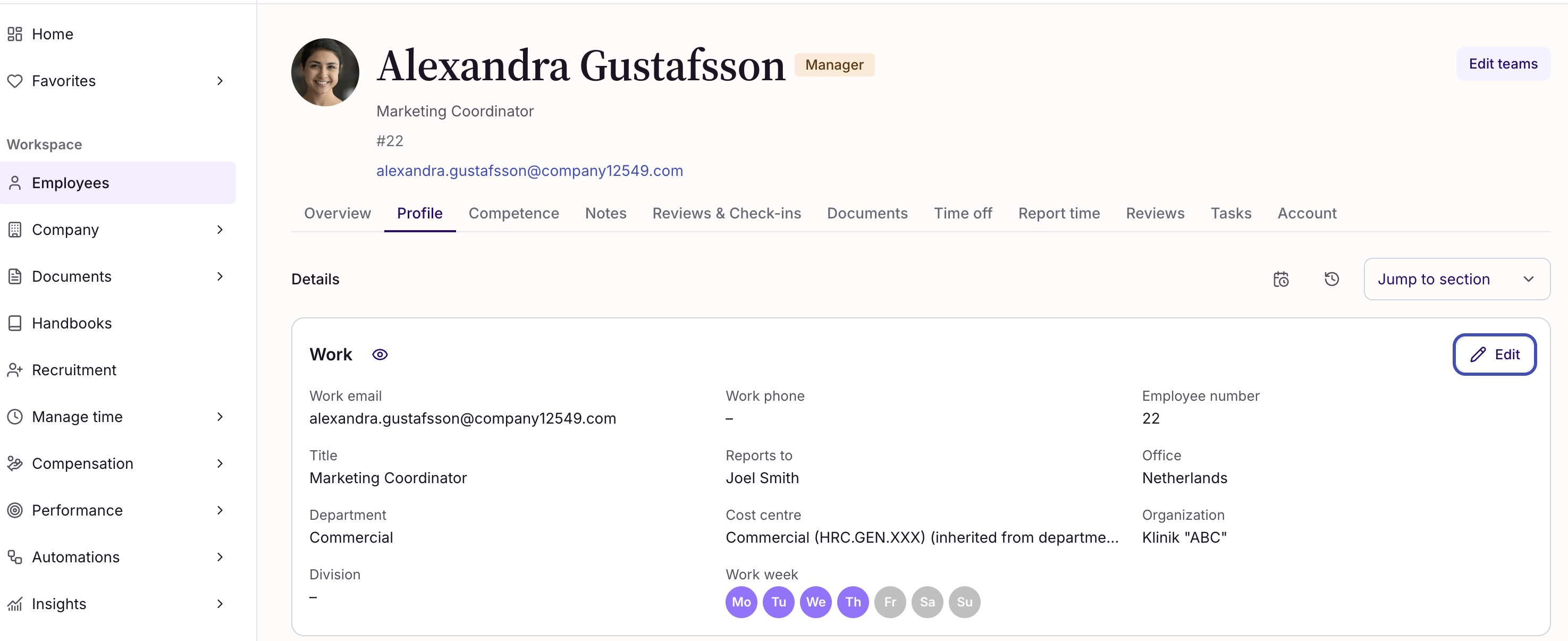
- Go to Employees in the left-hand menu, then select the employee.
- Open the Profile tab, then go to Work.
- Click Work week.
- Adjust the working days, hours, or time zone for that employee.
Note: Remember to adjust the workweek for part-time employees, since it doesn't happen automatically.
FAQs
Which level takes priority: company, office, or employee?
The most specific setting always wins. An employee-level workweek overrides both the office-level and company-level settings. An office-level workweek overrides the company-level setting for employees at that office.
What do workweek settings affect?
Workweek, working hours, and time zone settings affect time off, time reporting, and the information shown in analytics and reports.
Can I enter 0 hours for a working day?
No. You cannot add 0 hours to a date in the workweek settings.
If the day should have no working hours, click the - (minus) option to remove the date or hours instead.
Was this article helpful?
That’s Great!
Thank you for your feedback
Sorry! We couldn't be helpful
Thank you for your feedback
Feedback sent
We appreciate your effort and will try to fix the article