What this is and who it is for
Your handbook files — PDFs, spreadsheets, images and other documents — are managed in one central place rather than inside each individual article.
Before, a file lived only in the article you uploaded it to. Sharing the same document across several articles meant uploading it again each time, and deleting a file gave you no way of knowing what else you were about to break. Files are now a resource that belongs to your organisation as a whole: you upload once, attach wherever it is needed, and can always see where a file is used before you change or remove it.
Who this is for
• Handbook administrators managing content. This is where you will work with files.
• Template administrators have the same capabilities.
• Employees and managers — nothing changes. Attachments appear on articles exactly as before.
"Central" means across all your own content. Files are shared across your organisation's handbooks, never between different customers.
How to access and use it
The file management page
Open the Files tab from the Content Management page.
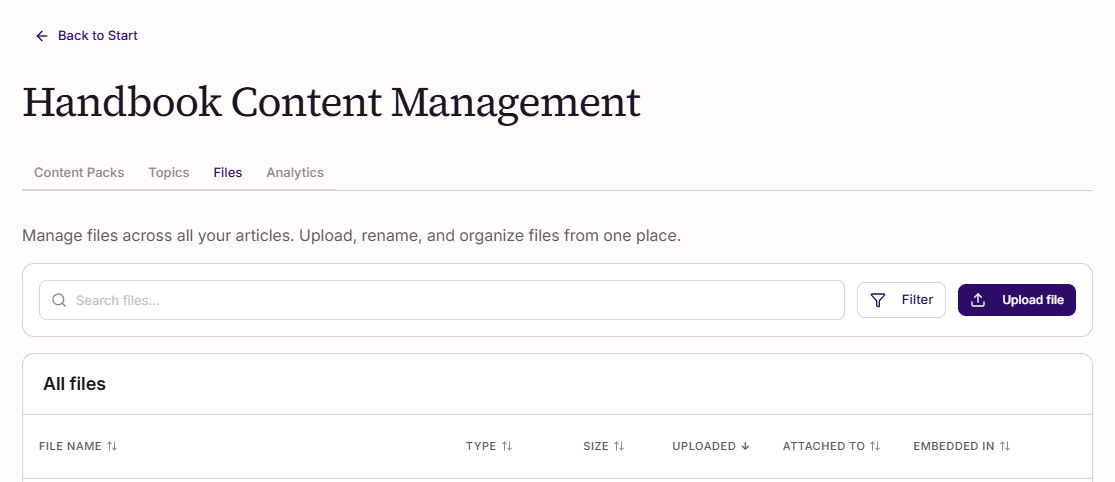
It lists every file your organisation has, with:
• Name, type and size
• Which articles the file is attached to
• Whether it is embedded in article content
• Actions for the file
You can search by name and filter the list to find a file among many.
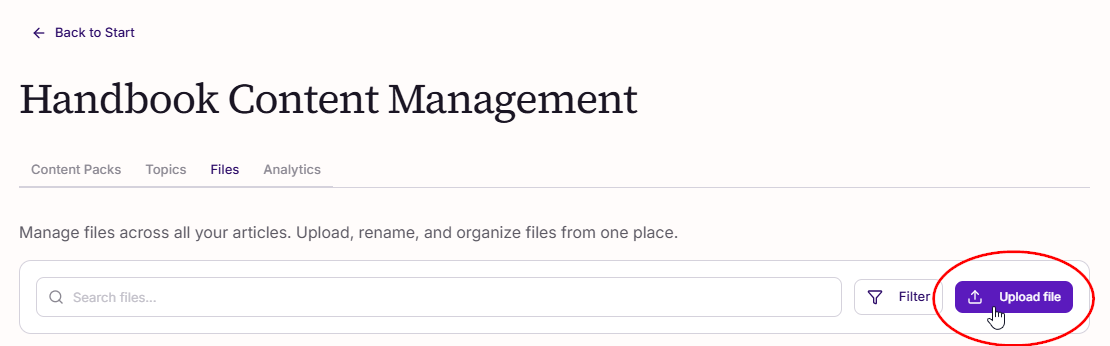
Uploading a file
1. Upload the file from the file management page.
2. It becomes available across your handbooks immediately — you do not need to attach it to anything first.
3. Attach it to as many articles as you need.
Attaching a file while editing an article
In the article editor you have both options in one place:
1. Pick an existing file from those your organisation already has, or
2. Upload and attach in one step if the file is new.
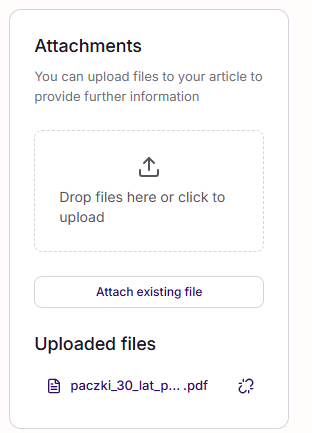
This is what stops the same document being uploaded five times for five articles.
Renaming a file
Rename a file from the file management page. The new name applies everywhere the file appears — in every article it is attached to, and as the filename when an employee downloads it. There is no need to update the articles individually.
Detaching versus deleting
These are two different things and the difference matters:
• Detaching removes the file from one article. The file itself stays in your file management page and stays attached to any other articles.
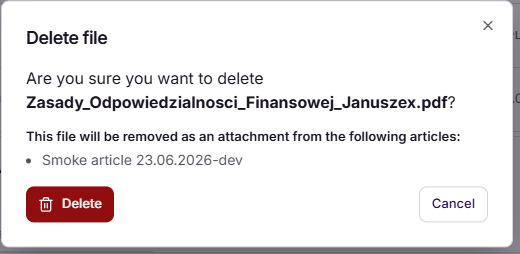
• Deleting removes the file from your organisation entirely.
When you delete, you are shown what the file is being used for first — which articles it is attached to, and which articles have it embedded in their content. If the file is an embedded image, deleting it will break that content, and the warning tells you so before you confirm.
Frequently asked questions
1. Can I use the same file in several articles?
Yes. That is the point of managing files centrally. Upload once, attach to as many articles as you need. There is one copy of the file, so renaming it applies everywhere.
2. What happens if I delete a file that several articles use?
Before deleting, you are shown every article the file is attached to and every article it is embedded in. Deleting removes it from all of them. If it is an embedded image, that content will break — the warning says so before you confirm.
3. I only want to remove a file from one article, not lose it.
Detach it from that article rather than deleting it. The file stays available and stays attached to any other articles.
4. Can I go back to an earlier version of a file?
No. There is no version history for files.
5. Can I preview a file's contents in the file management page?
No. You can see a file's name, type, size and where it is used, but not its contents. Download it to read it.
6. Can I select several files at once and delete them together?
No. Files are deleted one at a time. This is deliberate — deleting shows you which articles a file is used in before you confirm, and that check would be lost in a bulk action.
7. Can I change the order attachments appear in on an article?
Attachments cannot be reordered by dragging them.
8. Do employees see this page?
No. It is for administrators and template administrators. Employees and managers see attachments on articles exactly as they did before, with no change at all.
9. Are our files shared with other Simployer customers?
No. Files are shared across your own organisation's handbooks only. There is no sharing between customers.
10. Does this cost anything?
No. There is no pricing change.
11. We had file handling in our old handbook. Is this the same?
This brings file handling to Simployer One Handbooks. Handbooks Classic is a separate product with its own behaviour.
12. There is a setting about AI on the file's Access tab. What is that?
That controls whether Sia, the AI assistant, may use the file when answering questions. See "Sia answers from the documents attached to your handbook articles".
Was this article helpful?
That’s Great!
Thank you for your feedback
Sorry! We couldn't be helpful
Thank you for your feedback
Feedback sent
We appreciate your effort and will try to fix the article