General article hub for absence data import, related articles and supported source systems are tripletex and tidsbanken. We have split the articles in general and specific.
Referal Links need to be added by reviewer (set up your source system).
Overview
Simployer One can receive absence data from supported time & payroll systems (inbound). Organisations that track absences in their time & payroll system can import leave entries (vacation, sick leave, and parental leave) into Simployer One's Time Off module without re-entering data manually. The source system remains the master system for absence management. Employees request and report their absences in the source system, not in Simployer One. The import brings this data into Simployer One for HR reporting and compliance visibility.
The import is manual, not scheduled. The typical workflow is once per month, importing the previous month's absences after the time data is finalized in the source system. Before importing, the admin previews all entries to review conflicts and unmapped codes.
What this article covers
| 1. How It Works Import flow explained | 2. Prerequisites What you need first | 3. Supported Absence Types What can be imported |
| 4. Run an Import Step-by-step | 5. Import Results Statuses and conflicts | 6. Key Rules Hours, conflicts, limits |
| 7. Set Up Your Source System System-specific setup guides: Tripletex, Tidsbanken | ||
How It Works
This is an inbound integration: absence data flows from your time & payroll system into Simployer One. The import reads time entries from the source system and converts entries registered with a mapped absence code into absence periods in Simployer One's Time Off module. Only entries with a mapped absence code are included; entries without a matching code (including working time) are not imported.
The imported data gives HR a consolidated view of absences for reporting and compliance, alongside any absences managed directly in Simployer One.
Inbound Absence Flow
| Time & payroll system absence time entries | → | Import Preview review, resolve conflicts | → | Simployer One Time Off module |
The import groups consecutive days with the same absence code into a single absence period. For example, if an employee reported "Vacation" for five consecutive days in the source system, Simployer One creates one five-day vacation period.
Prerequisites
| ✓ | An active integration with your source system configured in Simployer One (Settings > Integrations) |
| ✓ | The Time Off module enabled in Simployer One |
| ✓ | Admin access to Simployer One (to configure absence codes and run imports) |
| ✓ | Admin access to the source system. What you need to configure or look up there differs per system (see your system's article). |
| ✓ | Absence codes mapped between the source system and Simployer One (see your system's article) |
| ✓ | Employees in scope. The import only covers employees who were included in the integration scope when the integration was originally configured. Employees added after setup may not appear in the import until the scope is updated. |
Supported Absence Types
The import supports three built-in absence types:
| Absence type | Description |
|---|---|
| Vacation | Annual leave / holiday (Ferie) |
| Sick leave | Self-reported and certified sickness absence |
| Parental leave | Maternity, paternity, and shared parental leave |
Other absence types recorded in the source system (care days, time off in lieu, custom codes, etc.) are not supported by the import. Entries using unsupported types will appear under Unmapped leaves types in the preview.
Run an Import
Imports are run manually. The typical workflow is once per month, importing all absences from the previous month. The import always starts with a preview, giving the admin a chance to review before confirming.
1 | Navigate to the import page Go to Manage time > Time off - Import. |
2 | Select the source system Select your source system (e.g. Tripletex or Tidsbanken) from the drop-down menu. |
3 | Preview the import Click Preview import. The system fetches time data from the source system and compares it with existing absences in Simployer One. The preview groups entries into sections: Importable leaves, Already imported, Leave conflicts, Orphaned leaves, and Unmapped leaves types. A section only appears if it has at least one entry. |
4 | Review the results Check each category in the preview. Resolve any conflicts before proceeding (see Import Results below for details on each status type). |
5 | Confirm the import Click Confirm import to create all absences listed as "Ready to import" in Simployer One. Entries with conflicts or unmapped codes are skipped and remain unchanged. 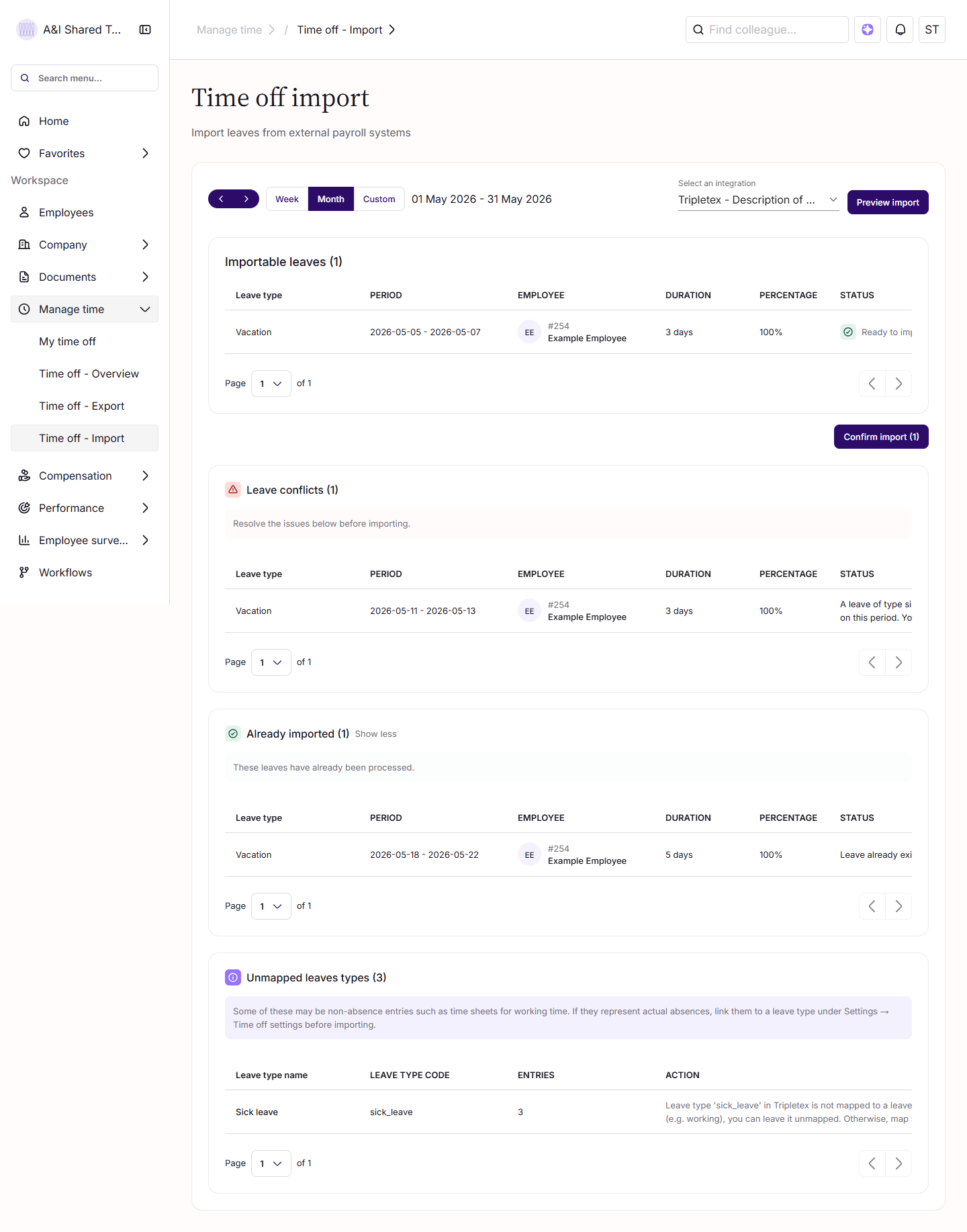 |
Understanding Import Results
The import preview groups entries into categories. Each category indicates what will happen when the import is confirmed. These categories are the same for all source systems.
| Section in preview | Meaning | Action Required |
|---|---|---|
| Importable leaves Row status: Ready to import | New absence from the source system with no matching entry in Simployer One. | None. These are imported when confirmed. |
| Already imported | An absence with the same type, dates, and duration already exists in Simployer One (regardless of whether it was created manually or by a previous import). | None. Automatically skipped to avoid duplicates. |
| Leave conflicts | An absence exists in Simployer One for the same date range, but with a different type. For example: "Vacation" in Simployer One overlaps with "Sick leave" coming from the source system. | Manual resolution. Decide which record is correct, then remove or adjust the incorrect entry in either Simployer One or the source system. Re-run the import afterward. |
| Orphaned leaves | An absence exists in Simployer One, but no corresponding entry exists in the source system for that period. | Review and decide: remove it from Simployer One if it should not be there, export it to the source system using Simployer's export function, or add it manually in the source system. |
| Unmapped leaves types | An entry in the source system uses an absence code that has no corresponding Leave type code in Simployer One. | Add the missing code mapping (see your system's article), then re-run the import. |
Key Rules and Limits
Full day vs. partial day Days of 7.5 hours or more are imported as full-day absences. Days below 7.5 hours are imported as partial-day absences, with the duration recorded in minutes. How the daily hours are determined depends on the source system. See your system's article for details. | Date range limit Each import covers a maximum of 100 days. For longer periods, run multiple imports with consecutive date ranges. | Consecutive day grouping Consecutive days with the same absence code in the source system are grouped into a single absence period in Simployer One, rather than imported as individual days. |
Set Up Your Source System
How absence codes are mapped, which entries are picked up, and how daily hours are determined is specific to each source system. Open the article for your system to complete the setup:
| Tripletex Absence Import - Setup & Specifics Mapping via the activity Number field, configured in both systems. Hours read from timesheet entries. | Tidsbanken Absence Import - Setup & Specifics Mapping via work type IDs, configured in Simployer One only. Hours calculated from registered clock times. |
Related Articles
Var artikeln till hjälp?
Toppen!
Tack för din feedback
Vi beklagar att det inte var till hjälp
Tack för din feedback
Feddback skickat
Vi uppskattar din feedback och uppdaterar artikeln vid behov