Once you’ve started a process, you’ll see an overview of the process phases and tasks.
In the top row, you’ll see who the process is for, who is responsible, who created it, any overall notes for the process, and the set control date.
A process typically has multiple phases, and within each phase there are several tasks that need to be completed.
When you’ve been assigned a process, it’s a good idea to review the tasks you are responsible for and familiarize yourself with them.
The Process Owner will see all tasks unless it has been set so that everyone performing a task can see all tasks.
In onboarding and offboarding processes, it’s common for only the Process Owner to see all tasks.
In HSE processes, it’s more common that all task performers can see all tasks.
In the overview, you’ll see:
- Task name – Click the name to open the task and view a more detailed routine description. Any attachments or links will also be found here.
- Deadline – This is the due date for when the task should be completed. A notification will be sent before the deadline. If the administrator has enabled deadline editing, you’ll be able to change it. We recommend updating the date to when you actually plan to complete the task, so the reminder becomes more accurate.
- Performed by – Shows who is responsible for completing the task.
- Notes – Here you can add helpful notes or relevant information for the task. This can be used as an internal communication channel for messages related to the task, reducing the need for calls or messages, and keeping it clear for both the process administrator and task performer.
- Status – Displays the current status of the task.
- Action button – This is the blue square with three white dots. From here, you can reassign the task, mark it as completed, or set it as not relevant.
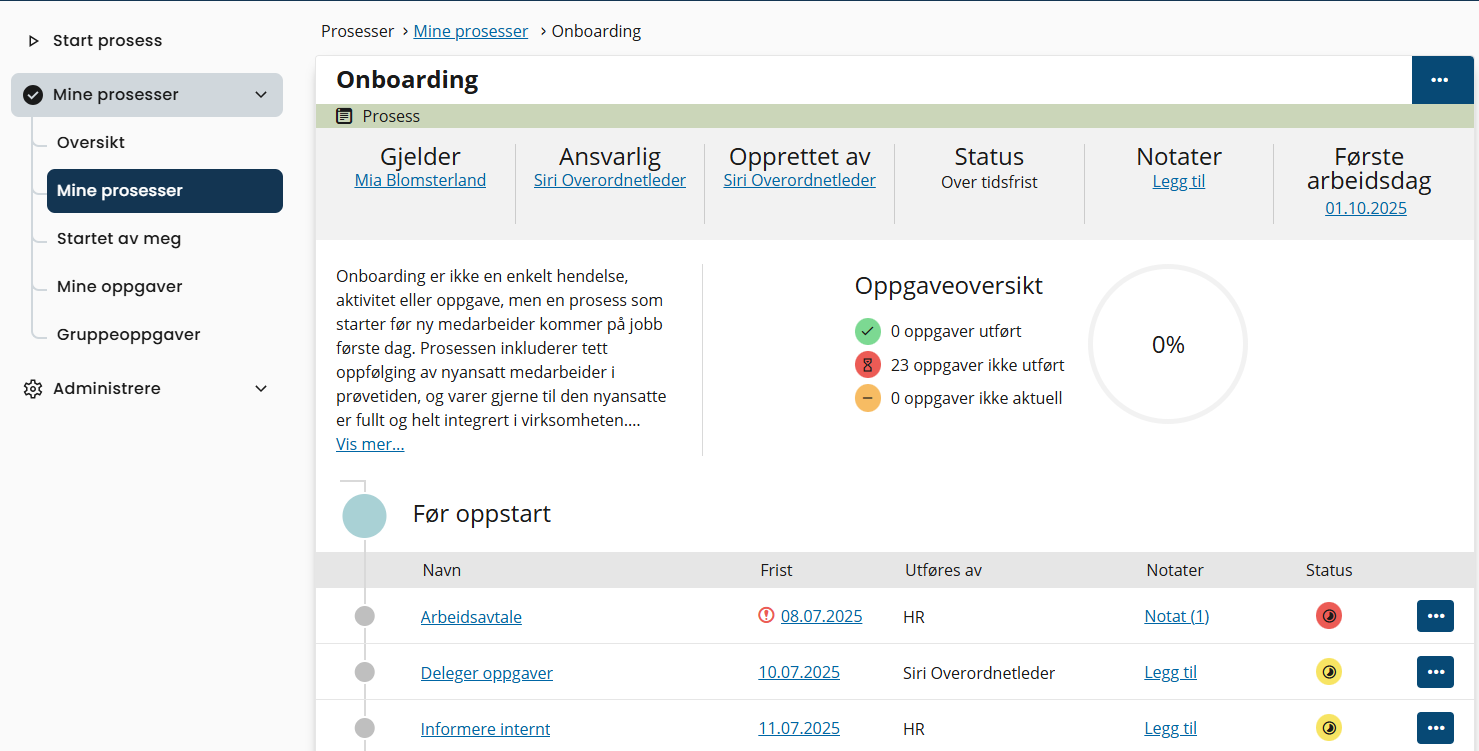
If you want to add a task specific to this process, click the action button in the top right corner and choose Create task.
Once all tasks in the process are completed, click the action button in the top right corner and select Completed.
Was this article helpful?
That’s Great!
Thank you for your feedback
Sorry! We couldn't be helpful
Thank you for your feedback
Feedback sent
We appreciate your effort and will try to fix the article