To access and manage process templates in Simployer, as well as view the company's overall status you need the role Process administrator.
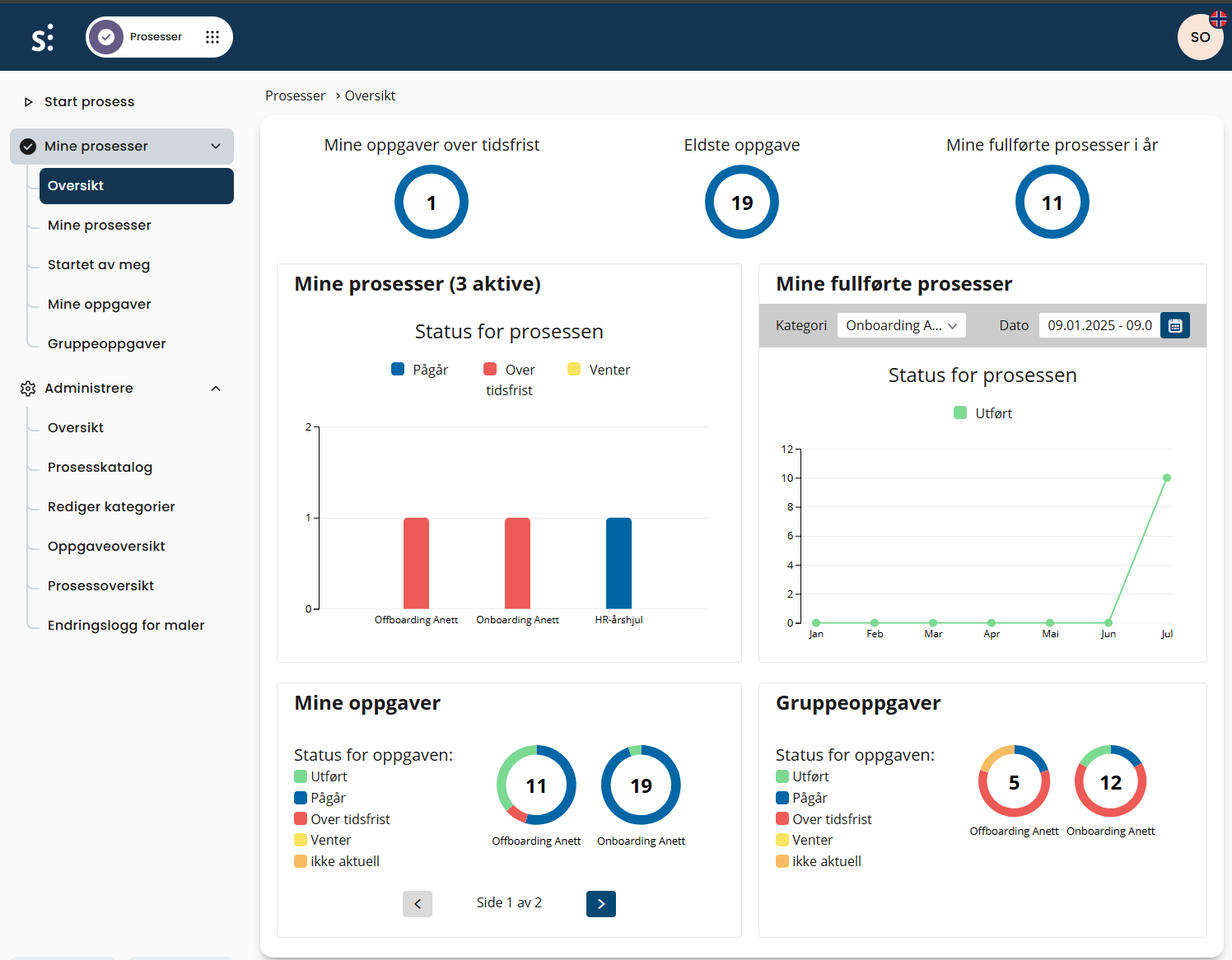
In the Process Catalogue, you will find the templates available to your organization. This is also where you can make changes.
Click on the template you wish to edit.
You will see an overview of all tasks included in the template, deadlines for when tasks should be completed, and who is responsible for them.
This serves as the base template that should be tailored to best fit your organization.
To add tasks to a phase, click the button at the bottom of each phase.
Click on a task to open it. In the action button in the top right corner, select Edit to make changes.
General Task Settings
Name:
Enter the name of the task. This is what will be visible when process tasks are listed.
Routine:
Write the task instructions here. Ensure it is detailed enough for the assignee to understand exactly what needs to be done.
You can use the formatting toolbar to enrich the content.
Using the link button in the toolbar, you can add either a standard URL or a pre-filled email link.
This is particularly useful for standardized emails (e.g. to employees, or for ordering uniforms, flowers, etc.).
Note: If using a dummy email address, clearly state in the routine text that it must be updated before sending.
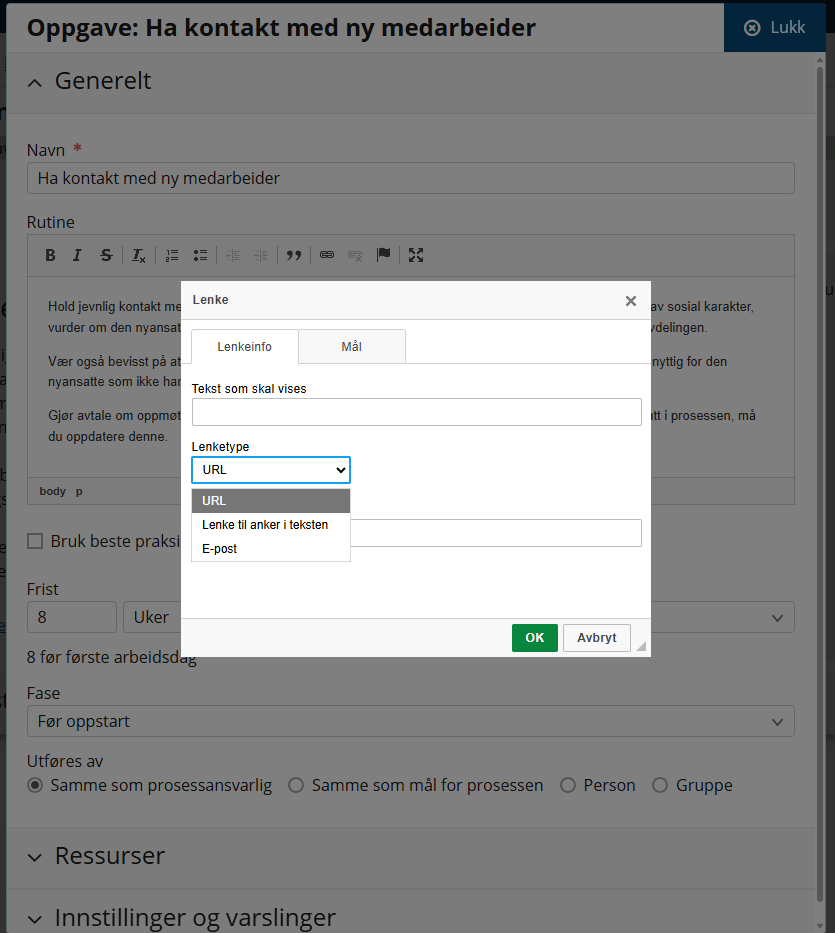
Deadline:
Once the routine text is complete, set the deadline for the task.
You define this by choosing the number of days/weeks/months before or after a reference task.
We recommend choosing one of the following as reference process start, first working, last working day or a specific task you’ve marked as a milestone
This reference date will act as a “constant”, and the deadline will be automatically calculated based on it when the process is launched.
Phase:
The task will automatically be placed in the phase you created or opened it in. You can change this if needed.
Performed by:
Select who should carry out the task.
Options:
Same as process owner: The person assigned as responsible when the process is launched will complete this task.
Same as process target: The person the process is started for (e.g. the employee) will complete the task. Common for onboarding/offboarding.
Resources
Articles from the Handbook:
If your company uses Simployer handbooks, you can attach relevant articles to a task.
This helps the assignee understand the background or requirements.
Click into the handbook, search for the article, and remember to save at the bottom of the page.
Files:
Upload files relevant to the task. The assignee will see the file in the task view.
If the file needs to be completed or edited, it must be downloaded first.
Note: If you update a file or form, be sure to upload the new version in the task.
Links:
Add links to external sites or SharePoint documents.
This is useful for ordering portals, intranet resources, or shared document collections.
It ensures the assignee always accesses the latest version, unlike with uploaded static files.
Settings and Notifications
Here you can configure settings for the specific task.
We recommend using the suggested default settings unless you have specific needs.
Was this article helpful?
That’s Great!
Thank you for your feedback
Sorry! We couldn't be helpful
Thank you for your feedback
Feedback sent
We appreciate your effort and will try to fix the article