Simployer HRM differentiates between an active employment/position and an active person/user. This means that after the position has expired (the immediate supervisor is notified by default 14 days before the position expires), the person must be deactivated. A deactivated person is not visible to any employees or managers and can only be accessed by a system administrator/personnel administrator under the "My workplace" menu (go to People on this menu and then select "inactive").
If you do not deactivate a person who no longer works for the organization, the person will still be able to log into Simployer HRM.
To deactivate a person who has left the organization, search for the person and select "Deactivate" from the top menu (next to "About me") on the person's page.
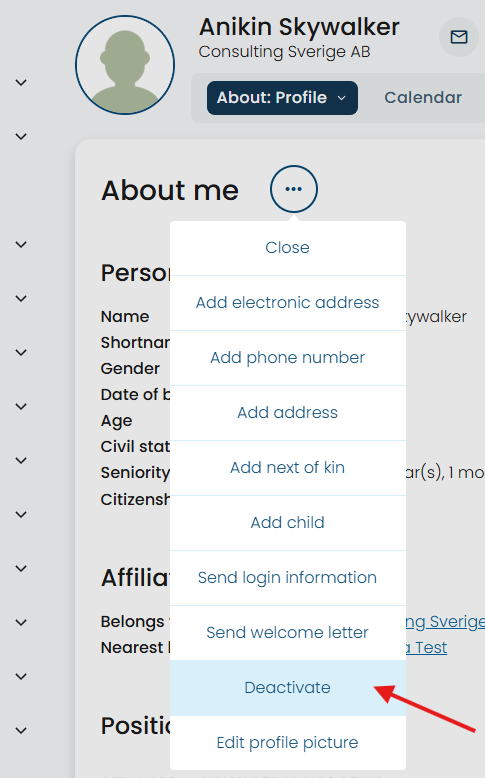
When you click here, you then select "Deactivate" in the next screen.
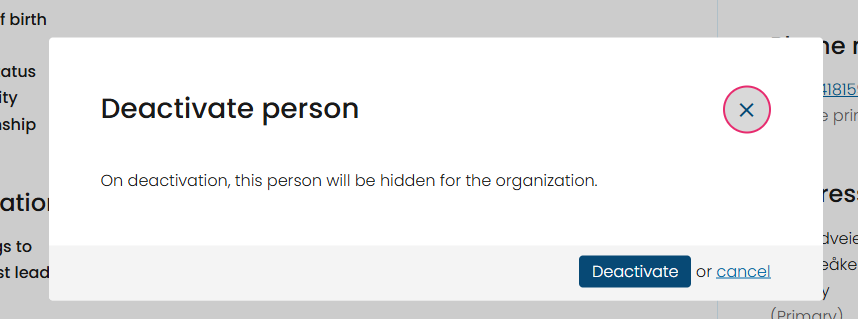
In the next screen, you will see a message advising you to delete sensitive data by using the privacy client in Simployer HRM. You can click the link to use the privacy client for this, but it is often practical to wait a while—so long as it is still purposeful to retain the data—before removing data from the deactivated person's page, as for example, the person may return to the organization.
However, you should always have set procedures for using the privacy client in Simployer HRM to ensure that your organization does not retain data that is no longer necessary for the employer to keep for closed individuals. To use the privacy client, go to the menu and then select Administration -> User Administration -> User data termination. Carefully read the information page before proceeding to the privacy client and ensure you have retrieved any information about the person that is only stored in Simployer HRM before using this—if it is still necessary to retain the information.
Was this article helpful?
That’s Great!
Thank you for your feedback
Sorry! We couldn't be helpful
Thank you for your feedback
Feedback sent
We appreciate your effort and will try to fix the article