How do I export employee data from Simployer One?
Who can export employee data from Simployer One?
There are a few different ways of doing this. What might be the way with the most functionality is to use the Colleague report in Insights->Reports->New report (Colleague). That way you can choose exact what related columns to use inside of the report and you can also filter it according to your wishes.
However there are also other ways to fetch the Employees if you just want a quick list with the most common features in the system right now. Just worth knowing is that this functionality is more limited when it comes to choosing columns and filtering the data when downloading (even though you can always filter in Excel with the downloaded file if needed).
Only users with the Owner role can export employee data from Simployer One.
This restriction helps protect sensitive employee information, including compensation data. Both export methods described in this article are available only to Owners.
What are the ways to export employee data from Simployer One?
If you want to... | Use... |
Export all employees with the predefined employee dataset | Settings → Export/Import → CSV → Export |
Export selected employees after filtering the employee list | Employees → Filter the employees you want. Click Actions dropdown above the employee list -> Export |
Note: Both methods export the same employee data. The Employees export lets you filter and select specific employees before exporting.
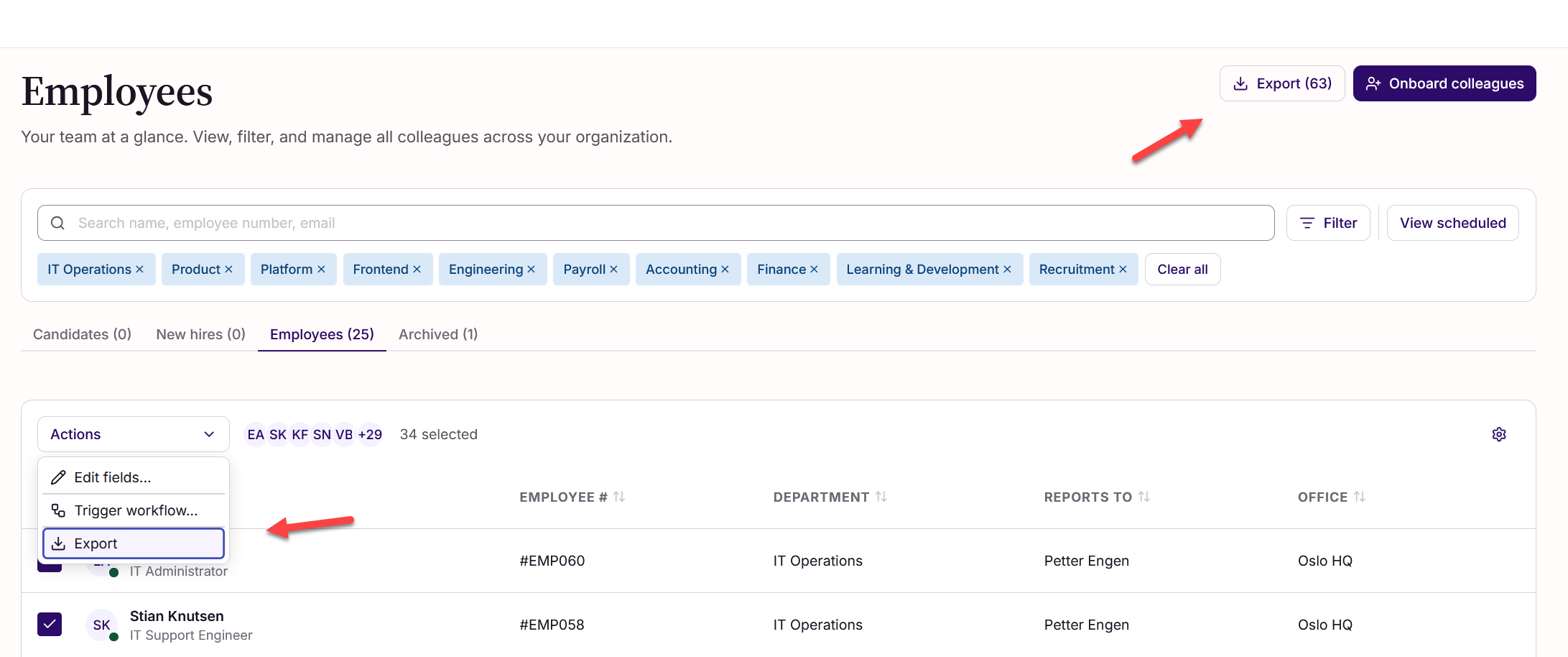
Important to know is that there are two buttons for exporting employee data on the Employee page. One is up in the top right corner and it always Exports all of the Employees. The other one is in the dropdown Actions right above the Employee list. This one only exports the users that have been chosen in the filters or through the select boxes.
How do I export all employee data?
- Go to Settings.
- Select Export/Import.
- Locate the CSV section.
- Click Export.
- The CSV file is generated and downloaded to your device.
How do I export selected employees?
- Go to Employees.
- Filter the employee list if needed.
- Select the employees you want to export.
- Click Actions dropdown above the employee list -> Export
- Choose the export format: Excel or CSV.
- Click Export.
What file formats are available?
- Settings → Export/Import → CSV → Export always exports a CSV file.
- Employees → Export lets you choose either Excel or CSV.
Tip: If you need to work with the employee data in Microsoft Excel, consider using Employees → Export and selecting Excel as the export format. This avoids potential formatting issues that can occur when opening CSV files directly in spreadsheet applications.
Can I filter the employee export?
The standard CSV export under Settings does not provide filters or column selection. Neither does the export button up in the top right corner of the Employee page. However, the Employees export in the action menu just on top of the employee list, lets you filter and select which employees to include before exporting. If you need a more advanced list where you can use custom columns, reusable datasets, or custom fields, use Reports.
Does the export include archived employees?
The export includes status and offboarding fields such as active, offboardDate, offboardComment, employment.terminated, and employment.endDate. You can use these fields to identify active and archived employees.
Does the export include custom fields?
No. Custom fields are not included in the standard employee export. To export custom fields, create a Colleague report under Insights -> Reports.
Which employee information is included?
The export can include employee identification and contact information, home address, bank information, organization and reporting structure, employment information, compensation and tax information, and the vacation allowance limit.
Important: The export may contain sensitive personal information. Store and share the file according to your organisation's data-protection procedures.
Should I use the employee export or Reports?
| Need | Recommended option |
A standard employee list | Settings → Export/Import → CSV → Export |
Selected employees | Employees → Action dropdown menu -> Export |
Custom fields, reusable datasets or custom reporting | Reports |
Was this article helpful?
That’s Great!
Thank you for your feedback
Sorry! We couldn't be helpful
Thank you for your feedback
Feedback sent
We appreciate your effort and will try to fix the article