Simployer's experts keep the handbook content you use from Simployer up to date. When they change it, you see exactly what changed and why. Changes required by law go live automatically and you confirm that you have seen them. Recommended wording arrives as a suggestion, and nothing changes in your handbook until you decide.
Note: Employees never see updates or decisions. They only see the wording that is live in your handbook, and a Simployer update never asks them to confirm an article again.
Before you start
- Updates only cover articles from Simployer's content packs. Your company's own articles are never changed by Simployer.
- You need to be a Handbooks administrator to see and review updates.
- If you don't see the Handbook updates card on your Handbooks start page, the feature may not be switched on for your company yet. Contact us through the Customer Support Portal.
Two kinds of Simployer content
Each section of a Simployer article is marked Authoritative or Advisory. You see the badge on each section when you edit the article.
| | Authoritative | Advisory |
|---|---|---|
| What it is | Text required by law or contract | Recommended wording |
| Who controls the wording | Simployer | You |
| When Simployer changes it | The new wording is live in your handbook straight away | Your current wording stays live until you decide |
| What you do | Confirm that you have seen the change | Choose whether to use Simployer's suggestion |
| Can you edit it | No | Yes |
See what has changed
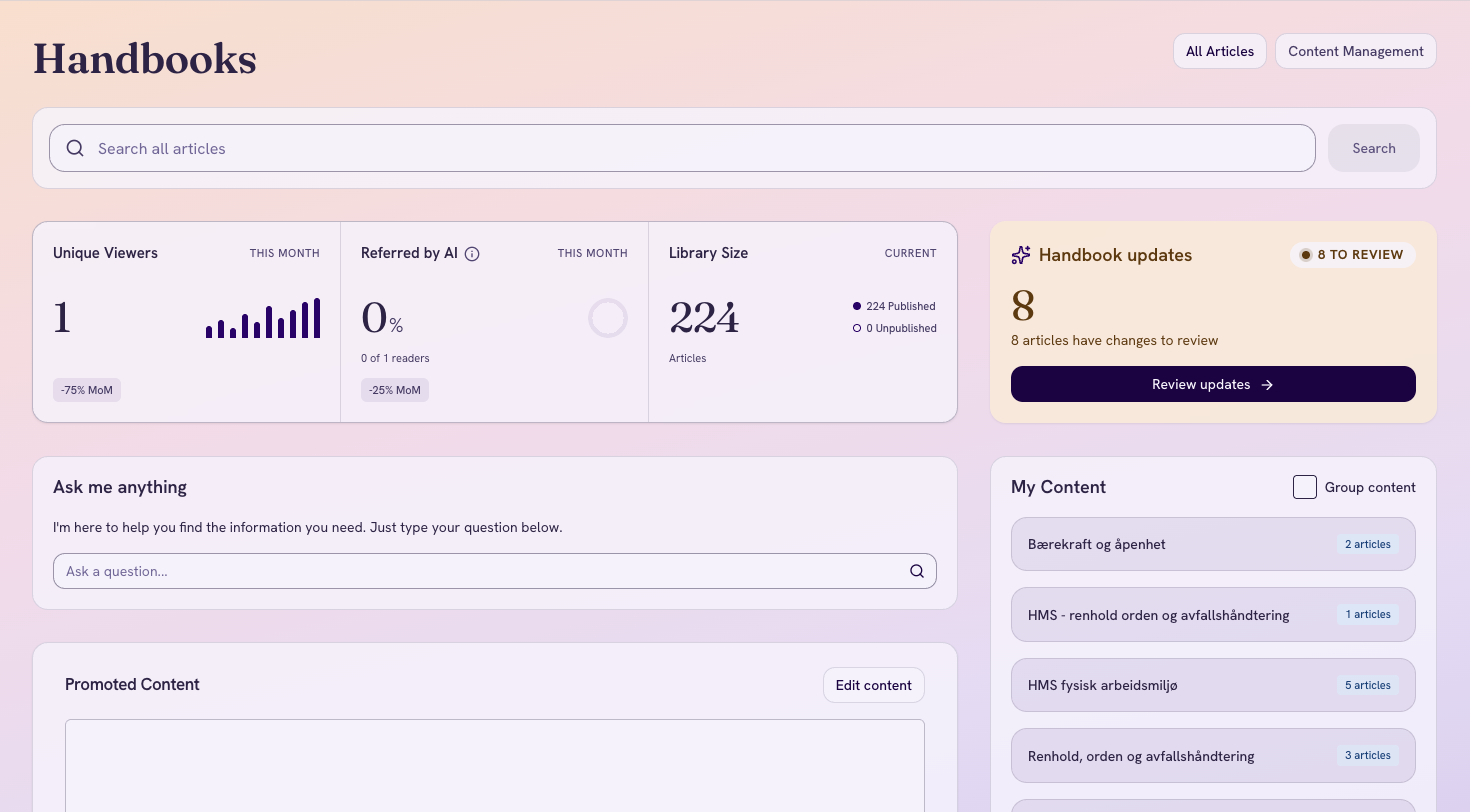
The Handbook updates card on your Handbooks start page shows Up to date when everything has been reviewed. When there is something new, it shows how many articles have changes to review.
- On the Handbook updates card, select Review updates.
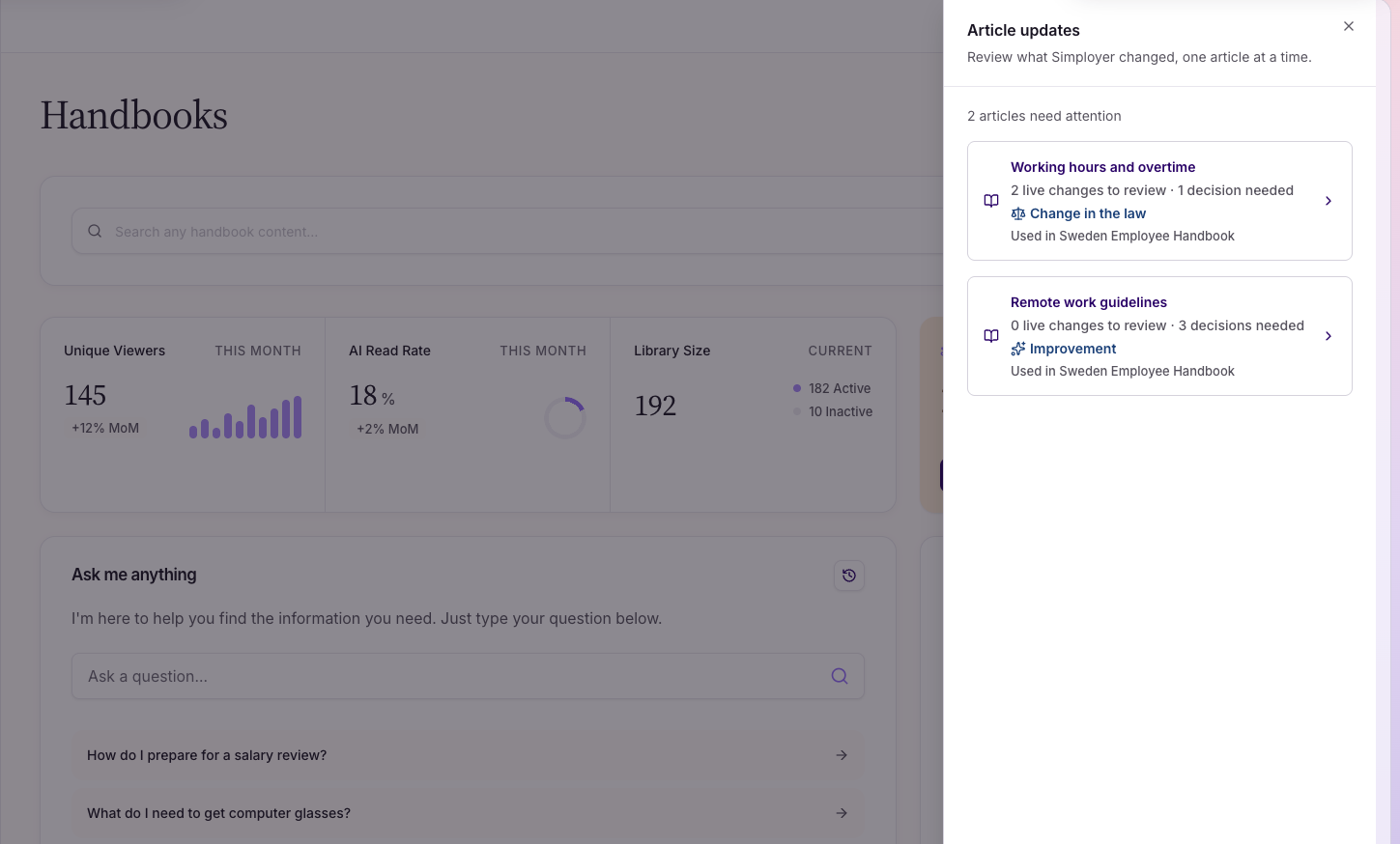
- The Article updatespanel lists each article with changes. For each article you see:
- What needs your attention, for example "1 live change to review · 2 decisions needed", or New article or Removed by Simployer.
- Why Simployer made the change, Change in the law or Improvement, when Simployer has given a reason.
- Which content pack the article is used in.
- Select an article to review it.
Review an article
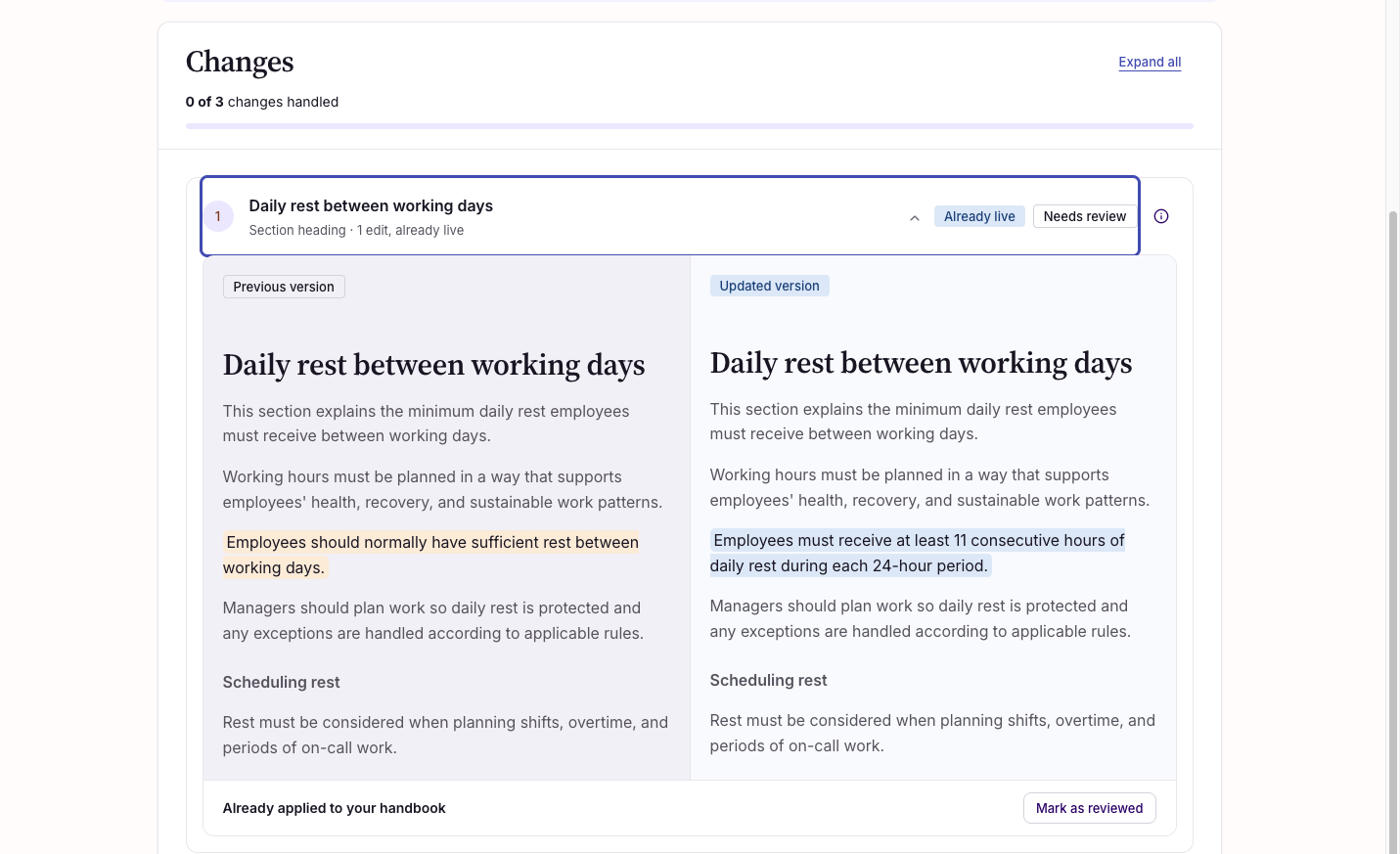
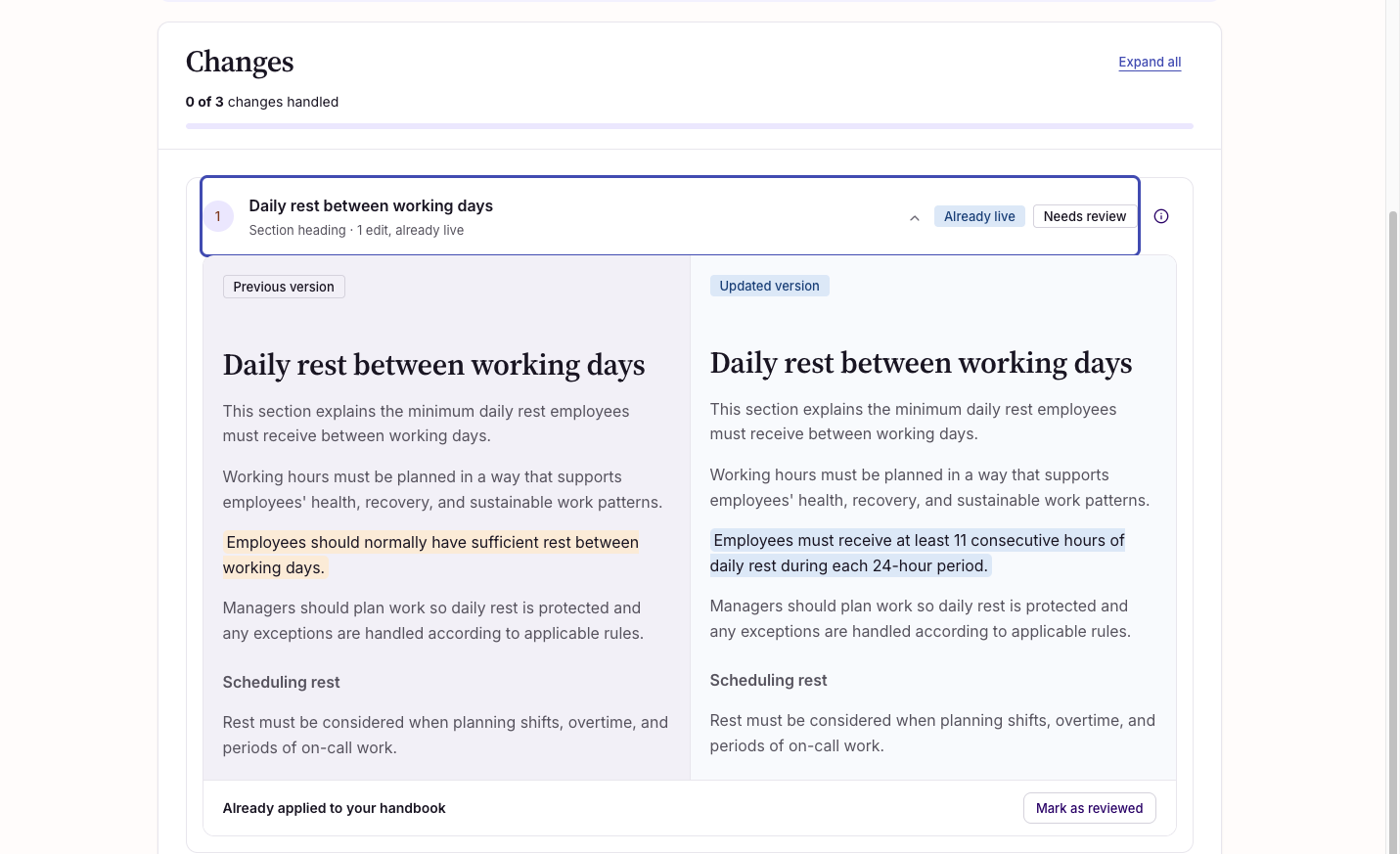
At the top of the review page, Why Simployer changed this shows the expert's explanation of the change, when there is one. Below it, each change has its own card with the old and new wording side by side. Changed text is highlighted.
Use Expand all or Collapse all to open or close the cards. The progress line shows how many changes you have handled. When you make a choice on a card, it closes and the next change opens.
Changes that are already live
A card marked Already live is a change to authoritative content. The new wording is already in your handbook and cannot be declined. Select the info button on the card to see why.
- Compare Previous version with Updated version.
- Select Mark as reviewed.
Changes you decide on
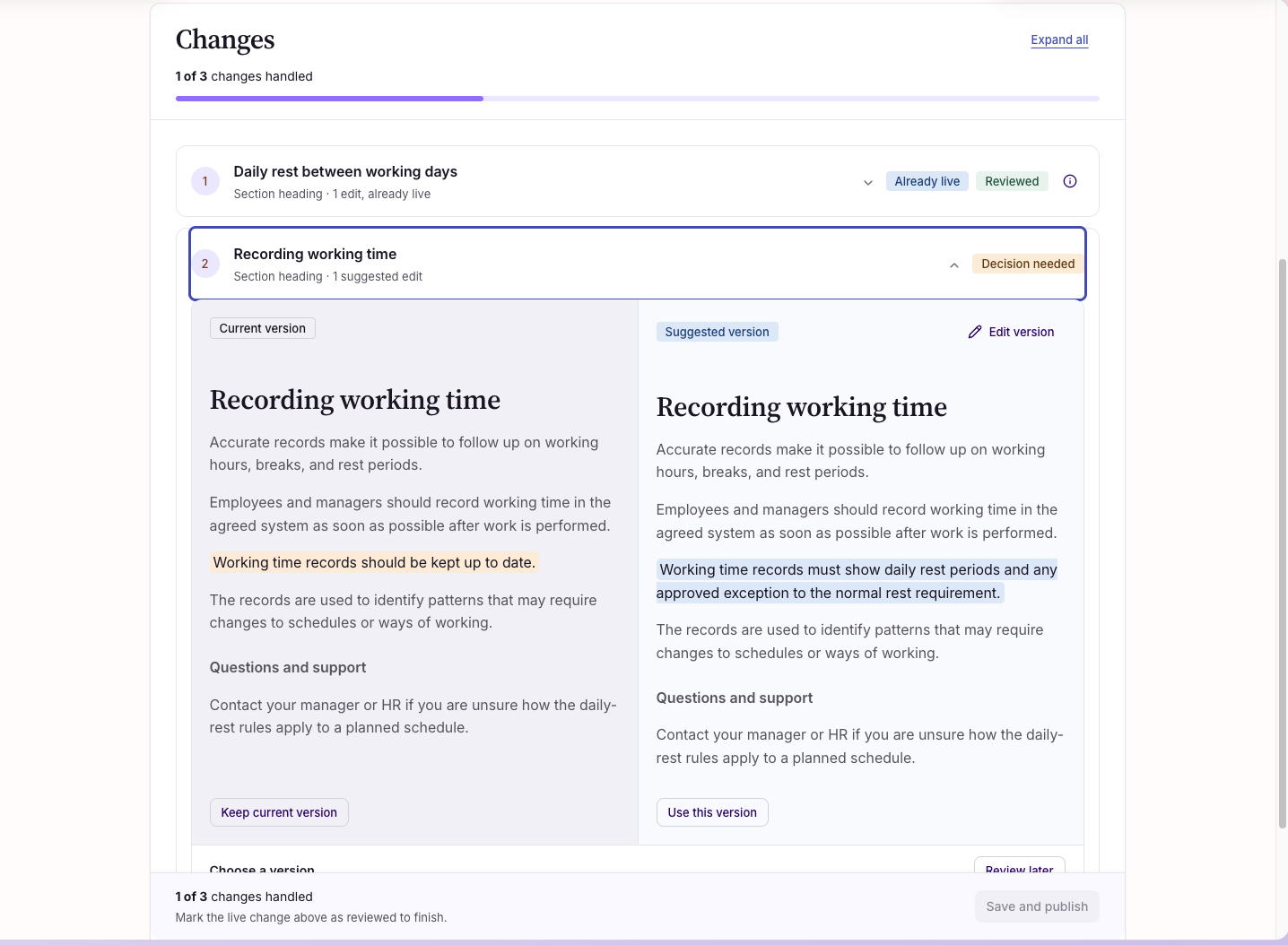
A card marked Decision needed is a suggestion for advisory content. Compare Current version with Suggested version, then choose:
| Choice | What happens |
|---|---|
| Adopt | Simployer's suggested wording replaces yours. |
| Adopt with changes | An editor opens with Simployer's suggested wording. Edit it as you like, for example to add your own text. Select Reset to suggested wording to start again. |
| Keep current | Your wording stays as it is. |
| Review later | The change stays in your list, marked Left for later. Everything else you decide in the article is saved. |
When Simployer adds a new advisory section, you choose Accept section, Accept with changes or Reject section. A rejected section is added to the article but hidden from your employees.
Save your review
Nothing is saved until you select Save decisions at the bottom of the page. The button is available when every decision is made and every live change is marked as reviewed. If something is missing, the bar tells you what. When there is nothing to decide, the button is Mark as reviewed instead.
If you leave the page with unsaved choices, you are asked whether to Stay, Leave without saving or Save and leave.
Other updates you may see
- New article: Simployer has published a new article in a content pack you have.
- Removed by Simployer: Simployer has removed an article. It stays readable in your handbook until you confirm, so you can save anything you need first.
- Simployer removed N sections: the review page shows what will go. The sections leave your handbook when you save the review.
- Now filed under or No longer filed under a topic: Simployer has changed where the article is filed. Select Mark as reviewed on each topic change.
- Simployer changed who can edit N sections: a section has changed between authoritative and advisory.
See the history of an article
Every Simployer article in your handbook has a change log.
- Go to Handbooks and select Content Management.
- Open the content pack and select the Simployer article.
- Select Change log. You can also open it from the top of the review page.
Under In your handbook now you see which sections use Simployer's wording, which use your wording, and which you wrote yourself. Below it, every Simployer update is listed, newest first, with the date, the reason and explanation, what was decided (for example Accepted, Kept your wording, Partly accepted or Applied automatically), who decided and when. Select View changes to compare an update with the article today.
Switch to Simployer's wording later
If you kept or edited your own wording and change your mind:
- Open the article's Change log.
- Select View changes on the update.
- Tick Use Simployer's wording on the sections you want, or Select all.
- Select Use Simployer's wording and confirm.
You get Simployer's current wording, and it is published in your handbook straight away. If the article has an update waiting for review, including changes left for later, review that first.
What you can do with Simployer content
| Action | Simployer section or article | Your own content |
|---|---|---|
| Edit wording | Advisory sections only | Yes |
| Hide a section | Advisory sections. An authoritative section can be hidden, but the next Simployer update shows it again. | Yes |
| Delete | No | Yes |
| Unpublish an article | Yes | Yes |
What happens when something changes
| When | What happens |
|---|---|
| Simployer changes a section where you kept or edited your wording | You are asked to decide again. You are not asked when only other parts of the article change. |
| You choose Adopt with changes | The section counts as your wording, so Simployer's next change to it asks for a decision. |
| You hide an authoritative section | The next Simployer update shows it again, without a notice. |
| You adopt a change and then regret it | Edit the advisory section back to your own wording. |
What Handbook updates does not do yet
- Show one overview of every change across your handbook. The history is in each article's change log.
- List your own edits in the change log. It lists Simployer's updates and your decisions.
- Let you edit a brand-new Simployer article when it arrives, or show which of its sections are authoritative or advisory.
- Undo Adopt automatically.
Troubleshooting
I don't see the Handbook updates card
Check that you are a Handbooks administrator. If you are, the feature may not be switched on for your company yet. Contact us through the Customer Support Portal.
It says Up to date, but I know Simployer changed something
The change may not have reached your handbook yet, it may be in a content pack your company does not have, or it may not change anything you can see, for example a new order of sections.
I can't select Save decisions
Every decision must be made, every live change and topic change marked as reviewed, and no edited wording left empty. The bar at the bottom of the page tells you what is missing.
I see a message after saving
| Message | What to do |
|---|---|
| Simployer changed this article again | Simployer published a newer change while you were reviewing. Nothing was saved. Reload the page and review the newest version. |
| Your decisions were saved, but search was not updated | Your wording is saved, but search may still show the old text. Open the article again and save again. If it happens again, contact us. |
| Your review was not saved | Nothing changed. Try again in a moment. If it happens again, contact us and tell us the time and the article. |
| This update is no longer available | The update has already been reviewed, or the article is no longer in your handbook. Go back to the list. |
I hid a section and it came back
The section is authoritative. Simployer controls its wording and whether it is shown, so each update shows it again. Only advisory sections stay hidden.
An article disappeared after I confirmed
Simployer removed the article (Removed by Simployer). Confirming the update removes it from your handbook.
Was this article helpful?
That’s Great!
Thank you for your feedback
Sorry! We couldn't be helpful
Thank you for your feedback
Feedback sent
We appreciate your effort and will try to fix the article