How do I report my time in the Simployer app?
You can report your own working hours in the Simployer app on iOS or Android. Open the Time tab, tap Time reporting, add your hours per day, and tap Submit to send your timesheet for approval. Submitting locks the timesheet until your approver acts on it.
What do I need before I can report time in the Simployer app?
Before you use Time reporting in the Simployer app, check these points:
- You have the latest version of the Simployer app on iOS or Android.
- Your company has turned on Time reporting. If it has, you see a Time off | Time reporting switcher at the top of the Time tab.
- You only report your own hours in the app. Managers, administrators and approvers do not read or approve anyone else's hours in the Simployer app.
How do I open Time reporting and see my current period in the Simployer app?
- Open the Time tab.
- Tap Time reporting.
The card at the top shows your current period. It shows the hours you reported, the hours expected, and a status badge. Swipe the card to go back to earlier weeks or months.
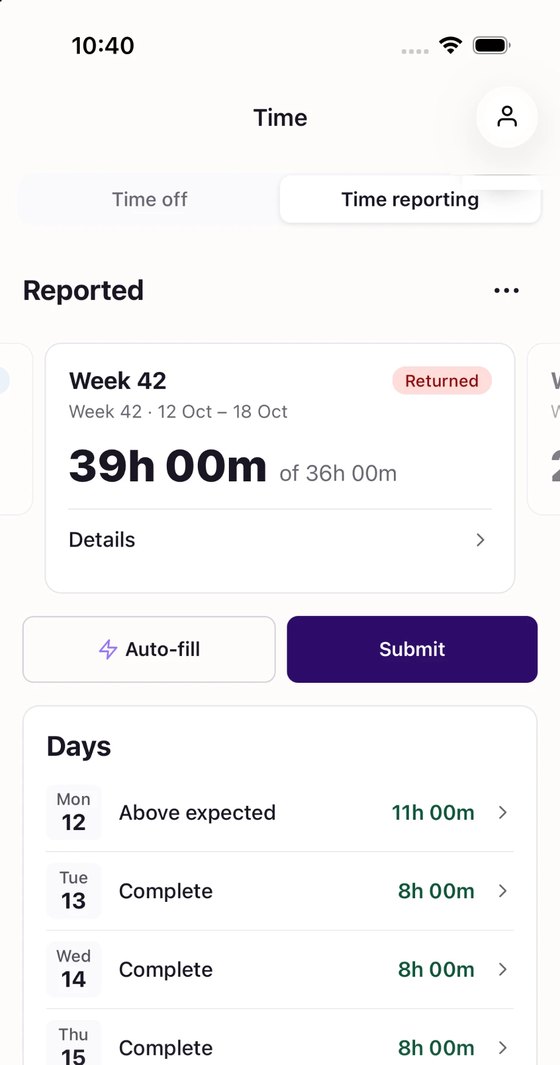
Under the card, the Days list shows each day with its hours. Each day has one of these labels:
- Missing hours: You have not reported enough hours for the day
- Below expected: You reported fewer hours than expected
- Complete: You reported the expected hours
- Above expected: You reported more hours than expected
- Coming up: The day has no reported hours yet
- Nothing to report: Leave covers the day
The Simployer app hides weekends by default. To see them, tap the ⋯ menu and tap Show non-working days.
What do the status badges mean in Simployer app Time reporting?
The status badge on the period card in Time reporting shows where your timesheet stands:
Badge | What it means |
5 days left | The period is open and more than 3 days remain |
2 days left | The period is open and 1 to 3 days remain |
Ends today | The period ends today |
Due 14 Oct | The period has ended. You can still submit or edit until that date |
3 days late | The date has passed and nobody submitted the timesheet |
Waiting for approval | You submitted the timesheet |
Approved | Your approver accepted the timesheet |
Returned | Your approver sent the timesheet back. Fix it and submit again |
How do I add, change or delete hours in the Simployer app?
- Tap the day you want to report.
- Tap Add entry to add new, or tap an existing entry to edit it.
- Enter the time. Depending on your company, you enter either hours and minutes (for example 7 h 30 min) or a start and an end time (for example 08:00 to 15:30).
- Pick a project if you have the option.
- Tap Add. If you are changing an entry, tap Save.
To delete an entry, tap the entry, tap Delete, and confirm.
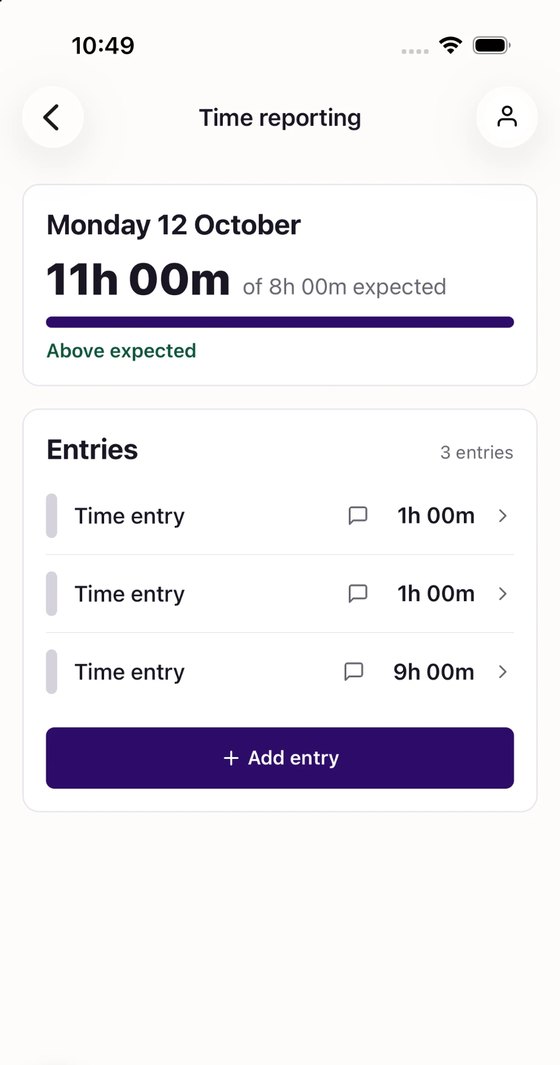
The Save button stays dimmed until the entry is valid.
If a message appears under a field, such as "Enter the time worked" or "End time can't be earlier than start time", fix that field and tap Save again.
Note: You cannot add, change or delete entries while your timesheet is submitted or approved. See "What happens after I submit my timesheet in the Simployer app?" below.
How do I fill missing days with Auto-fill in Simployer app Time reporting?
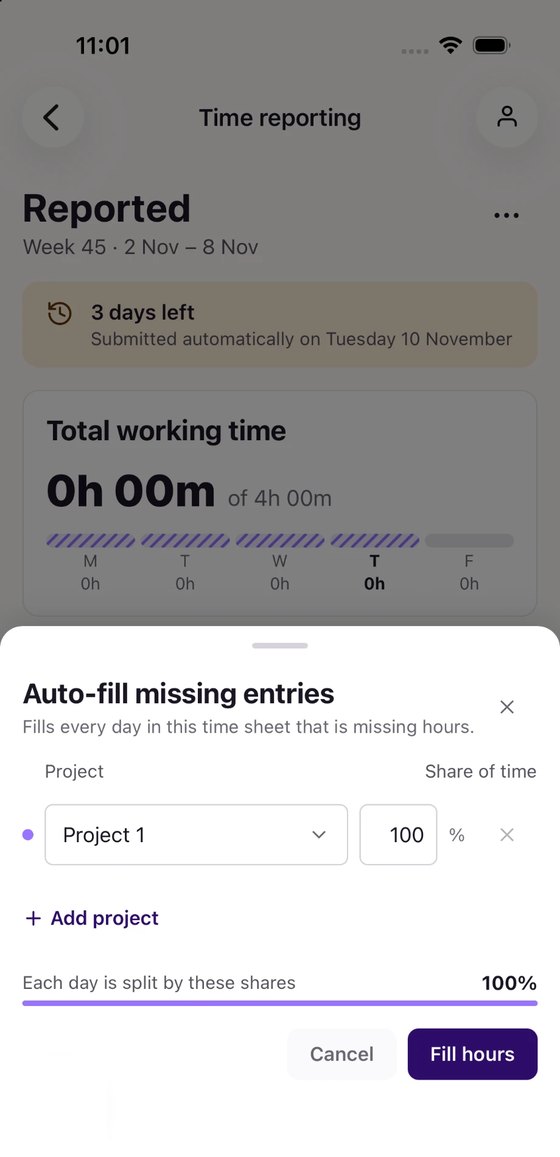
Auto-fill fills every day in your timesheet that is missing hours.
- Open the Time tab and tap Time reporting.
- Tap Auto-fill.
- If your company reports hours on projects, pick the project for the filled hours. To split the time, add more projects and give each a share. The shares must add up to 100%. Fill hours stays unavailable until they do.
- Tap Fill hours.
A message tells you how many days the Simployer app filled.
Tip: Double check the filled days before you submit your timesheet.
How do I clock in and out in the Simployer app?
You can clock in and out only if your company allows it. When it does, the current period in Time reporting shows a clock line. You cannot clock in on a locked timesheet.
To clock in:
- Open the Time tab and tap Time reporting.
- On the clock line that reads "Not clocked in", tap Clock in.
The clock line then reads "Clocked in · since 08:12 · 1h 05m" and keeps counting.
To clock out:
- Tap Clock out.
- Choose one of the options:
- Save entry: adds the time to today as one entry. You can pick a project.
- Discard: drops the running time. The app first asks "Discard this time?".
How do I check my total hours and balance in Simployer app Time reporting?
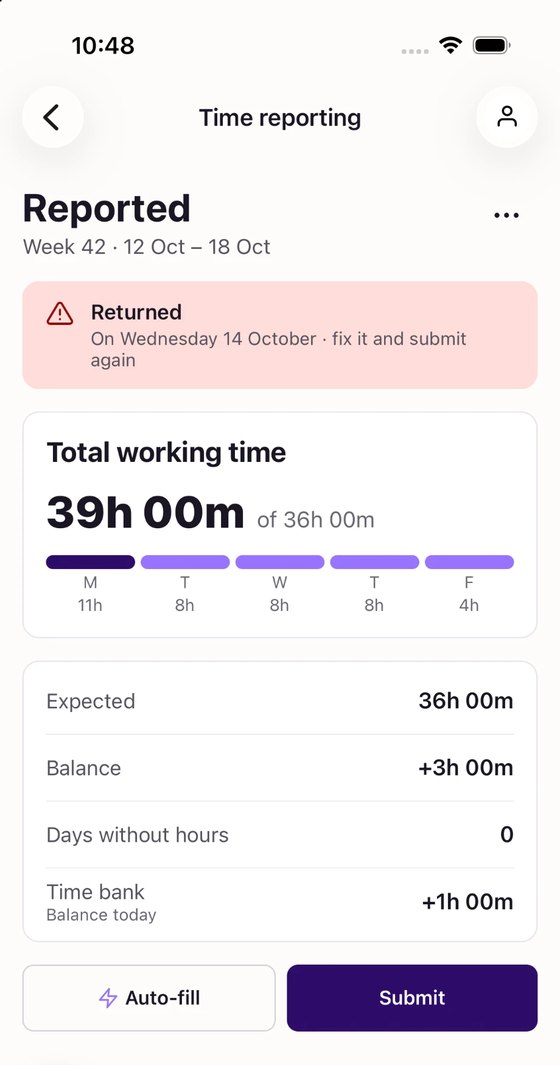
- Tap Details on the period card.
The Reported page opens and shows:
- The status of your timesheet
- Your total working time per day
- The expected time
- Your balance
- The days without hours
- Your time bank, if your company uses one
A positive balance means you reported more hours than expected.
On the Reported page, tap the ⋯ menu to open Colour legend, which explains every colour, or Comments.
How do I submit my timesheet in the Simployer app?
- Tap Submit.
- Check your reported time, the expected time and the balance. The balance turns amber when it is negative.
- Add a comment if you want to.
- Tap Submit.
The badge now reads Waiting for approval and a message confirms your submission.
If the app cannot save your comment, your timesheet is still submitted and the app tells you.
If you do not submit your timesheet yourself, your company may submit it for you on the deadline date.
The Reported page shows when. You can edit your timesheet until then.
What happens after I submit my timesheet in the Simployer app?
The status of your timesheet decides whether you can edit it:
- Waiting for approval or Approved: The timesheet is locked. You cannot add, change or delete entries. Auto-fill and Submit are no longer available.
- Returned: The timesheet is open again. Fix what your approver asked for and submit it again.
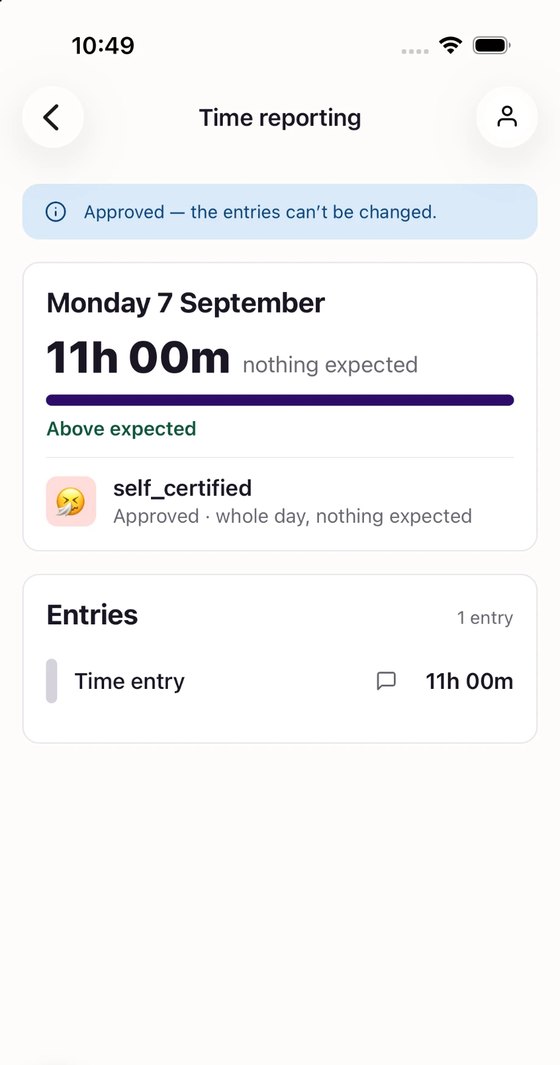
To comment on the whole timesheet, tap ⋯, then Comments. Each entry also has its own comment thread. Open it from the speech bubble in the day view.
When do I get reminders to submit my timesheet in the Simployer app?
The Simployer app sends you up to three push notifications before your timesheet deadline. Tap a notification to go straight to your timesheet.
- Submitting your timesheet stops the remaining reminders.
- Approval of your timesheet also stops the remaining reminders.
- If your approver returns your timesheet, the reminders start again.
Frequently asked questions about time reporting in the Simployer app
Why don't I see Time reporting in the Time tab of the Simployer app?
Your company has not turned on Time reporting.
Why can't I change an entry, and why are Auto-fill and Submit missing in the Simployer app?
Your timesheet is locked because it is submitted or approved. You can change a returned timesheet again.
Why don't I see the clock, or why can't I clock in, in Simployer app Time reporting?
Your company has to allow clocking in and out. The clock only shows on the current period. You cannot clock in on a locked timesheet.
Why can't I pick a project in Auto-fill in the Simployer app?
Your company has not turned on reporting hours on projects.
Why didn't my expected time drop on a day with leave in Simployer app Time reporting?
Leave that is waiting for approval does not lower your expected time until your approver accepts it. For more information, read our article: What should I do if my timesheet contains vacation or sick leave?
What do I do if the Simployer app says it couldn't load my timesheet?
Your hours are saved. Tap Try again.
Was this article helpful?
That’s Great!
Thank you for your feedback
Sorry! We couldn't be helpful
Thank you for your feedback
Feedback sent
We appreciate your effort and will try to fix the article